
How to update, activate, and deactivate themes on Webcentral Managed WordPress
Learn how to update, activate, and deactivate themes on Webcentral Managed WordPress plans.
You typically update, activate, and deactivate installed themes on your WordPress site from the WordPress Admin area. But you can also achieve this from the Webcentral Dashboard. To do this, follow these steps:
- Log in to the Webcentral Panel at https://theconsole.webcentral.au/
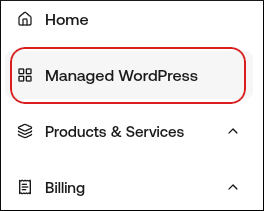
- In the left sidebar, click Managed WordPress:
- On the My Websites page, locate the site, and then click Manage

- On the Webcentral dashboard, click the Themes icon:

- A list of all installed themes appears, showing each theme’s name, description, version, status, and available actions:
- To activate a theme: Click Activate on the right side of the theme row.
- To deactivate the active theme: First, activate a different theme (WordPress always requires one active theme).
- If an update is available, An Update option will appear in the Actions column.