
Viewing WordPress error logs in the File Manager on Webcentral Managed WordPress
Learn how to view the WordPress error logs using the File Manager in the Webcentral Dashboard.
When troubleshooting various WordPress issues, you may need to view the error_log file for your website. This log file contains errors that are created by WordPress core, plugins, or themes and can be useful for diagnosing problems.
To view the error_log file, follow these steps:
- Log in to the Webcentral Panel at https://theconsole.webcentral.au/
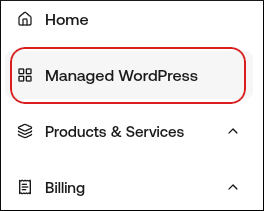
- In the left sidebar, click Managed WordPress:
- On the My Websites page, locate the site, and then click Manage

- On the Webcentral
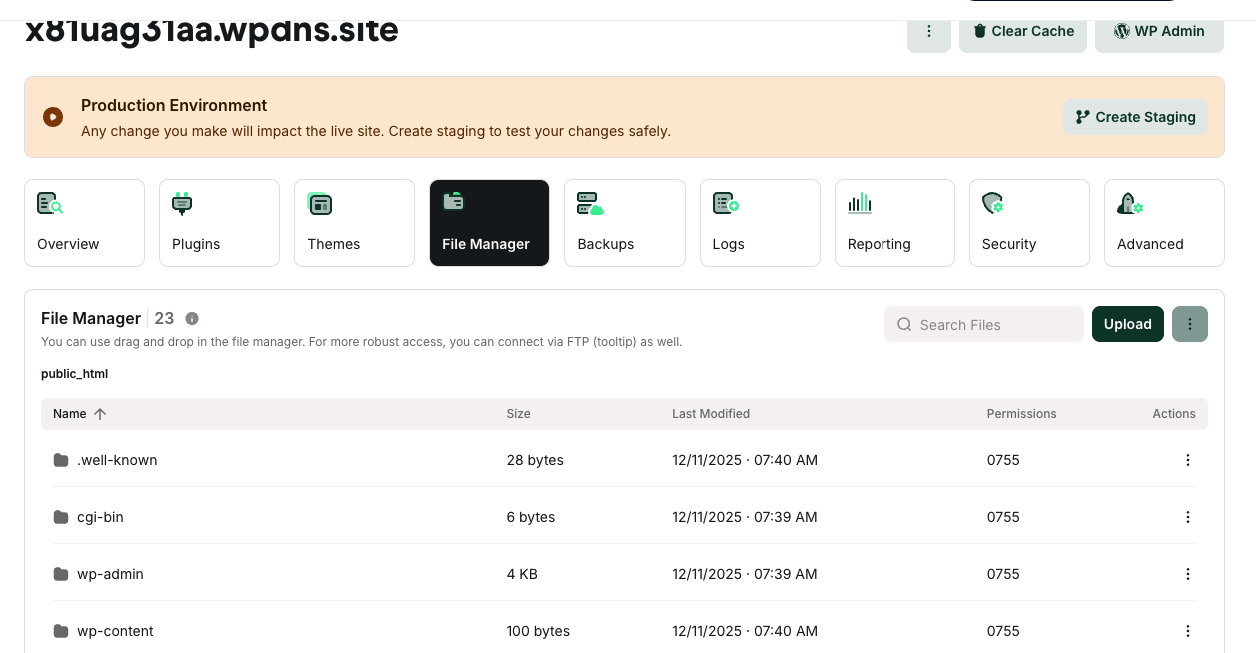
- dashboard, click the File Manager icon:
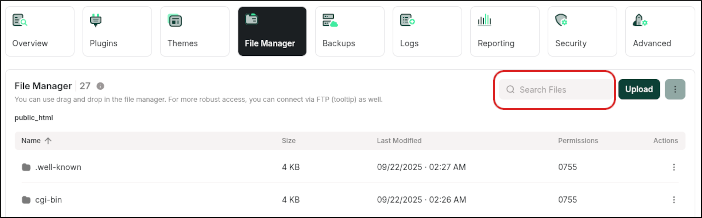
- In the Search Files text box, type error_log:
- If there is an error_log file present, click the filename to view its contents. On the right side is a scrollbar that shows your current position in the file. The error_log file will often have very long lines, so you can use thescrollbar at the bottom to scroll to the right to see the rest of the line.
- If an error_log file is not present, then clear the search, and check again in the wp-admin and wp-content folders. If you don’t see any error_log files, you might need assistance. You can open a support ticket with us at https://theconsole.webcentral.au/