
Using the File Manager in Enhance
Learn how to manage your website files from one convenient interface in Enhance Control Panel.
Managing your website files in the Hosting Panel
Open the File Manager
-
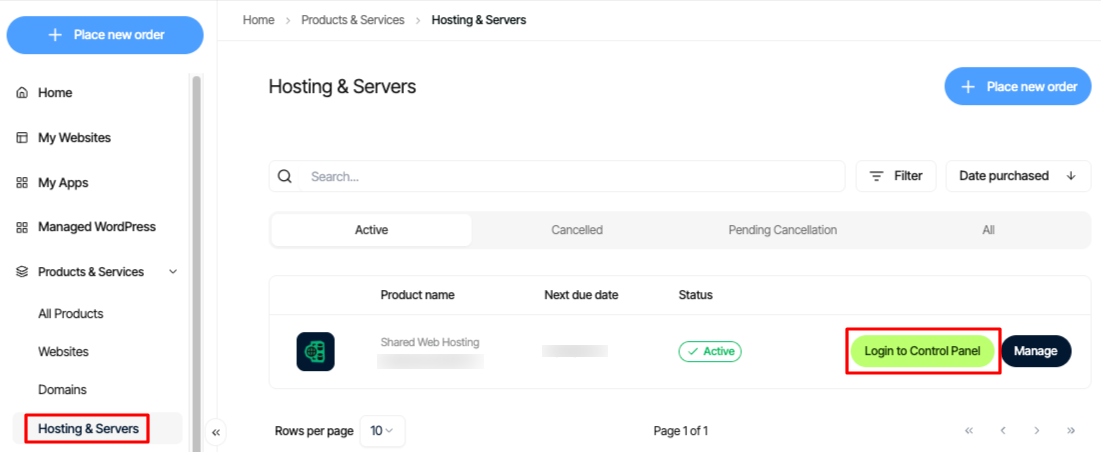
Log in to your Enhance control panel, go to Products & Services > Hosting & Servers, locate your Enhance Shared Hosting account, then click Login to Control Panel.
-
In the left sidebar, click Websites.

-
On the Manage websites page, click the website you want to manage.
-
Click the Files tab.

-
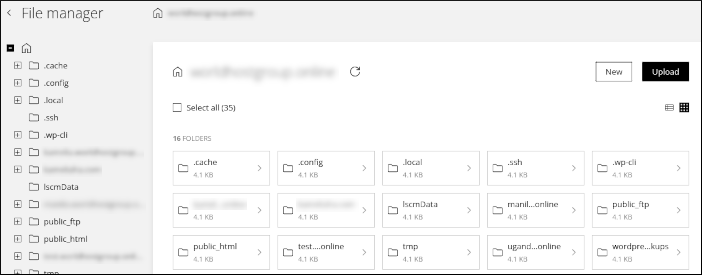
The File manager appears.
Navigate your files
Use the folder tree in the left sidebar to move through the file system:
- Click a folder name to view its contents in the right pane.
- Click the plus sign (+) icon to show subfolders under the current folder.
Manage files and folders
In the right pane, you can perform these actions.
Sort items
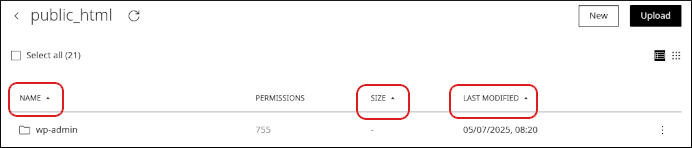
To sort the listing by name, size, or last modified date, click a column heading.
Create a file or folder
- Click New.
- Click File or Folder.
Upload a file or folder
- Click Upload.
- Click File or Folder.
Modify an existing file or folder
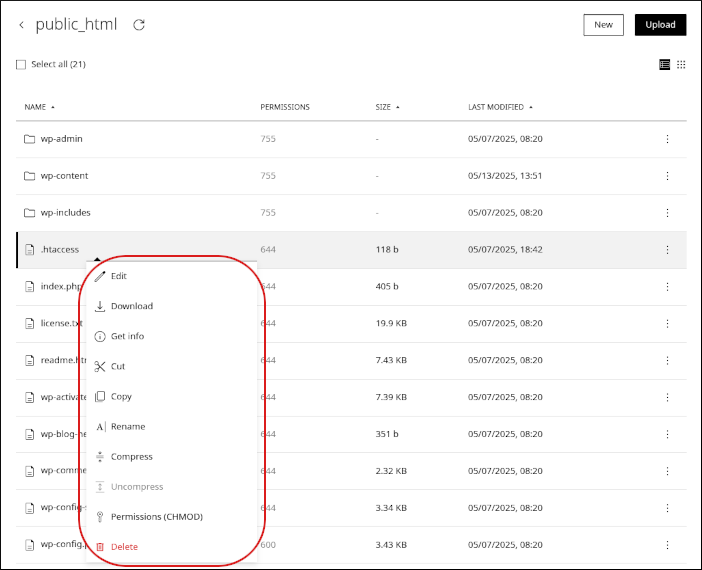
Right-click a file or folder, and then select one of these options:
- Edit: Edit a file.
- Download: Download a file to your local computer.
- Get info: View the path, size, permissions, and other details for a file or folder.
- Copy: Copy a file or folder.
- Rename: Rename a file or folder.
- Compress: Compress a file or folder.
- Uncompress: Extract a compressed file or folder.
- Permissions (CHMOD): Change permissions for a file or folder.
- Delete: Delete a file or folder.
Process multiple files at once
To perform actions on multiple files at the same time:
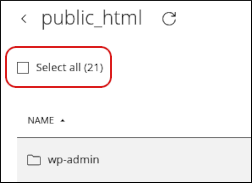
- Select the Select all checkbox.
- Choose one of the options that appears at the bottom of the page.

ImportantBe careful when working with multiple files at once, especially when you are deleting items.
Related articles
- Managing your WordPress site in Enhance
- Installing an SSL certificate in Enhance
- Managing your Domains in Enhance
- Managing your Email in Enhance
- Managing Backups in Enhance
- Managing your MySQL databases in Enhance
- Managing FTP accounts in Enhance
- Changing PHP versions and settings in Enhance
- Configuring SSH access in Enhance