
Changing the domain name of a website on Webcentral Managed WordPress
Learn how to change the domain name of an active website on Webcentral Managed WordPress.
This article demonstrates how to change the domain name of an active website on Webcentral Managed WordPress.
Important Changing the domain name of an active website causes the old domain name to stop working. If this is not what you intend, then do not follow this procedure.
To change the domain name for a website, follow these steps:
- Log in to the Webcentral Panel at https://theconsole.webcentral.au/
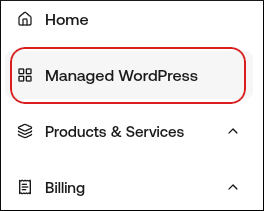
- In the left sidebar, click Managed WordPress:
- On the My Websites page, locate the site, and then click Manage

- On the Webcentral dashboard, on the Overview tab, scroll down to the Domains section, and then click the pencil icon:

- In the Change Domain dialog box, in the Domain text box, type the new domain name:

- Read the warning message, and if you agree, select the check box.
- Click Change. The domain for the website changes to the new value you specified.