
Managing your Email in Enhance
Learn how to manage your email accounts from one convenient interface your Enhance Control Panel.
Managing your email in Enhance
Manage your email accounts, forwarders, spam settings, and autoresponders in Enhance.
Manage email
-
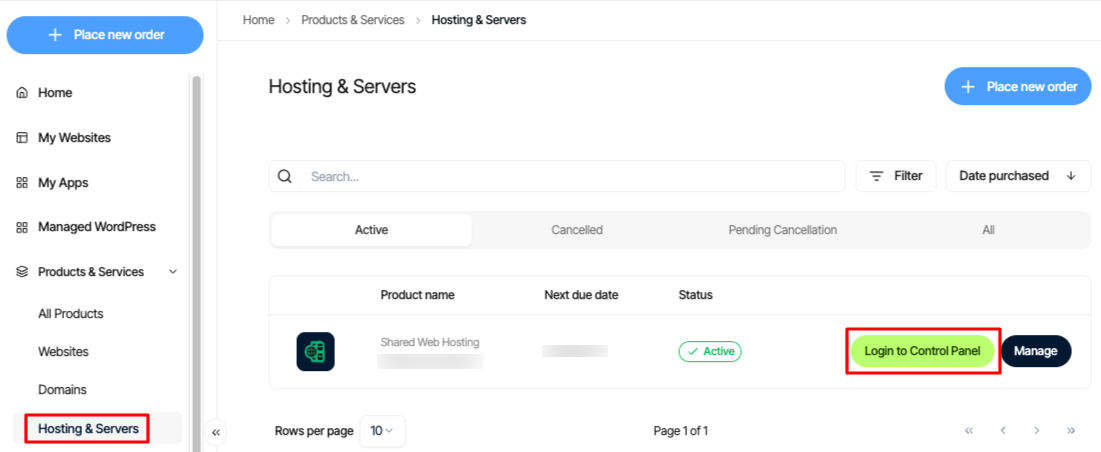
Log in to your Enhance control panel, go to Products & Services > Hosting & Servers, locate your Enhance Shared Hosting account, then click Login to Control Panel.
-
In the left sidebar, click Websites.

-
On the Manage websites page, click the website you want to manage.
-
Click the Emails tab.

-
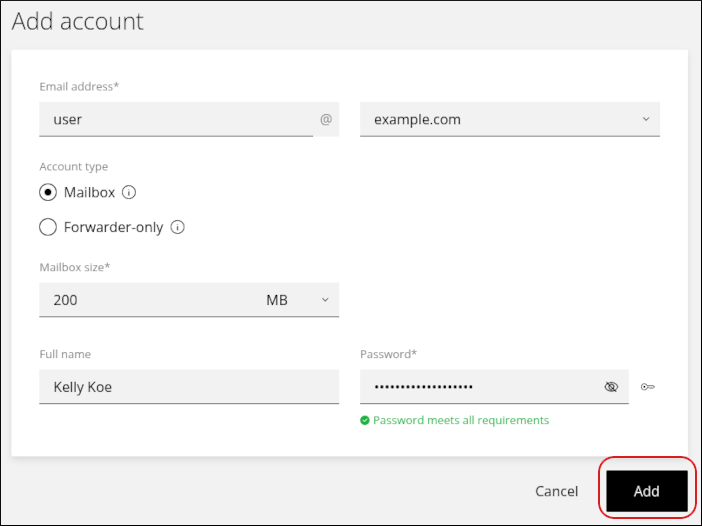
To add an account, click Add account.

-
Complete the fields, and then click Add.
-
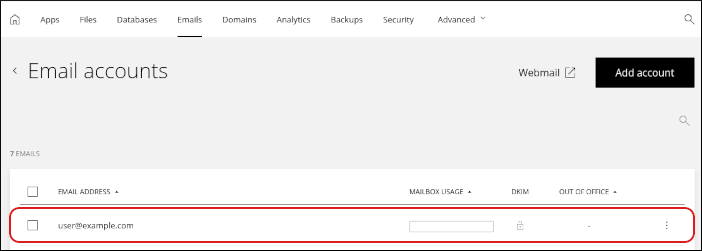
To modify an existing account, click the account in the list.
What you can manage
For each email account, you can change the following settings:
- Display name
- Mailbox size
- Password
- Forwarders
- Spam settings
- Out-of-office notifications (autoresponders)
You can also view email client settings for IMAP, POP, and SMTP.
Related articles
- Managing your WordPress site in Enhance
- Installing an SSL certificate in Enhance
- Managing your Domains in Enhance
- Using the File Manager in Enhance
- Managing Backups in Enhance
- Managing your MySQL databases in Enhance
- Managing FTP accounts in Enhance
- Changing PHP versions and settings in Enhance
- Configuring SSH access in Enhance