
How to manage your site on Webcentral Managed WordPress
Learn how to use the Webcentral Dashboard to manage your websites quickly and easily.
When you log in to your Webcentral Managed WordPress account, you can immediately see an overview of your WordPress sites, total visits for the month, disk and bandwidth usage, and updates that we send out regularly.
Accessing the Webcentral Dashboard
To access the Webcentral Dashboard for a site, follow these steps:
- Log in to the Webcentral Panel at https://theconsole.webcentral.au/
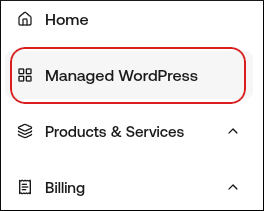
- In the left sidebar, click Managed WordPress:
- On the My Websites page, locate the site, and then click Manage

- The Webcentral Dashboard appears with several tabs:

- Overview
- Plugins
- Themes
- File Manager
- Backups
- Logs
- Reporting
- Security
- Advanced
The following sections describe each of these tabs in greater detail.
The Overview tab
On the Overview tab, you can find all of your website information and account features, including:
- Domain name.
- One-click WordPress admin dashboard login.
- Clear the cache.
- Plugins, themes, and backups overview.
- CDN and WAF reports.
- Advanced settings.
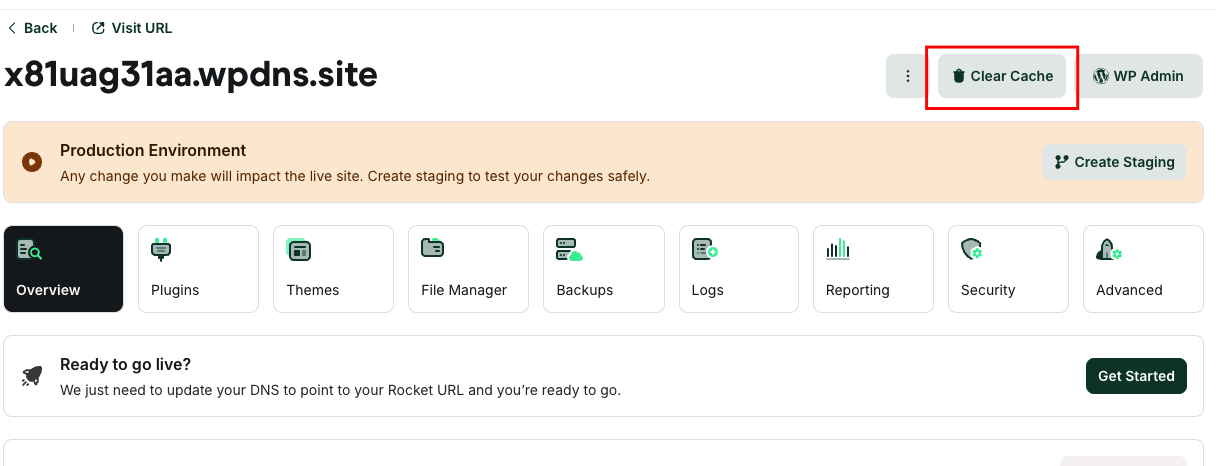
Clearing the cache
To clear your website cache, click Clear Cache:
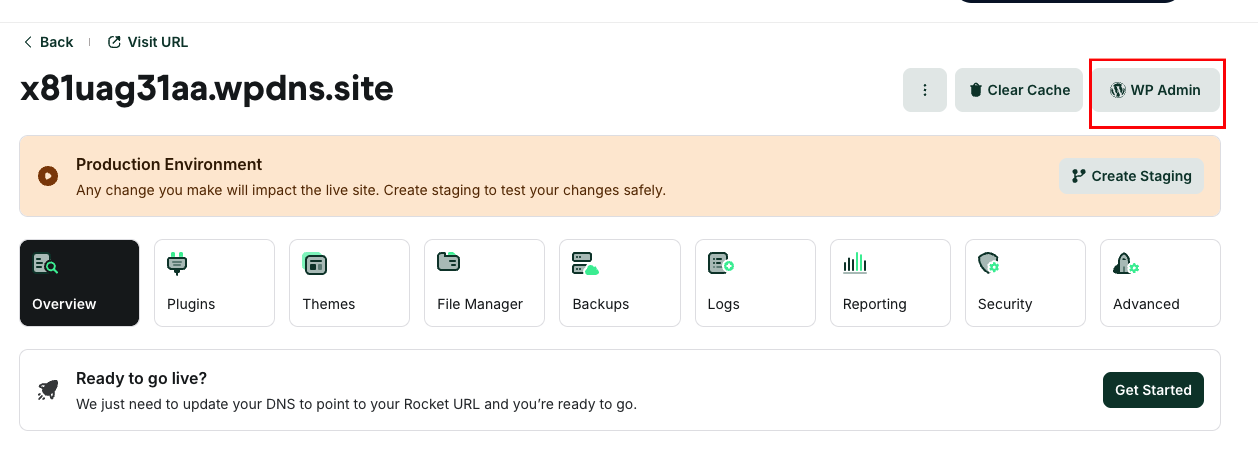
One-click WordPress login
To log in to the WordPress admin dashboard directly, click** WP Admin**:
Staging website creation
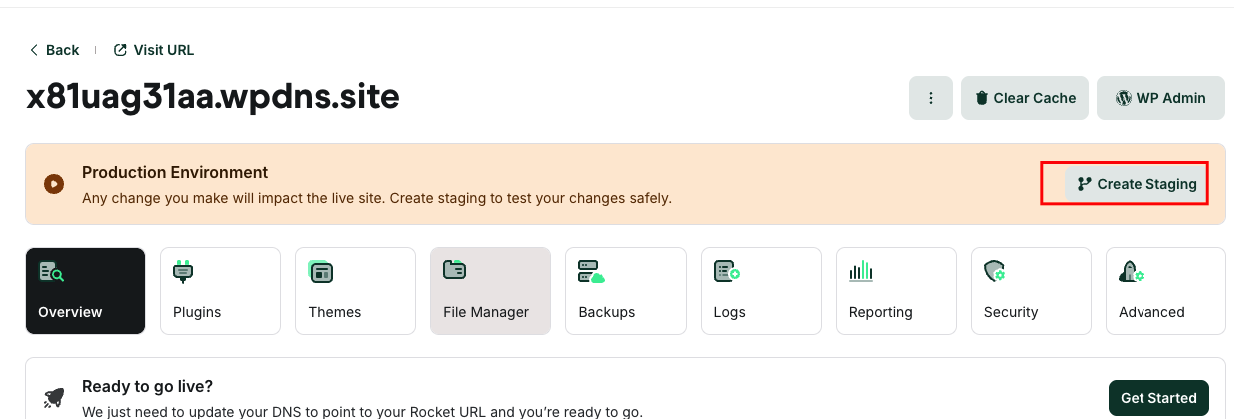
There are Production and Staging status indicators to remind you which site you are currently managing. You can easily change between the production and staging environments using the following list box:
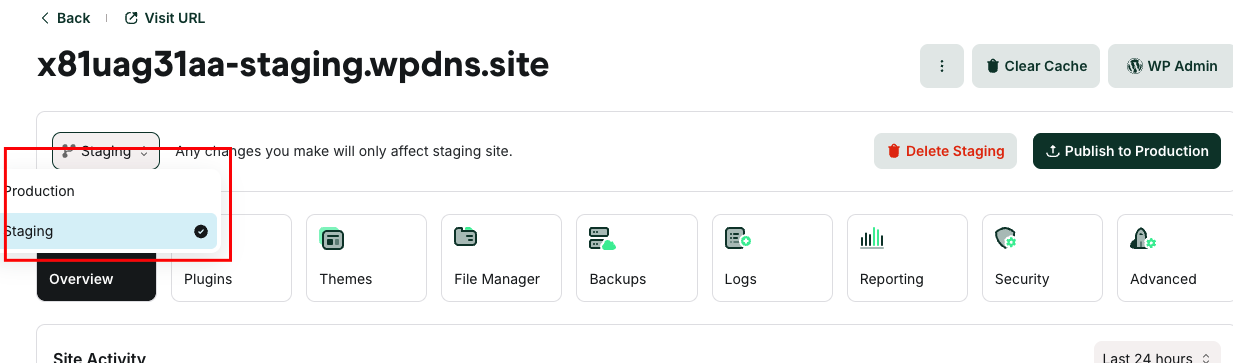
Staging environments give you a playground to test new plugins and themes, the latest PHP versions, code modifications, and other changes. When you create a staging site, it is a copy of your live site. When you’re ready, you can send all changes back to your live site with the click of a button.
To create a staging site, click Create Staging:
The Plugins tab
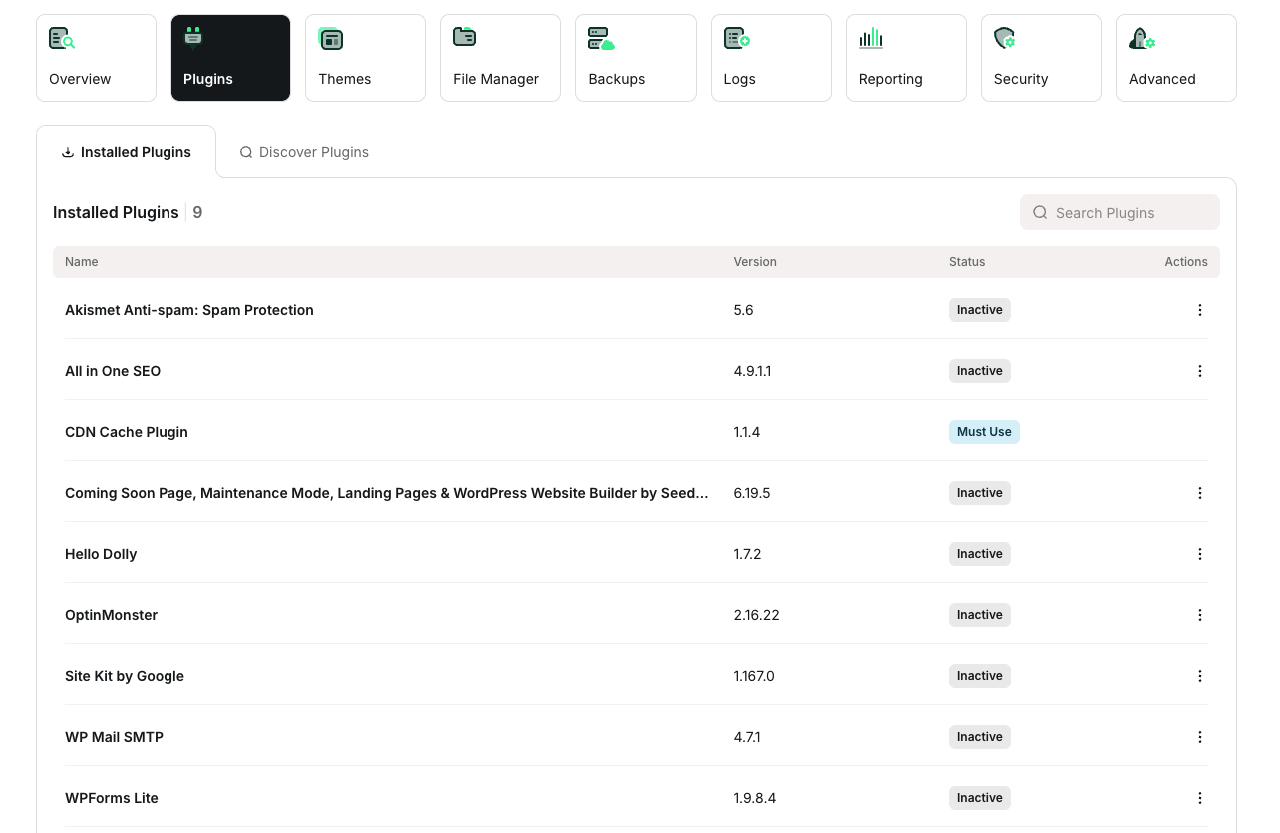
On the Plugins tab is a list of all of your installed WordPress plugins, both activated and inactive. You can view the current version number, as well as if there are any updates available. Also, you can install and activate a plugin without logging in to the WordPress admin dashboard
The Themes tab
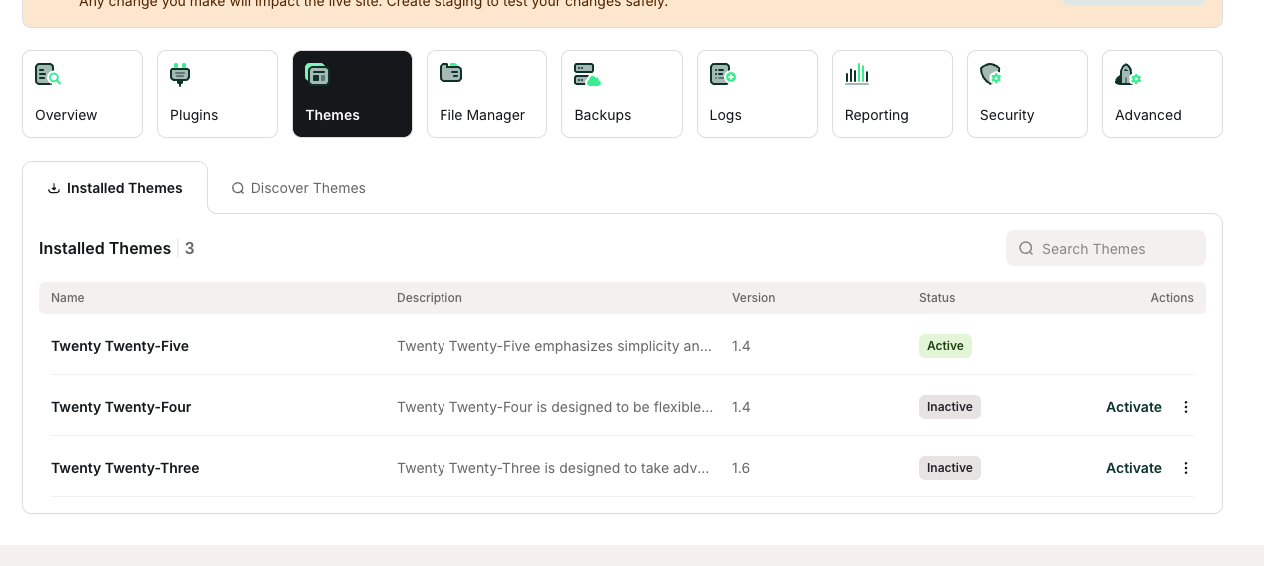
On the Themes tab is a list of all of your installed WordPress themes, both activated and inactive. You can view the current version number, as well as if there are any updates available. Also, you can install and activate a theme without logging in to the WordPress admin dashboard.
The File Manager tab
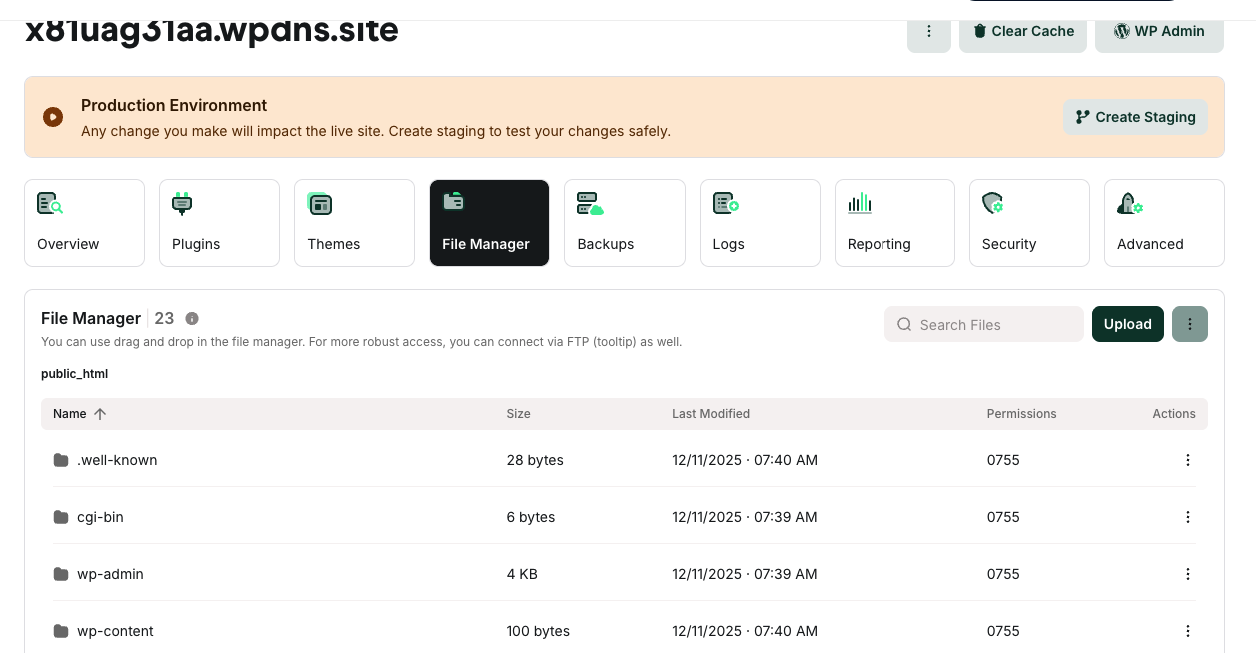
On the File Manager tab, you can view, edit, upload, download, and delete your website files.
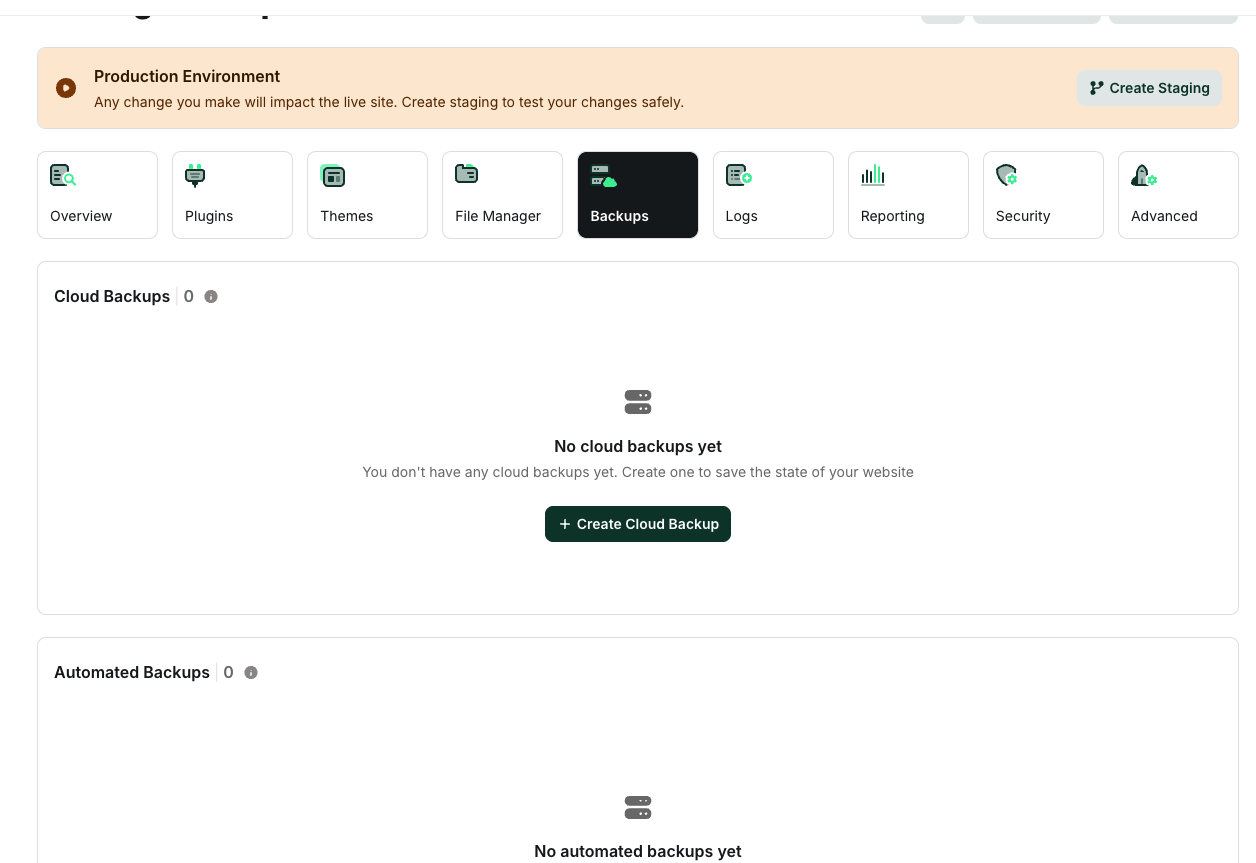
The Backups tab
The Backups tab is divided into two sections:
- Cloud Backups: You can create as many cloud backups as you want, depending on your disk space. These are recommended when you’re rolling out a change on your live site that perhaps you couldn’t test on staging.
- Automated Backups: We create an automatic system backup every day.
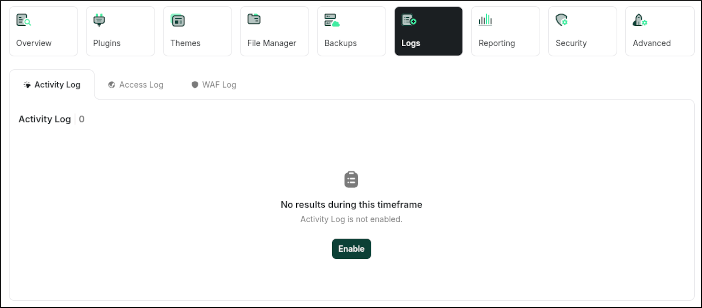
The Logs tab On the Logs tab, you can enable and view logging for:
- Activity Log
- Access Log
- WAF (Web Application Firewall) Log
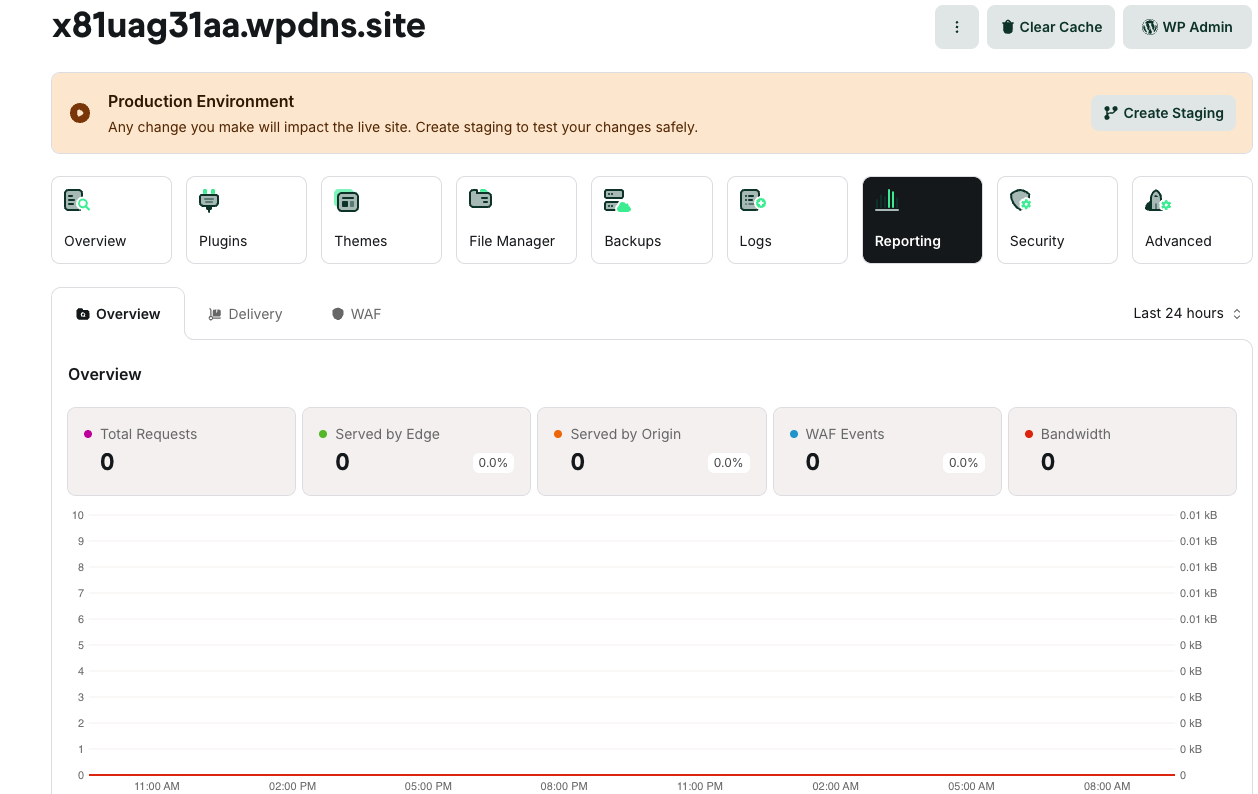
The Reporting tab
On the Reporting tab, you can view detailed statistics about your site's visitors, the WAF (Web Application Firewall), and CDN (Content Delivery Network).
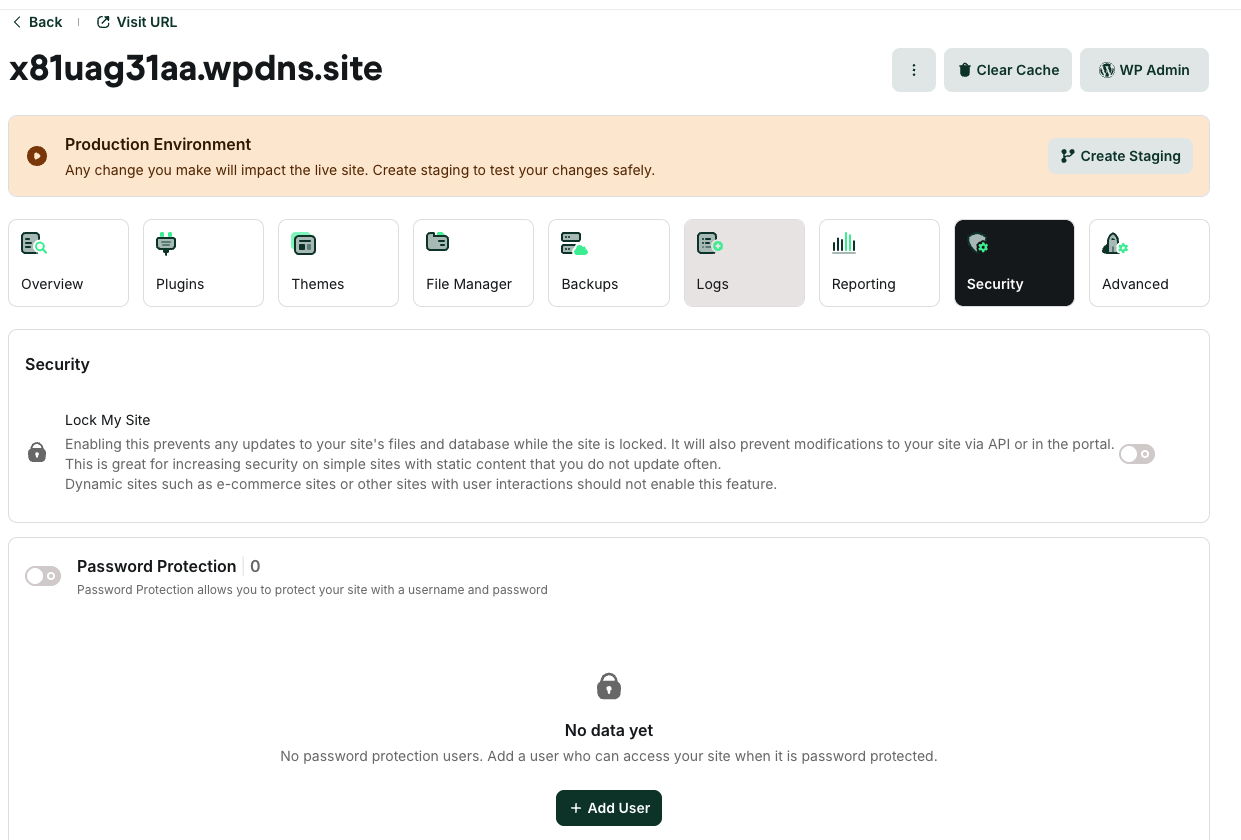
The Security tab
On the Security tab, you can lock your site to prevent any updates to your site's files and database. For example, if you have a site with static content, this feature helps increase site security. On the other hand, if you have a site with dynamic content (such as an e-commerce site), you should not enable this feature.
You can also add password protection to your site. When this is enabled, visitors must type a username and password to view your site.
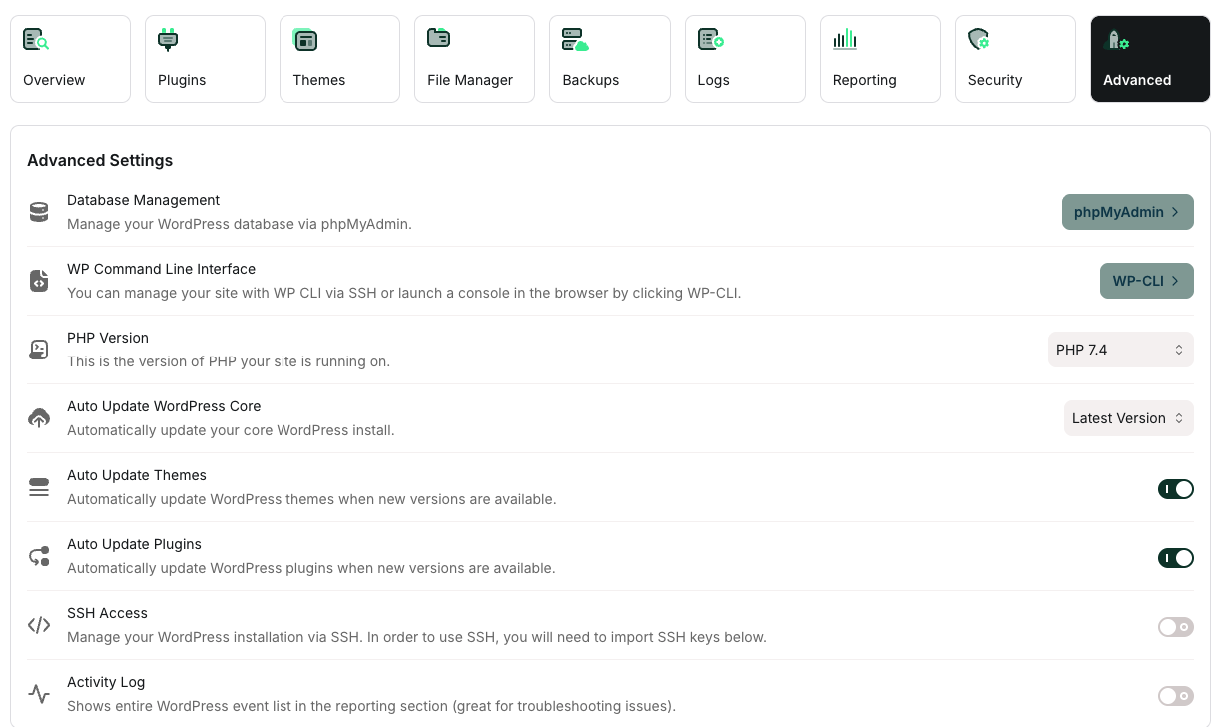
The Advanced tab
On the Advanced tab, you can:
- Manage your database.
- Access WP-CLI for a command-line interface to WordPress.
- Select the active PHP version for your site.
- Enable SSH access.
- Enable or disable automatic updates for WordPress core, themes, and plugins.
- Delete the website.
Updated 4 months ago