- IMAP
- server: mail.wcg-mail.com
- port: 993 (SSL encryption)
- SMTP
- server: mail.wcg-mail.com
- port 587 - encryption TLS
Add your email to Windows Mail
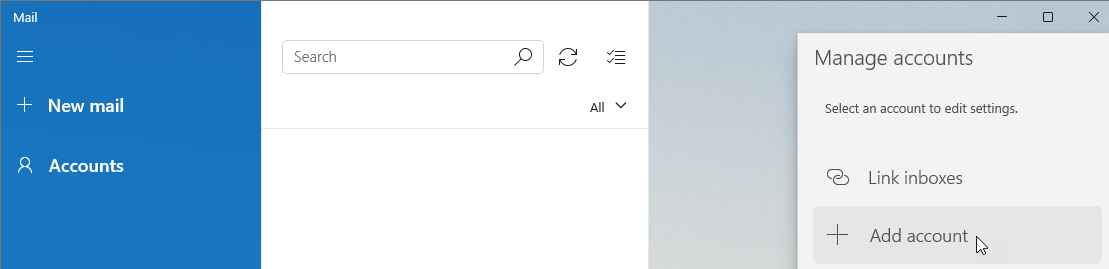
- Open Windows Mail
- Click Accounts
- Click +Add account
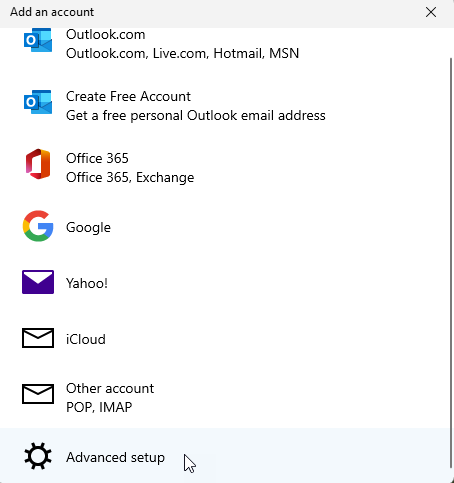
- Click Advanced setup
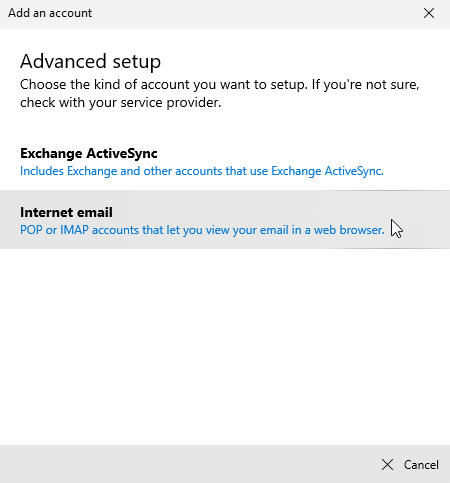
- Click Internet email
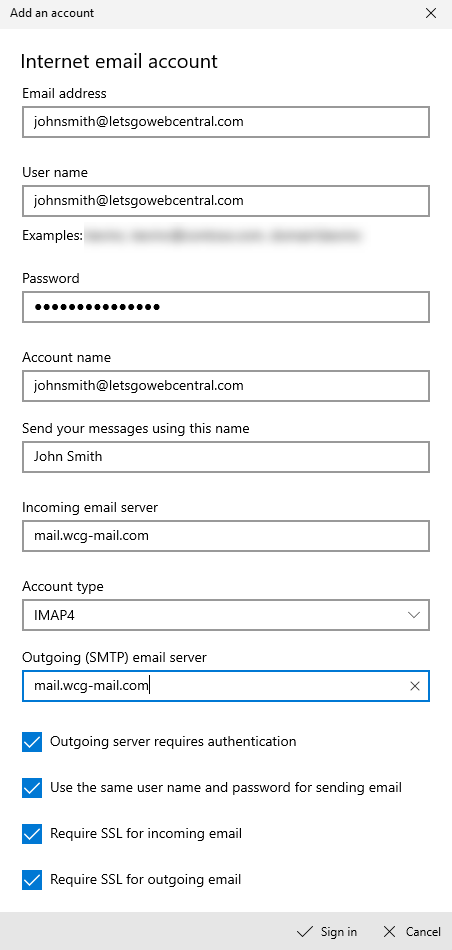
- Under Email address, type in your email address
- Under User name, type in your email address again
- Under Password, enter your password
- Under Account name, name this account (e.g. your email address or name)
- Under Send your message using this name, type in whatever you want customers to see as the sender (e.g. your name or business)
- Under Incoming email server, type in mail.wcg-mail.com
- Under Account type, select the type of account you want to add
- Under Outgoing (SMTP) email server, type in mail.wcg-mail.com
- Leave all the options ticked
- Click Sign in
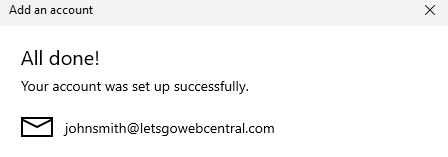
- Click Done