

- Log in to the Webcentral Panel at https://theconsole.webcentral.au/
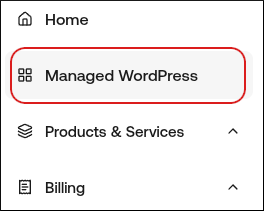
- In the left sidebar, click Managed WordPress:
- On the My Websites page, locate the site, and then click Manage:

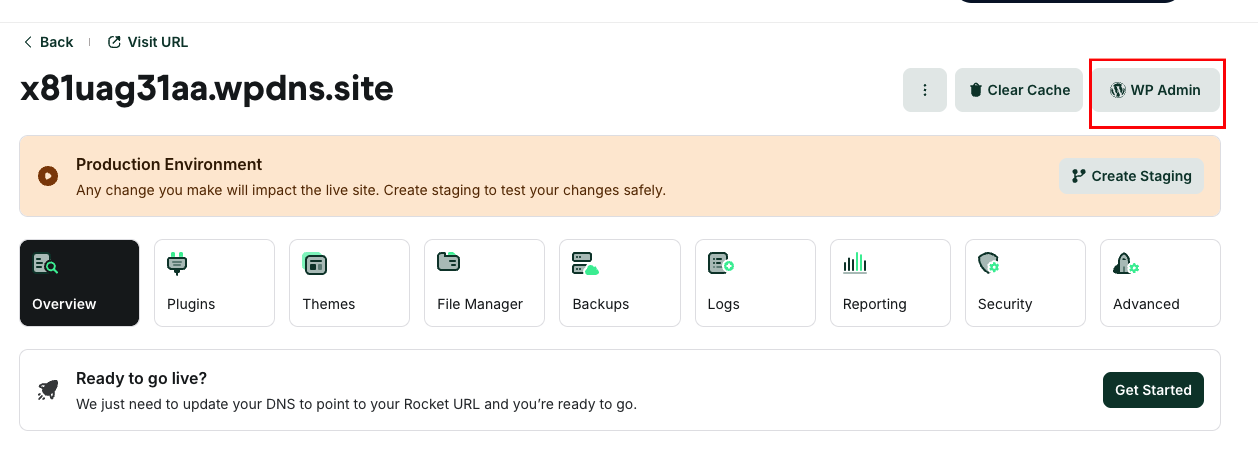
- At the top right of the page, click WP Admin:
- In the WordPress admin area, on the top menu bar, hover over CDN Cache and then click one of the following options:
- Purge Everything: This option clears the cache for your entire site.
- Custom purge: This option enables you to purge specific URLs. This can be useful if you want to preserve your site’s cache, but refresh just a single page or element.
Method #2: Purging the cache from the Webcentral Dashboard You can also purge your site’s cache from the Webcentral Dashboard. To do this, follow these steps:
- Log in to the Webcentral Panel at https://theconsole.webcentral.au/
- In the left sidebar, click Managed WordPress:
- On the My Websites page, locate the site, and then click Manage:
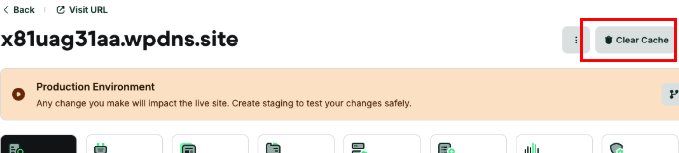
- At the top right of the page, click Clear Cache:
- In the Clear Cache dialog box, select an option:
- Purge Everything: This option clears the cache for your entire site.
- Purge Specific URL Paths: This option enables you to purge specific URLs. This can be useful if you want to preserve your site’s cache, but refresh just a single page or element.
- Click Purge.