- Log in to the Hosting Panel at https://theconsole.webcentral.au.
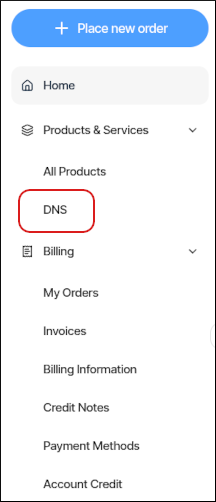
- In the left sidebar, under Products & Services, click DNS:
- If you previously created a zone for your domain, in the Select a domain list box, select your domain, and then click Manage Domain. Go to step 5.
- If you have not created a zone previously for your domain, the Create a new zone dialog appears:
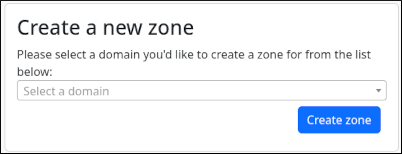
- In the Select a domain list box, select your domain, and then click Create zone.
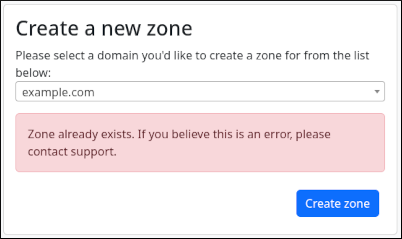
If you click Create zone and receive a Zone already exists message, then the domain you selected already has a DNS zone on our nameservers. Most likely the domain is associated with a hosting product and is not a standalone domain:
- In the Select a domain list box, select your domain, and then click Create zone.
- The DNS Editor tab appears for the domain:
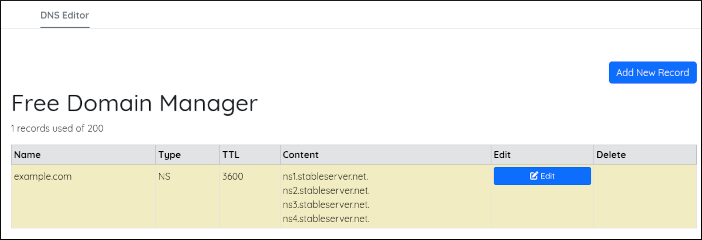
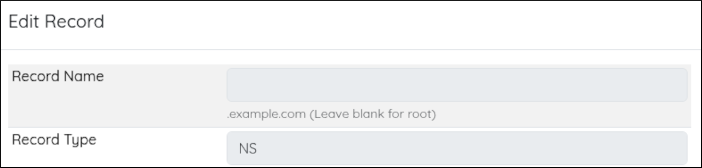
- To edit an existing record in the zone, click Edit, make your changes, and then click Save Changes:
- To delete an existing record in the zone, click Delete.
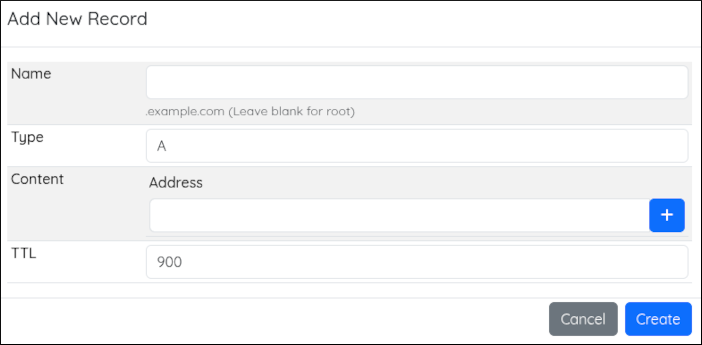
- To add a new record to the zone, click Add New Record, and then click Create:
- To edit an existing record in the zone, click Edit, make your changes, and then click Save Changes:
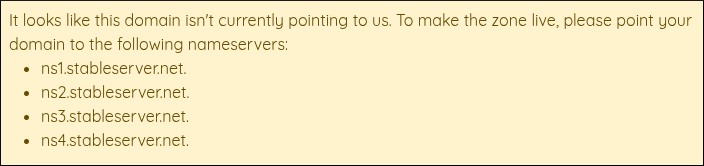
If you receive a It looks like this domain isn’t currently pointing to us message, then your domain’s nameservers are pointed to another provider. For your DNS changes in the Hosting Panel to take effect, you must update the nameservers for your domain: