

Managing your email in Enhance
Manage your email accounts, forwarders, spam settings, and autoresponders in Enhance.Manage email
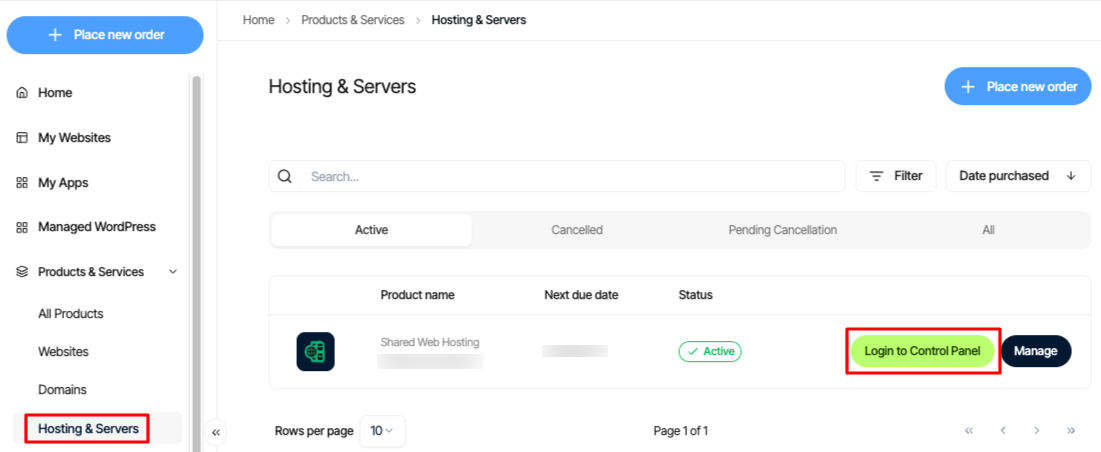
- Log in to your Enhance control panel, go to Products & Services > Hosting & Servers, locate your Enhance Shared Hosting account, then click Login to Control Panel.
- In the left sidebar, click Websites.

- On the Manage websites page, click the website you want to manage.
- Click the Emails tab.

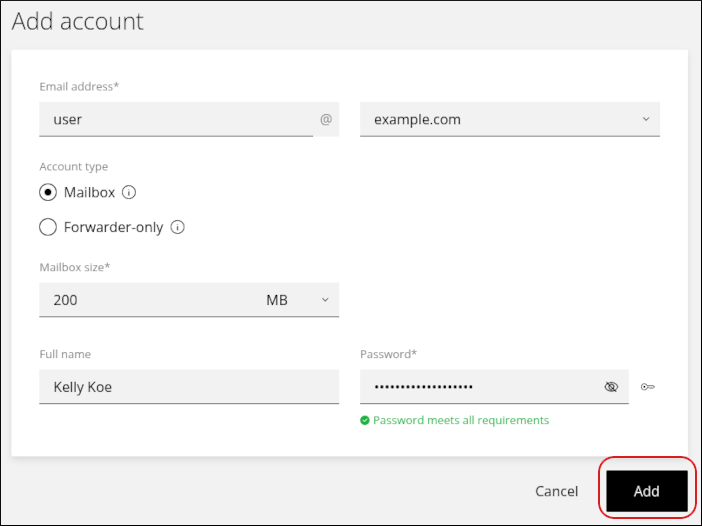
- To add an account, click Add account.

- Complete the fields, and then click Add.
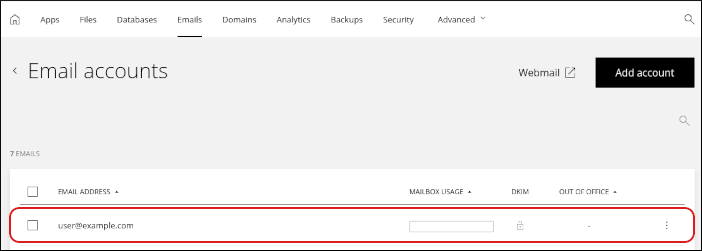
- To modify an existing account, click the account in the list.
What you can manage
For each email account, you can change the following settings:- Display name
- Mailbox size
- Password
- Forwarders
- Spam settings
- Out-of-office notifications (autoresponders)
Related articles
- Managing your WordPress site in Enhance
- Installing an SSL certificate in Enhance
- Managing your Domains in Enhance
- Using the File Manager in Enhance
- Managing Backups in Enhance
- Managing your MySQL databases in Enhance
- Managing FTP accounts in Enhance
- Changing PHP versions and settings in Enhance
- Configuring SSH access in Enhance