

- Log in to the Webcentral Panel at https://theconsole.webcentral.au/
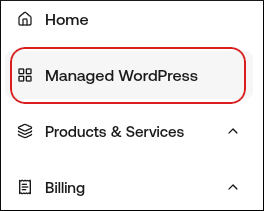
- In the left sidebar, click Managed WordPress:
- On the My Websites page, locate the site, and then click Manage

- On the Webcentral dashboard, click the Backups icon:

- In the Cloud Backups section, click Create Cloud Backup:

- Type a name for your backup, and then select the Backup Database check box. Make sure you do not select the Backup Files check box.
Note:
- Depending on the size of your website’s database, this process may only take a few moments. You can either visit this page later or wait a few moments and then refresh the page.
- When your database backup is ready, you’ll find it listed here with several options. You can download it to your computer for safekeeping, restore a backup, or delete backups to free up account storage if needed.
- Please make sure to take note of the database backup you just created. You can make any changes to your content as needed without worry now. If anything goes wrong, you can re-visit the Backups area, locate that database backup, and choose the Restore option to restore the database if needed.