

- An SSH public key.
- A terminal application (for example, PuTTy, MobaXterm, Terminal, iTerm, etc).
- Log in to the Webcentral Panel at https://theconsole.webcentral.au/
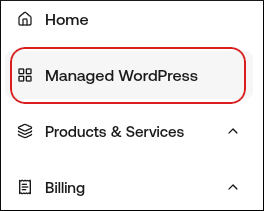
- In the left sidebar, click Managed WordPress:
- On the My Websites page, locate the site, and then click Manage

- On the Webcentral dashboard, click the Advanced icon:

- In the Advanced Settings section, click the SSH Access slider:

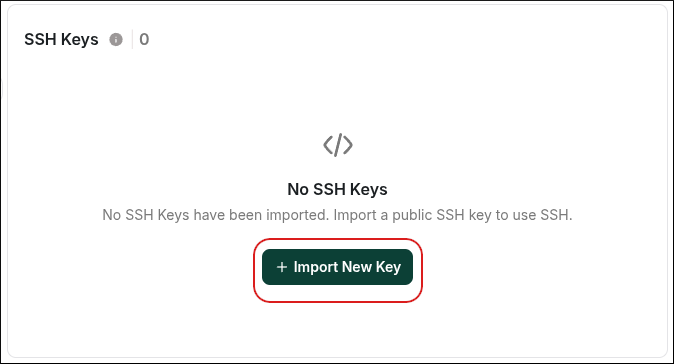
- Scroll down to the SSH Keys section, and then click Import New Key:
 Important:
- If you do not have a public key, you can generate a private key using a tool like PuTTY Key Generator and it will have an accompanying public key.
- Some key generators such as PuTTY Key Generator and MobaXterm SSH Key Generator save your public and private keys in a format that is not compatible with our system. But they do present you with the Public Key in a box specifically for copying and pasting into the Authorized Keys file. It is this text that you must paste into Import Key:
- In the Import New Key dialog box, in the Key Name text box, type a descriptive name for the key:
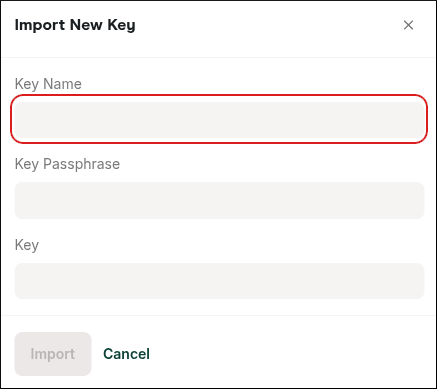
- In the Key Passphrase text box, type the passphrase for the key. If you did not create a key passphrase when you generated the key, then leave the Key Passphrase text box blank.
- In the Key text box, paste the public key.
- Click Import.
- After you import the key, activate the key by clicking the checkmark next to it so it is allowed to access SSH.
- SSH is now enabled on your site.
How to connect to SSH To connect to SSH, you use your private SSH key, the SSH/SFTP Username, and the FTP/SSH/SFTP Address. You can view this information on the General tab in the Site Information section of the Webcentral Dashboard. For example, the SSH command would look similar to the following: ssh username@172.24.136.21 Note: If your private key is in a specific location on your computer, the SSH command would look similar to the following: ssh -i ~/mykeys/id_rsa username@172.24.136.21