

Before you use WP-CLI, please read the release announcement at the Rocket.net blog for an overview and some basic information about how to use it.You can also run WP-CLI directly from the Webcentral Dashboard without having to set up SSH. For information about how to do this, go to Using WP-CLI in the Webcentral Dashboard.
- Open your system’s terminal or command-line tool:
- Microsoft Windows: Use Command Prompt or PowerShell.
- Apple macOS and Linux: Use Terminal.
- At the command prompt, type the following command:
- When you are prompted: i. Press Enter to accept the default location (usually ~/.ssh/id_rsa or similar). ii. Leave the passphrase empty.
- After the key pair is generated, to view and copy your public key type the following command:
- Log in to the Webcentral Panel at https://theconsole.webcentral.au/
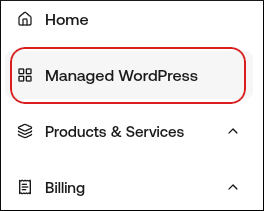
- In the left sidebar, click Managed WordPress:
- On the My Websites page, locate the site for which you want to enable SSH, and then click Manage:

- On the Webcentral dashboard, click the Advanced icon:
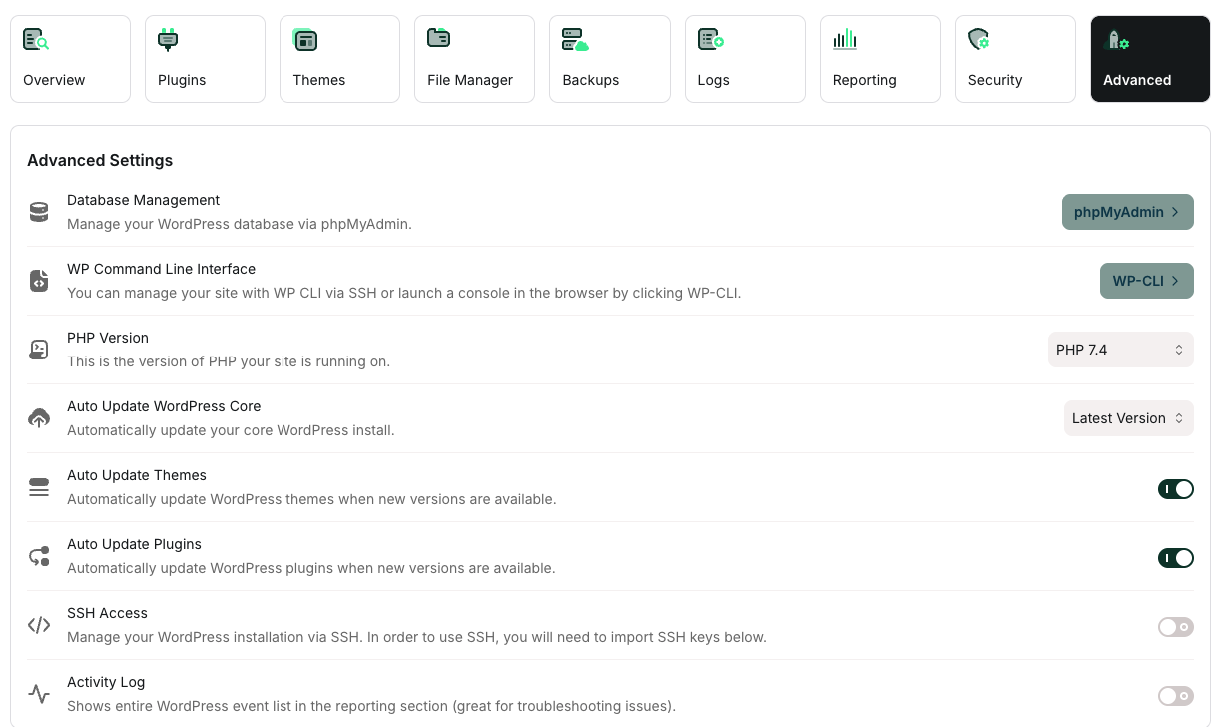
- In the Advanced Settings section, click the SSH Access slider if it is not already enabled:

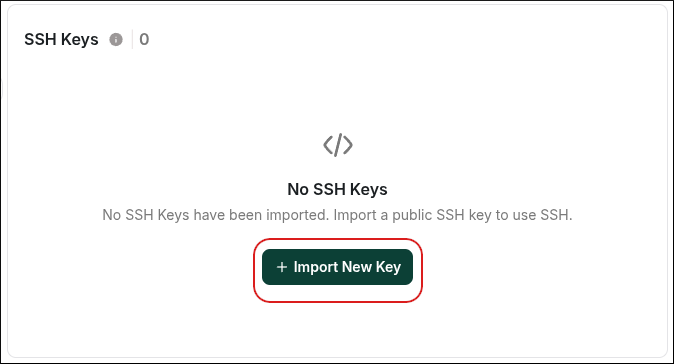
- Scroll down to the SSH Keys section, and then click Import New Key:
- In the Import New Key dialog box, in the Key Name text box, type a descriptive name for the key:
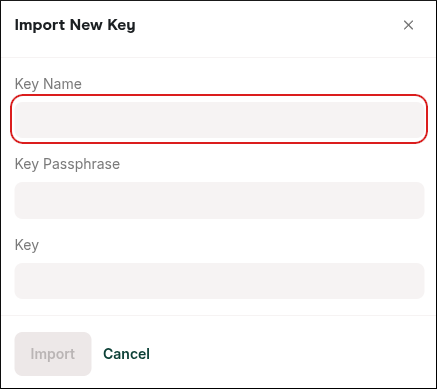
- In the Key Passphrase text box, type the passphrase for the key. If you did not create a key passphrase when you generated the key, then leave the Key Passphrase text box blank.
- In the Key text box, paste the public key.
- Click Import.
- After you import the key, activate the key by clicking the checkmark next to it so it is allowed to access SSH
You can find the SSH username and server IP address on the General tab in the Site Information section, just above the FTP Accounts section: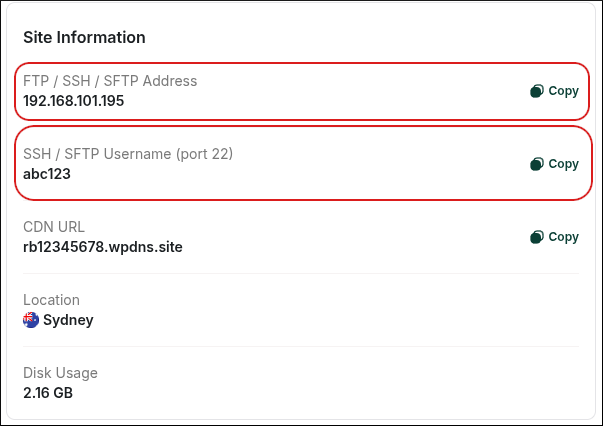
When you have the username and IP address, go back to your terminal and then type the following command. Replace sshusername and IPaddress with the correct values for your account:
If this is the first time you are connecting to your account, you may receive a warning message. Type y and press Enter.