

- Log in to the Webcentral Panel at https://theconsole.webcentral.au/
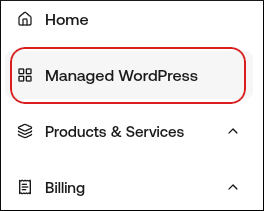
- In the left sidebar, click Managed WordPress:
- On the My Websites page, locate the site, and then click Manage

- On the Webcentral dashboard, click the Backups icon:

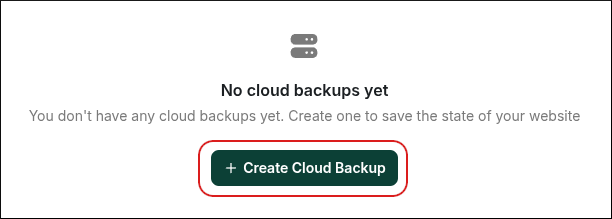
- In the Cloud Backups section, click Create Cloud Backup:
- You can choose to Backup Files or Backup Database, and you can choose to exclude specific paths if desired.
- For a full backup, choose a name for the backup, enable the Files and Database options, and then click Confirm
- Depending on the size of your website’s content and database, this process may only take a few moments. You can either visit this page later or wait a few moments and then refresh the page.
- When your backup is ready, you’ll find it listed here with several options. You can download it to your computer for safekeeping, restore a backup if needed, or delete backups.
- Please note that all sites can have up to three manual Cloud Backups at a time, and all Cloud Backups are automatically removed after 24 hours. They do not count toward your storage limits.