

- Log in to the Hosting Panel at https://theconsole.webcentral.au/
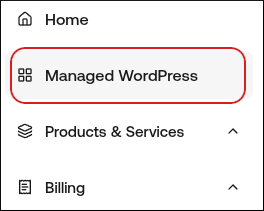
- In the left sidebar, click Managed WordPress:
- On the My Websites page, locate the site, and then click Manage:

- In the Ready to go live? section, click Get Started:

- In the Change Domain Name section, type the domain you want to use with WordPress:
- If you want to use the base domain name, type example.com where example.com represents your apex domain.
- If you want to use the www subdomain, type www.example.com where example.com represents your apex domain.
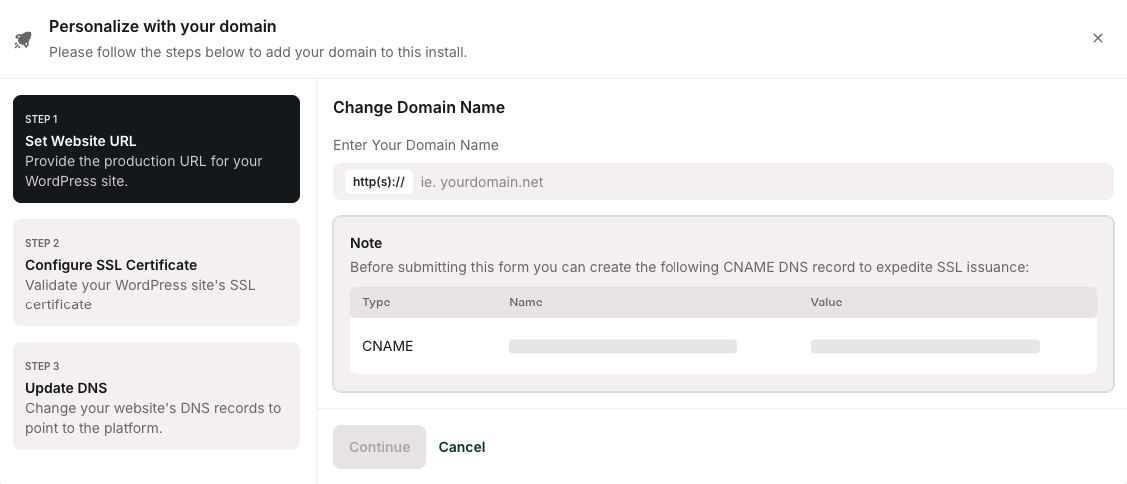
- Click Continue.
- In the Configure SSL section, copy the values for the two TXT records.
- Log in to your Cloudflare account.
- Click the Domain you want to change DNS for, and then click DNS:

- Create the two TXT records required for your SSL certificate that you obtained in step 7:
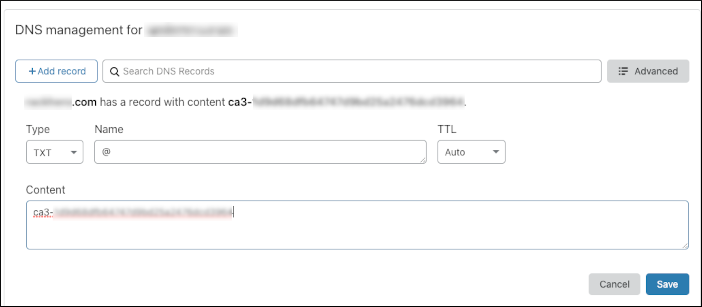
- After you create the TXT records in Cloudflare, navigate to your site and confirm they’ve been created.
- On the Webcentral dashboard, in the Configure SSL section, click Continue to proceed to the Step 3: Update DNS section.
- Copy the DNS records shown, and then create the DNS records in Cloudflare to point your domain to Webcentral
- That’s it! Your domain is now pointing to us.