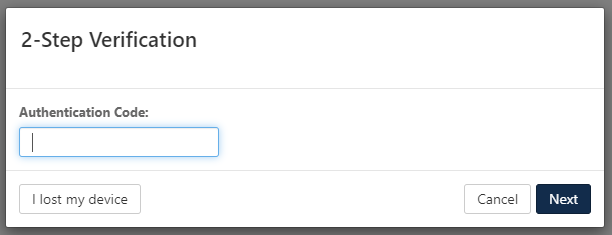
- Sign in to the Professional Email login portal
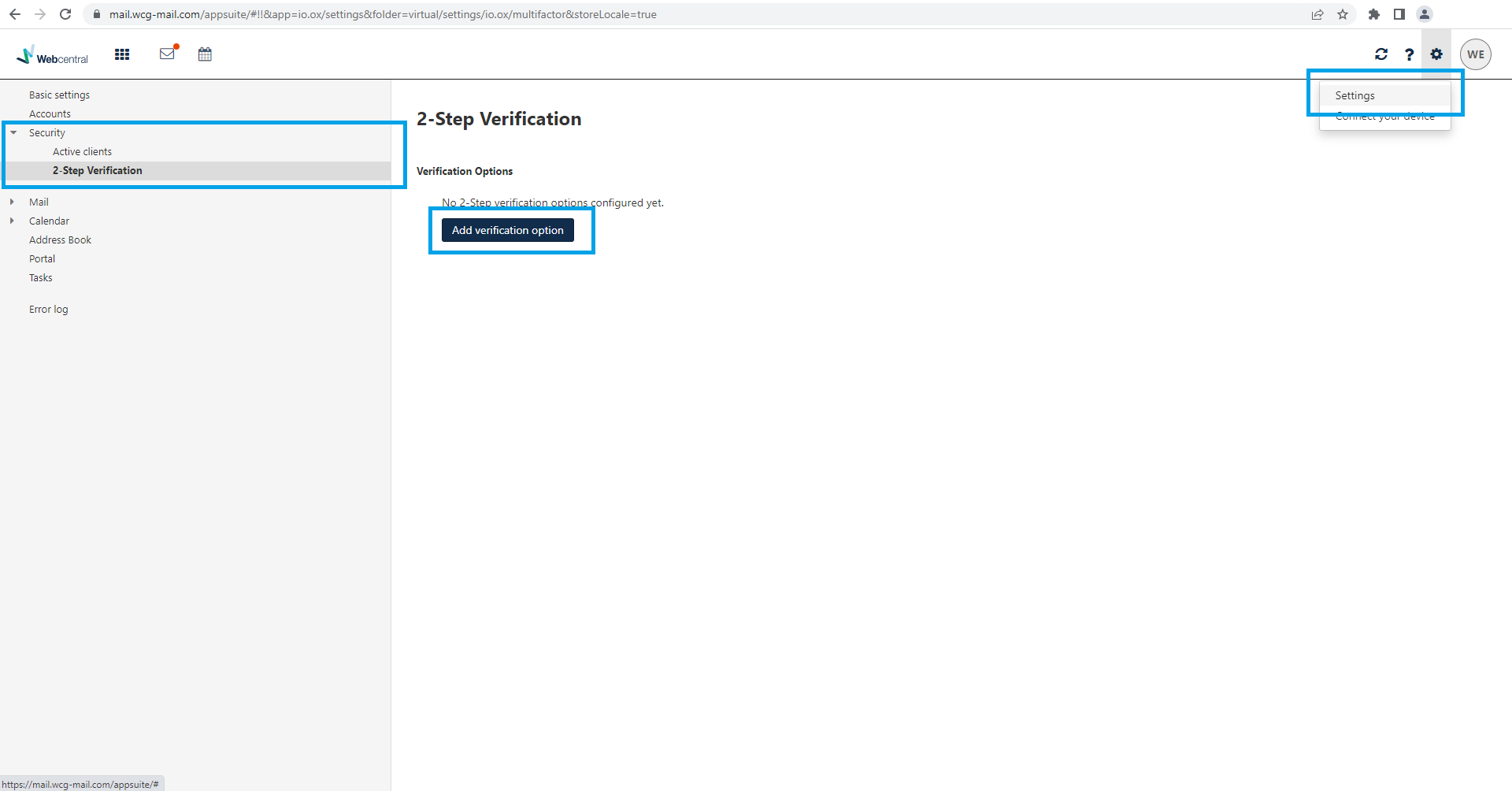
- Click the Cog, Settings, Security, 2-Step Verification then Click Add verification option
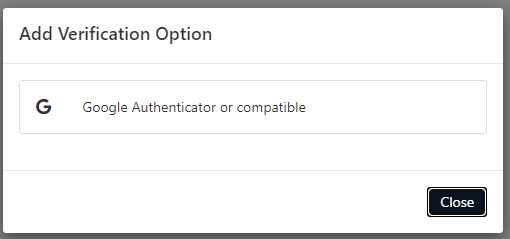
- Click Google Authenticator or compatible
- Scan the QR Code that is provided to you onscreen. Add this to your MFA App. We recommend Authy, Duo Mobile, Last Pass Authenticator, Microsoft Authenticator Or Google Authenticator.
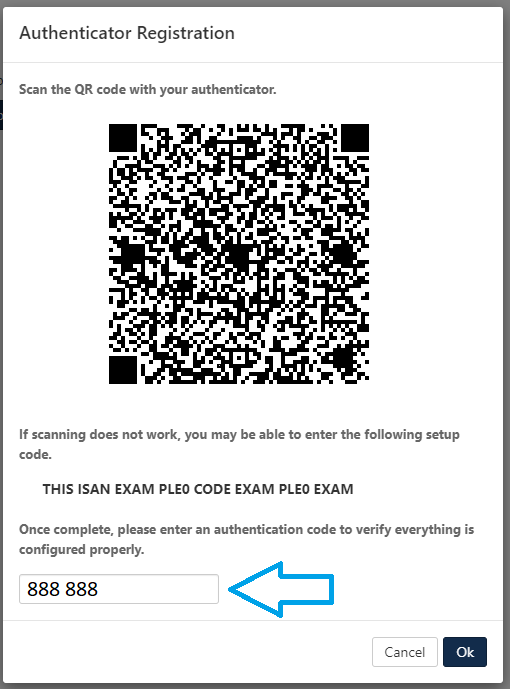
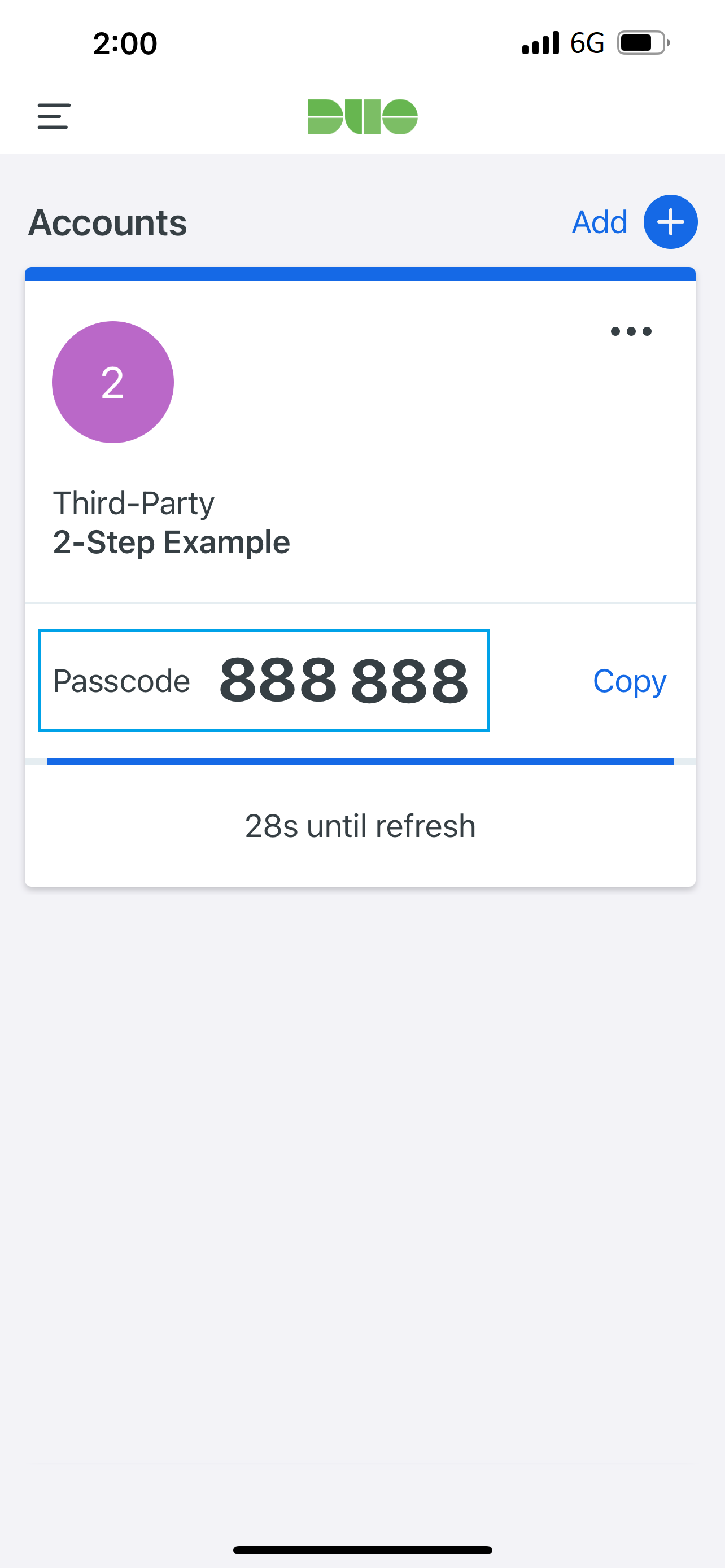
- Then Add the Authentication code that is in your MFA App. Below is an example from DUO Mobile.
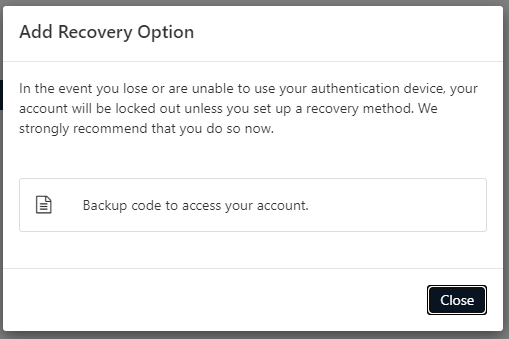
- Click Backup code to access your account if you want to set this up now. If you want to set it up later, click Close.
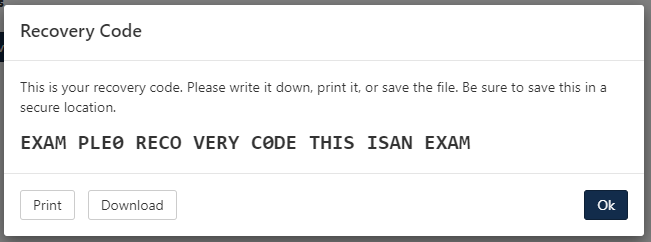
- Below is an example of the Recovery Code that you can Print or Download to keep in a safe location.
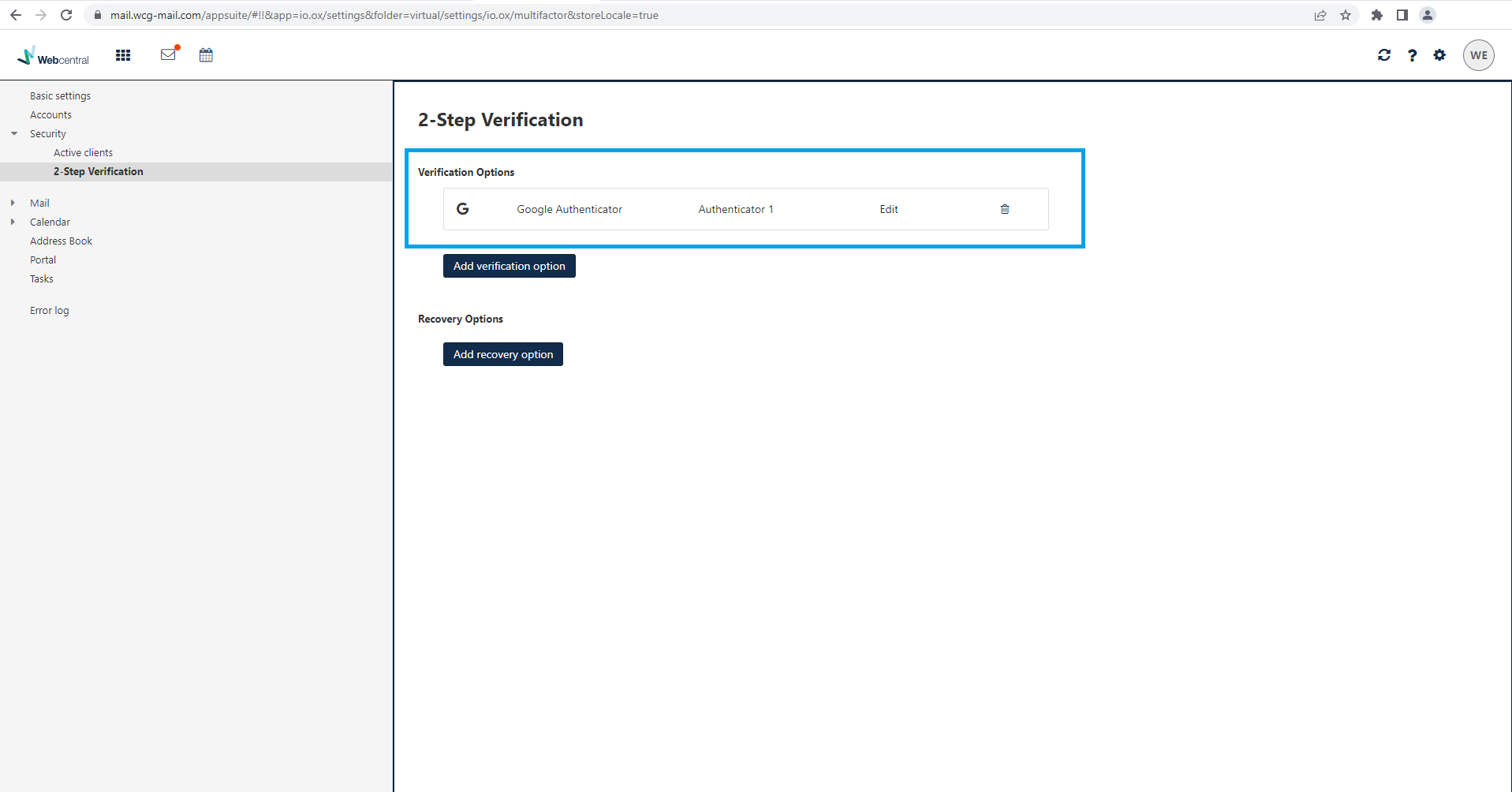
- You have now setup 2-Step verification in your Professional Email.
- Now, Whenever you access your Professional Email address you will need to enter the Passcode that is setup in your MFA App.