

- IMAP
- server: mail.wcg-mail.com
- port: 993 (SSL encryption)
- SMTP
- server: mail.wcg-mail.com
- port 587 - encryption TLS
Quickly add your account
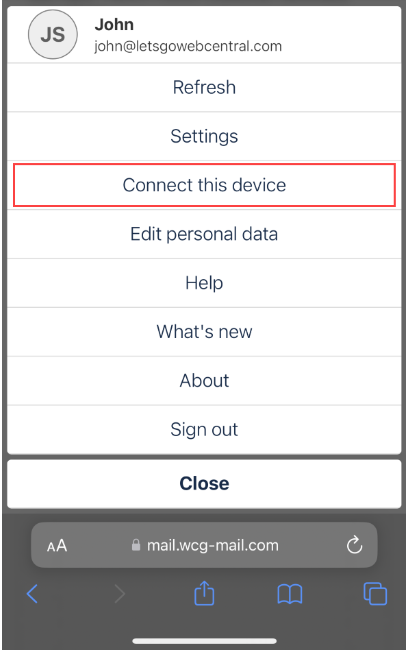
You can easily add your email account to Apple Mail using the Connect this device feature in OX Email online. Follow the below steps to find out how:- Log in to your email account online
- Tap on your Profile picture

- Tap Connect this device
- Tap Email with iOS Mail
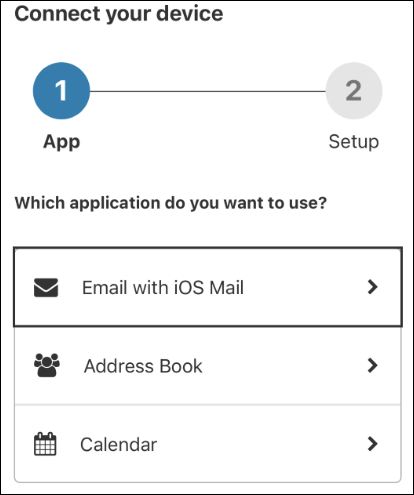
- Tap Download configuration

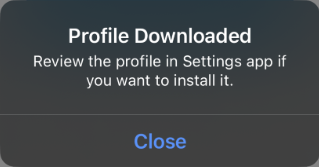
- The email Profile will be downloaded, click Close
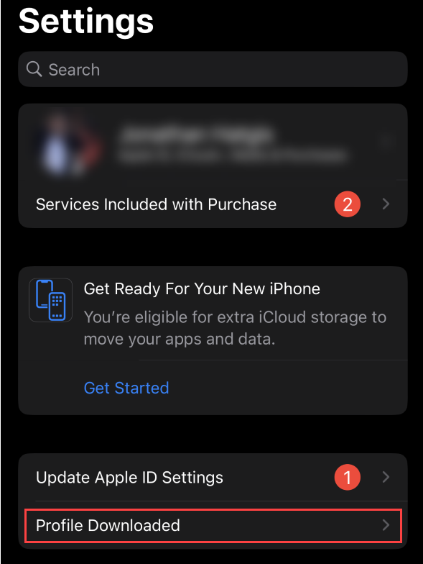
- Go to your phone’s home page and tap Settings

- Tap Profile Downloaded
- Click Install
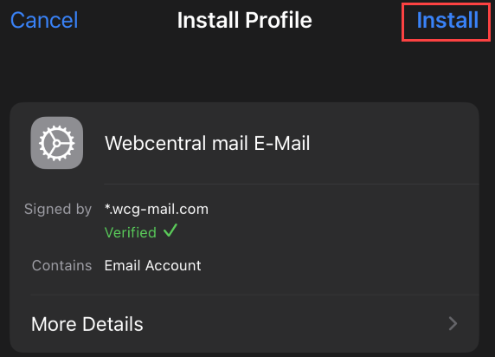
- You may need to enter your devices passcode/password
- Click Install
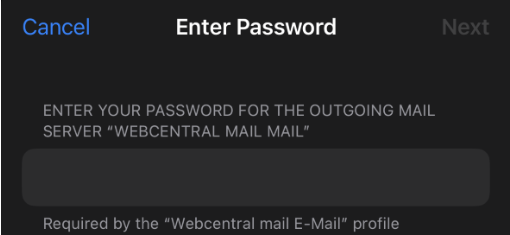
- Under Incoming Mail, enter your email addresses password and click Next
- Under Outgoing Mail, enter your email addresses password and click Next (the same as above)
- Tap Done
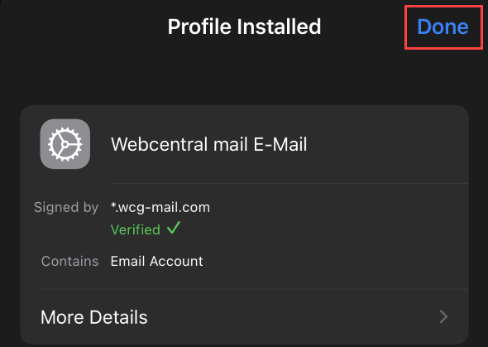
- Your email account has now been added to Apple Mail, open the app to start using your email
How to manually add your email to the Mail app
To manually add your email account to Apple Mail, using our server settings, follow the below steps:- Tap Settings
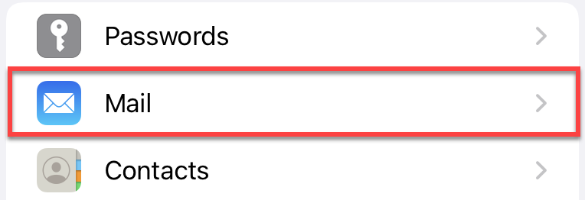
- Scroll down and tap Mail
- Tap Accounts
- Tap Add Account
- Tap Other

- Tap Add Mail Account
- Type in your name, email address, and password
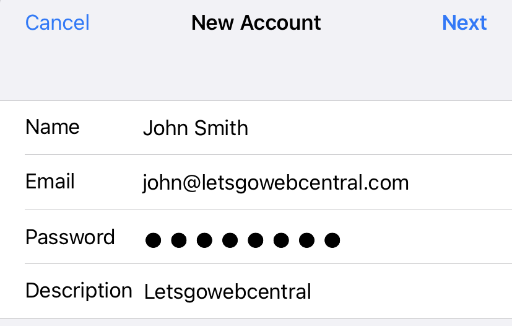
- Tap Next
- Select IMAP or POP
- Under INCOMING MAIL SERVER, input the below settings
Username: your full email address (e.g. john@letsgowebcentral.au)
Password: your email password
- Under OUTGOING MAIL SERVER, input the below settings
Username: your full email address (e.g. john@letsgowebcentral.au)
Password: your email password
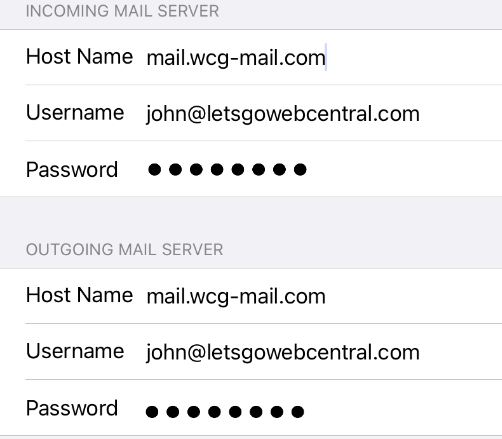
- Tap Next
- Tap Save