- IMAP
- server: mail.wcg-mail.com
- port: 993 (SSL encryption)
- SMTP
- server: mail.wcg-mail.com
- port 587 - encryption TLS
Add your email to Gmail
- Tap the Gmail app

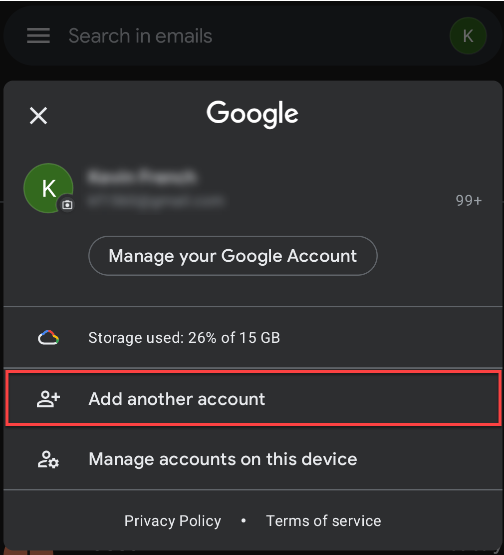
- Tap your profile

- Tap Add another account
- Tap Other
- Type in your email address and click Next
- Tap Personal (IMAP) or Personal (POP)
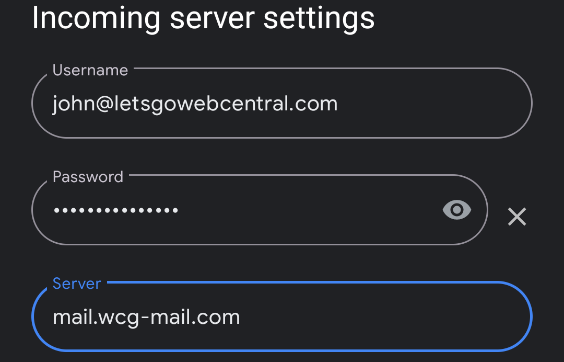
- Under Server, change the incoming server to mail.wcg-mail.com and click Next
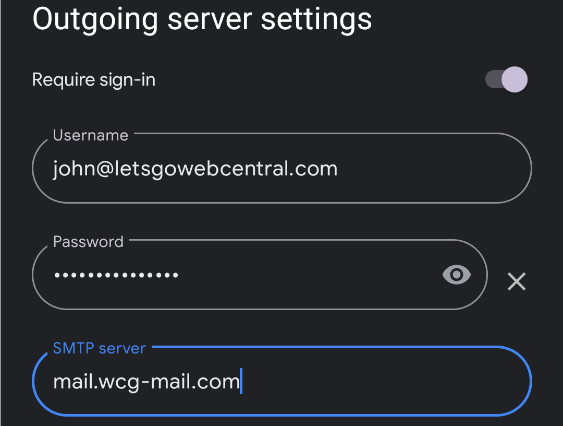
- Under Server, change the SMTP server to mail.wcg-mail.com and click Next
- Select the Account options that you want and click Next
- You can update the Account name (Optional) and Your name and click Next
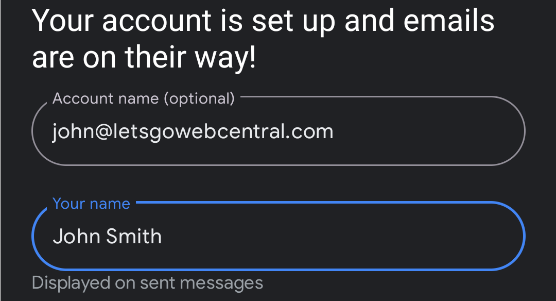 You can now access your email account through Gmail on your Android device.
How to switch between email accounts in Gmail
- Tap the Gmail app

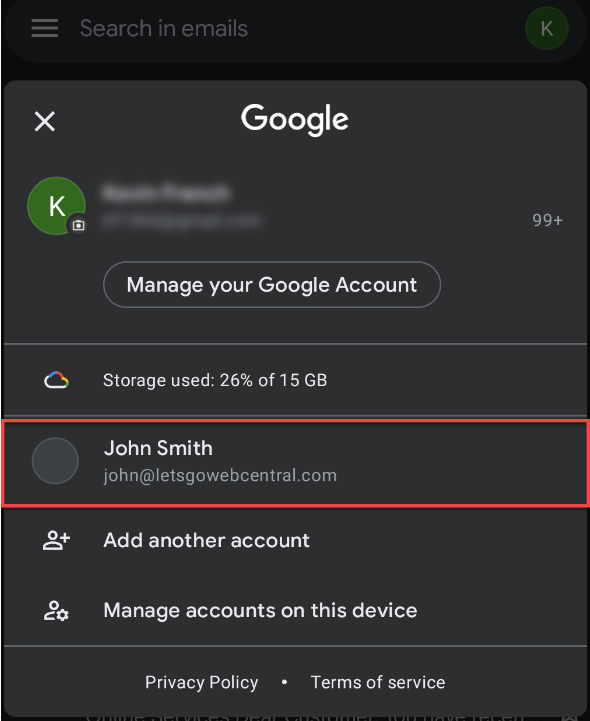
- Tap your profile

- Tap on the account you want to view