

Managing your email messages
To manage email messages using webmail, follow these steps:- Log in to your webmail account at https://webmail.webcentral.au/
- Your inbox appears. Click on a message:
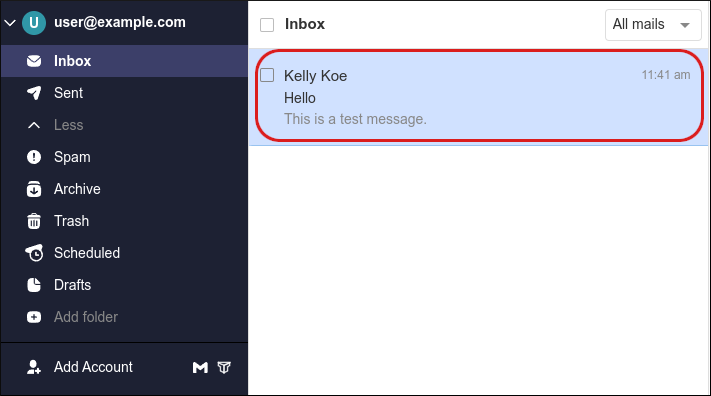 The message appears in the viewing pane:
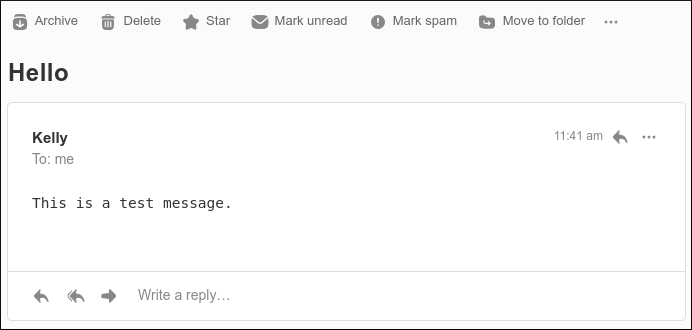
- There are several options available in the viewing pane:
- Archive: Click this option to move the message to the Archive folder.
- Delete: Click this option to move the message to the Trash folder.
- Star: Click this option to mark an important message.
- Mark unread / Mark read: Click this option to mark the message as unread (or if it is currently marked unread, to mark it as read).
- Mark spam: Click this option to mark the message as spam and move it to the Spam folder.
- Move to folder: Click this option to move the message to a specific folder.
- Print conversation: Click this option to generate a printed hard copy of the message.
Configuring the conversation view
You can configure how replies to messages appear in your inbox:- By default, message replies are grouped together as a continuous single conversation. The oldest email message in the thread is at the top, and the most recent message is at the bottom.
- However, you can switch to a non-threaded view, where each new reply appears as a separate message.
- Log in to your webmail account at https://webmail.webcentral.au/
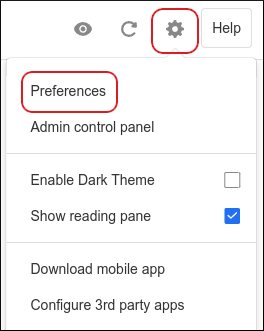
- Click the Settings (gear) icon, and then click Preferences:
- In the left sidebar, click General:
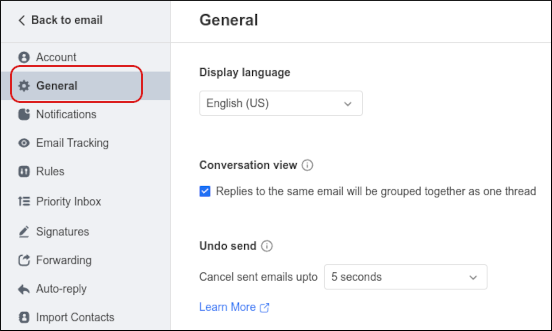
- Under Conversation View, select the view you want:
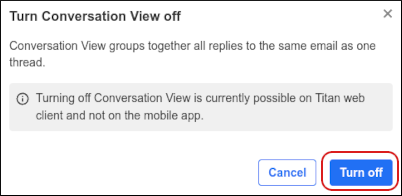
- To view message replies as separate messages, clear the Replies to the same email will be grouped together as one thread check box, and then click Turn off:
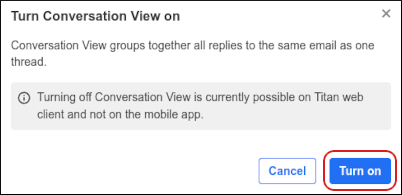
- To view message replies grouped together as one thread, select the Replies to the same email will be grouped together as one thread check box, and then click Turn on:
 For more information about this feature, please see this article.
- To view message replies as separate messages, clear the Replies to the same email will be grouped together as one thread check box, and then click Turn off: