

Creating and managing signatures
To create and manage email signatures, follow these steps:- Log in to your webmail account at https://webmail.webcentral.au/
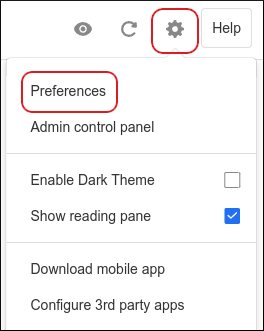
- Click the Settings (gear) icon, and then click Preferences:
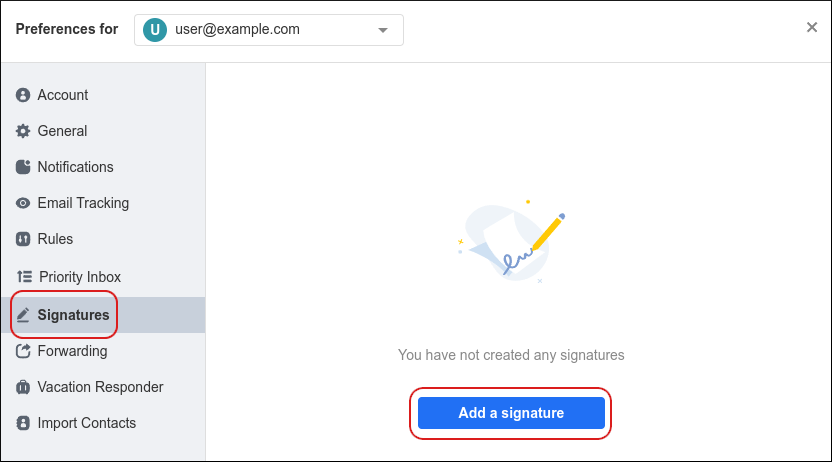
- Click Signatures, and then click Add a signature:
- In the Name this signature text box, type a descriptive name for the signature:
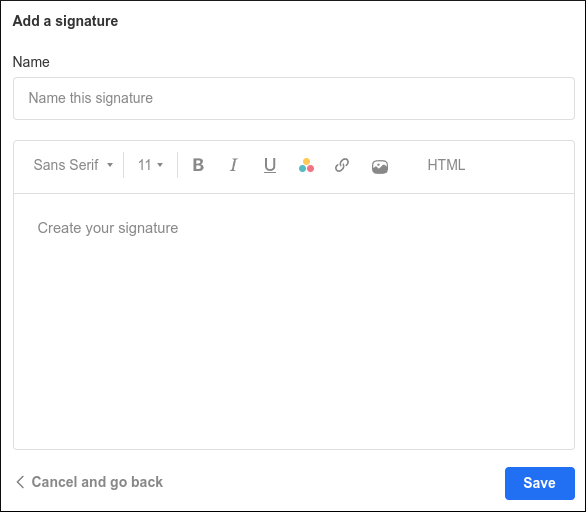
- In the Create your signature text box, type the text you want to appear in the signature.
- Click Save. From here, you can manage your signatures:
- To select the default signature, click the signature.
- To add another signature, click Add a signature.
- To edit an existing signature, hover over the signature and then click the pencil icon.
- To delete a signature, hover over the signature and then click the trash can icon.
Using your signatures in messages
When you compose a new email message, the default signature appears automatically. However, if you have created multiple signatures and want to insert a different signature (or if you do not want a signature in the message at all), all you need to do is click the following icon in the New Mail dialog box: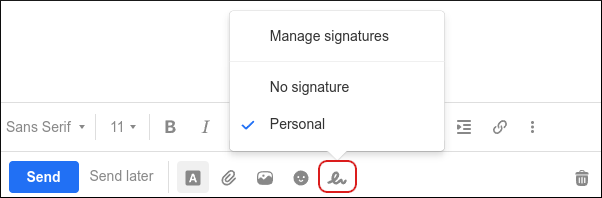 Click the name of the signature you want to use, or click No signature to remove the signature from the message completely. To manage your signatures, click Manage signatures.