You can add up to three external forwarders to an account.
Creating external forwarders
To create an external forwarder, follow these steps:- Log in to your webmail account at https://webmail.webcentral.au/
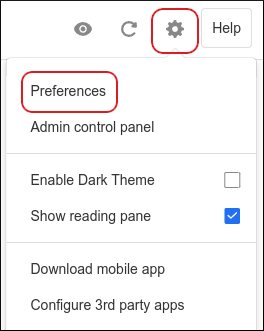
- Click the Settings (gear) icon, and then click Preferences:
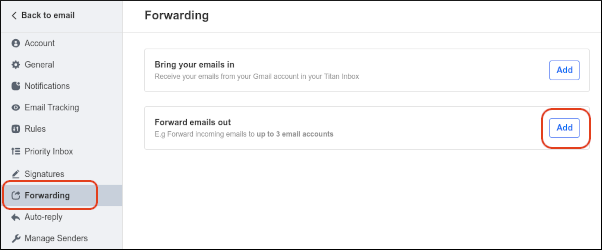
- Click Forwarding, and then in the Forward emails out section, click Add:
- In the Enter the destination email address text box, type the destination email address that will receive the forwarded messages:
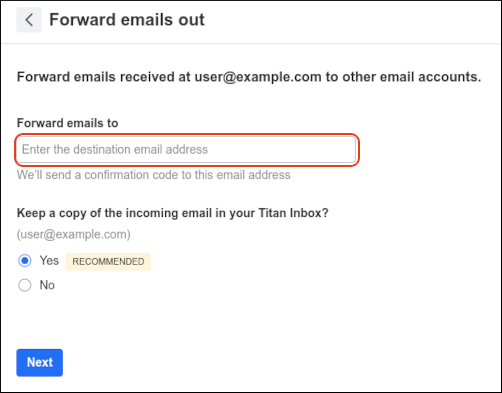
- To keep copies of incoming messages in your inbox, click Yes. Otherwise, click No.
- Click Next.
- The destination email address receives a message with a code. Type the 6-digit code in the text box, and then click Start forwarding:
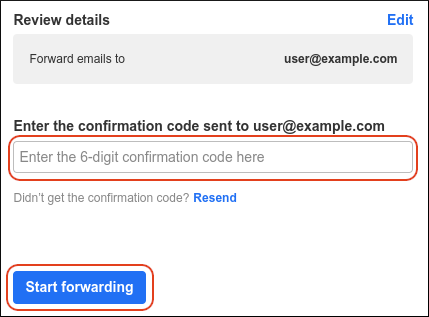 External forwarding is now enabled.
Managing external forwarders
To manage an existing external forwarder, follow these steps:- Log in to your webmail account at https://webmail.webcentral.au/
- Click the Settings (gear) icon, and then click Preferences:
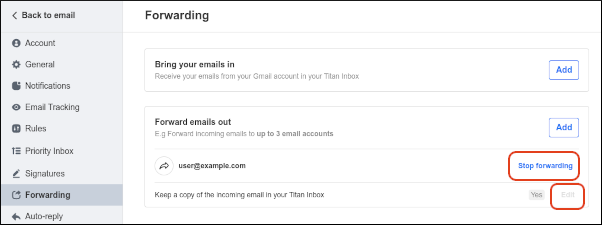
- Click Forwarding. In the Forward emails out section are the following options:
- Stop forwarding: Click this option to stop forwarding messages to the specified email address.
- Edit: Click this option to change whether or not copies of incoming messages are stored in the inbox.