

If you want to integrate your account with a Gmail account, please see Integrating Titan Mail accounts with Gmail instead.
- Log in to the Hosting Panel at https://theconsole.webcentral.au/.
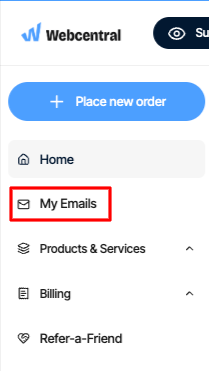
- In the left sidebar, under My Emails
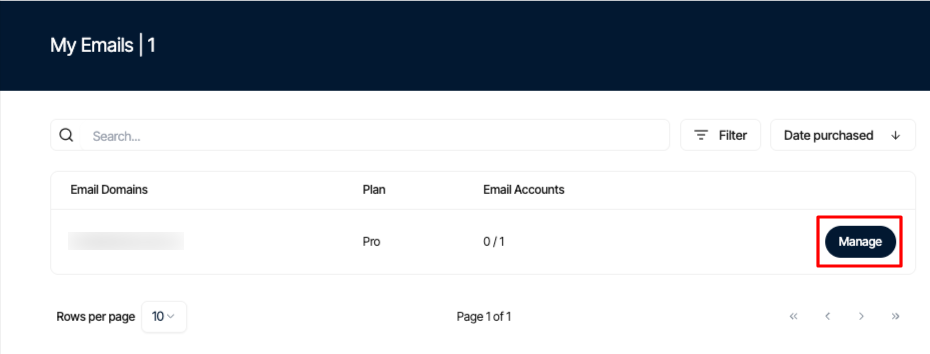
- On the My Emails page, locate your email account, and then click Manage:
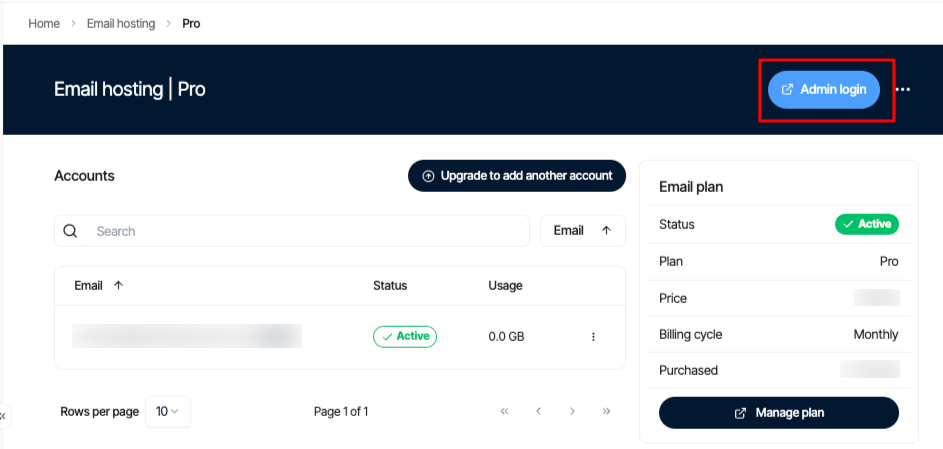
- Click the Admin Login icon:
- Click the Import Email Data:
- Click Import a mailbox. The Import a mailbox dialog appears:
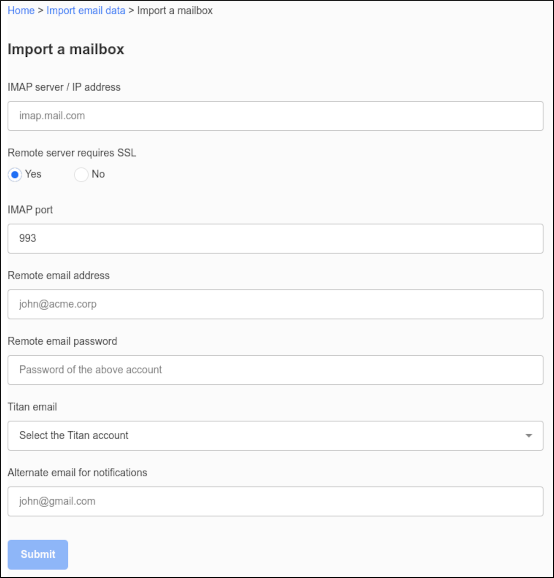
- In the IMAP server / IP address text box, type the FQDN (fully qualified domain name) or IP address of the remote server (for example, imap.example.com).
- If the remote server requires an SSL connection, click Yes.
- In the IMAP port text box, type the IMAP port number on the remote server. The default value is 993.
- In the Remote email address text box, type the email address of the remote account that you want to transfer (for example, info@example.com).
- In the Remote email password text box, type the password for the account you specified in step 9.
- In the Titan email list box, select the account to which you want to transfer the email data.
- In the Alternate email for notifications text box, type a different email address where you can receive notifications regarding the email transfer.
- Click Submit. When the import process completes, you receive an email notification at the address you specified. The notification tells you if the import was successful or not.