

- Mini Web Hosting
- Starter Web Hosting
- Plus Web Hosting
- Pro Web Hosting
- Max Web Hosting
- Hosting for WordPress
Managing your WordPress site
To manage your WordPress site from the Hosting Panel, follow these steps:- Log in to the Hosting Panel at https://theconsole.webcentral.au.
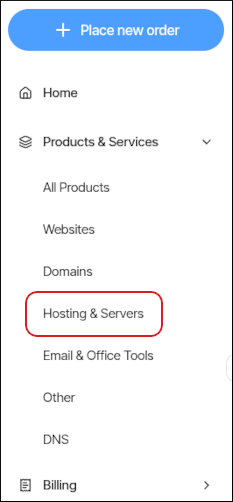
- In the left sidebar, under Products & Services, click Hosting & Servers:
- On the Hosting & Servers page, locate your shared hosting account, and then click Login to Control Panel.
- When the control panel appears, in the left sidebar, click Websites:

- On the Manage websites page, click the website you want to manage.
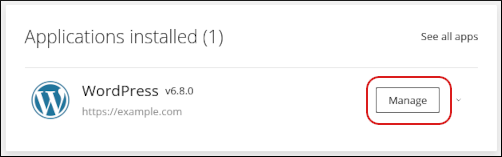
- In the Applications installed section, locate your WordPress site, and then click Manage:
- The General section appears:
- To log in to your WordPress dashboard, click Login to admin:
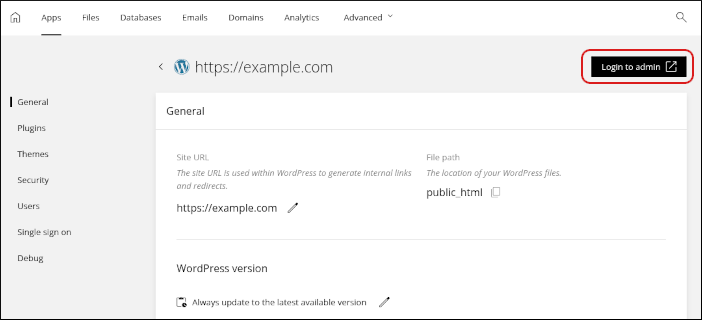 The dashboard opens in a new tab. Additionally, in the General section you can:
- Change the WordPress site URL.
- Change the location of your WordPress site files.
- Manage versions for your WordPress site.
- Enable or disable maintenance mode.
- To log in to your WordPress dashboard, click Login to admin:
- To manage your WordPress plugins, in the left sidebar, click Plugins:
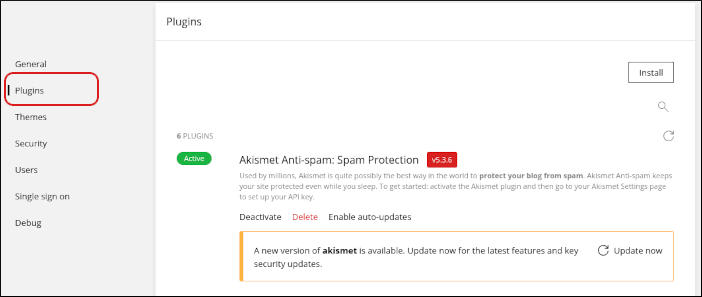 In the Plugins section you can:
- View installed plugins, including version and status information.
- Install, activate, deactivate, update, and delete plugins.
- To manage your WordPress themes, in the left sidebar, click Themes:
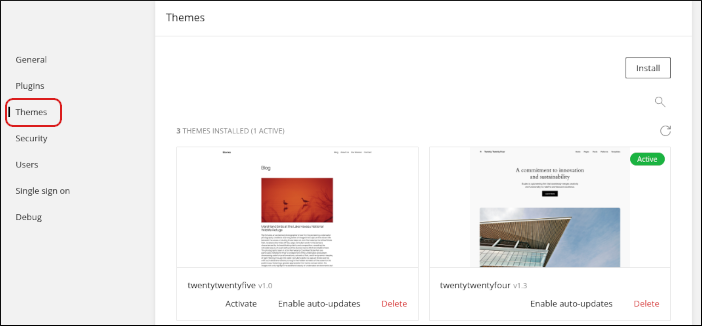 In the Themes section you can:
- View installed themes, including version and status information.
- Install, activate, deactivate, update, and delete themes.
- To manage WordPress security settings, in the left sidebar, click Security:
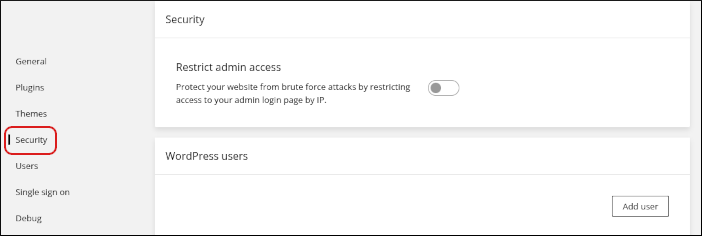 In the Security section you can restrict administrative access to your WordPress site by IP address.
 - To manage your WordPress user accounts, in the left sidebar, click Users:
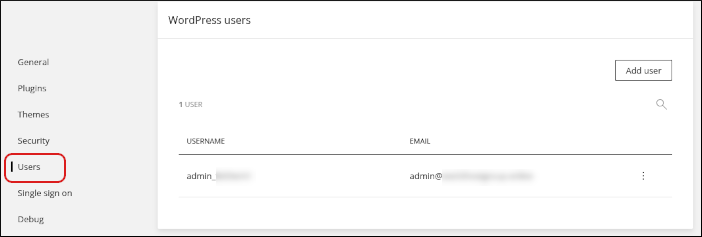 In the Users section you can:
- Add a user account by clicking Add user.
- Modify an existing user account. You can change the username, email address, and password for an account.
- Delete a user account.
- To manage single sign on settings for WordPress, in the left sidebar, click Single sign on:
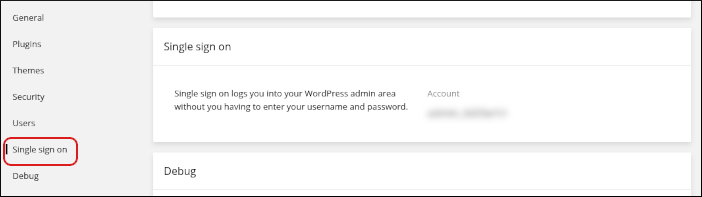 With single sign on, you can log in to your WordPress site without typing a separate username and password.
 - To configure WordPress debugging settings, in the left sidebar, click Debug:
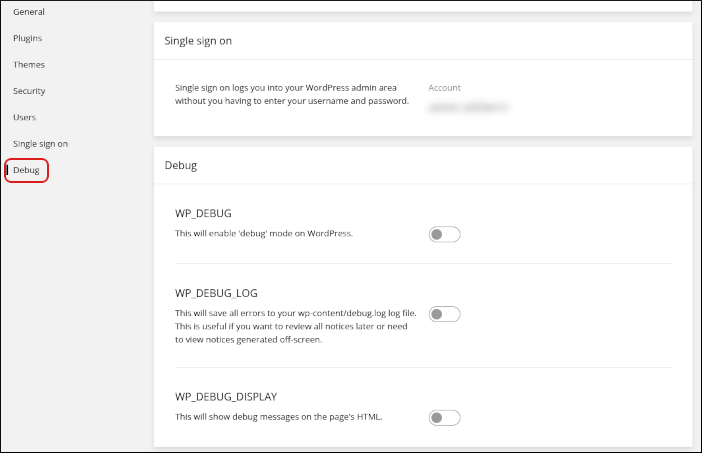 In the Debug section you can enable the following WordPress debugging settings:
- WP_DEBUG
- WP_DEBUG_LOG
- WP_DEBUG_DISPLAY