

- Mini Web Hosting
- Starter Web Hosting
- Plus Web Hosting
- Pro Web Hosting
- Max Web Hosting
- Hosting for WordPress
Managing database users
Before you create a database, you should create at least one database user that will have access to the database. To do this, follow these steps:- Log in to your account as described in Managing your website in the Hosting Panel.
- When the control panel appears, in the left sidebar, click Websites:

- On the Manage websites page, click the website you want to manage.
- A list of tabs appears at the top of the page. Click the Databases tab:

- The MySQL databases page appears. Click Add user:

- In the Add database user section, type the username and password for the user:
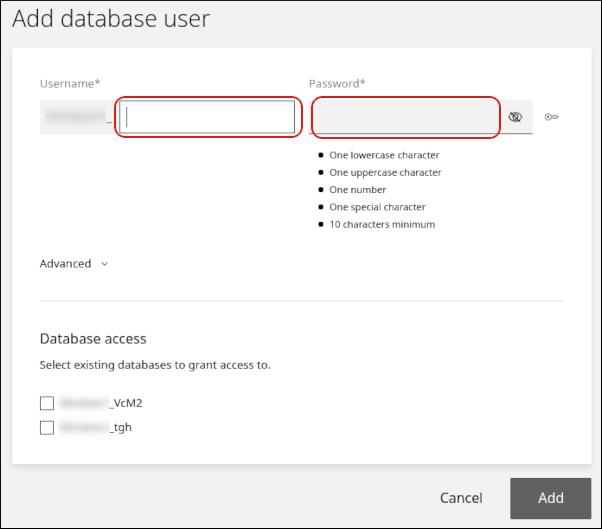
- If one or more databases already exist, they appear in the Database access section. Select the check box next to any database for which you want to grant the user access.
- Click Add.
- Click the Users tab. The new user appears in the user list.
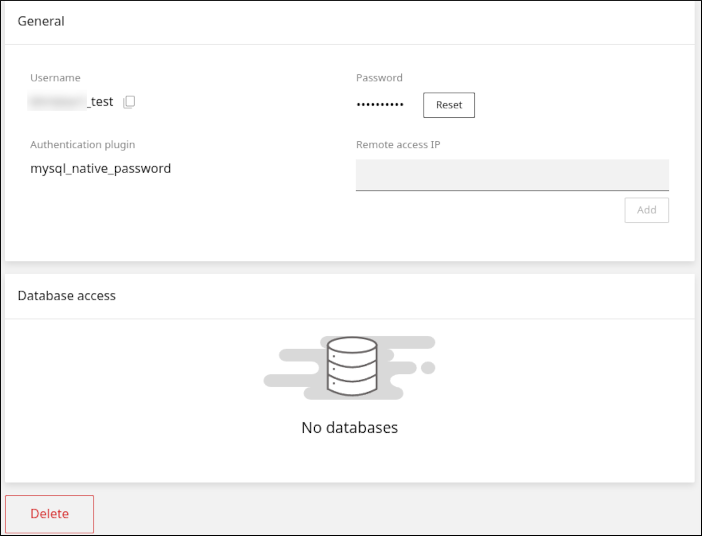
- Click the user to modify it. On this page, you can:
- Click Reset to reset the user’s password.
- In the Remote access IP text box, type an IP address from which the user can access databases.
- Click Delete to delete the user.
Managing databases
You can easily add, modify, and delete databases. To do this, follow these steps:- Log in to your account as described in Managing your website in the Hosting Panel.
- When the control panel appears, in the left sidebar, click Websites:
- On the Manage websites page, click the website you want to manage.
- A list of tabs appears at the top of the page. Click the Databases tab:
- The MySQL databases page appears. Click Add database:

- In the Add database section, in the Database name text box, type the name of the database:
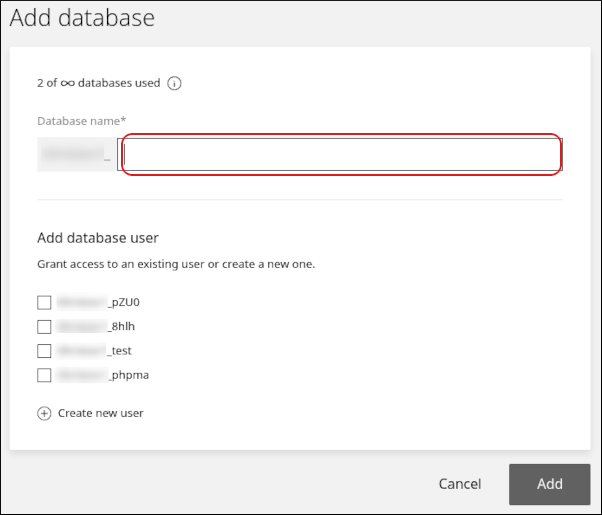
- In the Add database user section, select one or more users that can access the database.
- To grant all access privileges to a user, leave the All database privileges check box selected. Alternatively, clear the All database privileges check box, and then click the specific privileges you want to grant to the user:
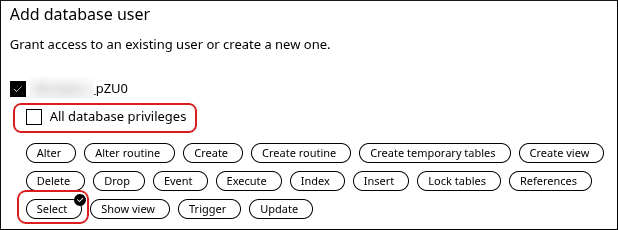
- To grant all access privileges to a user, leave the All database privileges check box selected. Alternatively, clear the All database privileges check box, and then click the specific privileges you want to grant to the user:
- Click Add. On the Databases tab appears the new database.
- Click the database to modify it and access additional features. On this page, you can:
- Click PhpMyAdmin to access phpMyAdmin:
- Add database users to the database or remove database users.
- Click Upload to import a SQL file and populate the database:

- Click Download to export a SQL file containing the database:

- Click Delete to delete the database:
- Click PhpMyAdmin to access phpMyAdmin: