- Mini Web Hosting
- Starter Web Hosting
- Plus Web Hosting
- Pro Web Hosting
- Max Web Hosting
- Hosting for WordPress
Logging in
To log in, follow these steps:- Log in to the Hosting Panel at https://theconsole.webcentral.au.
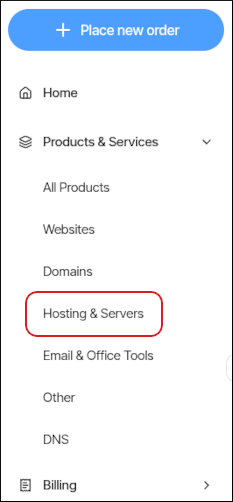
- In the left sidebar, under Products & Services, click Hosting & Servers:
- On the Hosting & Servers page, locate your shared hosting account, and then click Login to Control Panel. You are automatically logged in to the control panel.
Managing your website
You can configure applications, set up email accounts, manage your files, view site analytics, and much more. To do this, follow these steps:- Log in to your account as described in the Logging in section above.
- When the control panel appears, in the left sidebar, click Websites:

- On the Manage websites page, click the website you want to manage.
- A list of tabs appears at the top of the page:
 Let’s go through each of these tabs.
 - The Apps tab is where you can install applications. To do this, click Install app, select the settings you want, and then click Install:
 Only WordPress is supported at this time. You can install other applications manually.
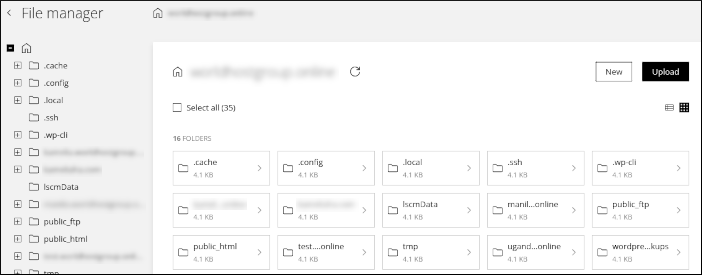
 - The Files tab is where you manage your files. You can download, edit, delete, and do many other operations on your files:
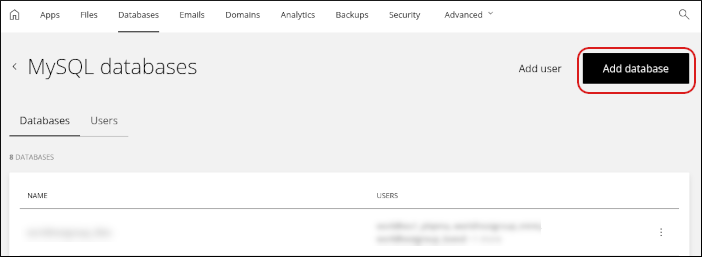
- The Databases tab is where you manage your MySQL databases. You can add, modify, and delete databases and users, and more. (phpMyAdmin is also available here.) To get started, click Add database:
- The Emails tab is where you configure your email accounts. You can add, modify, and delete email accounts, and more.
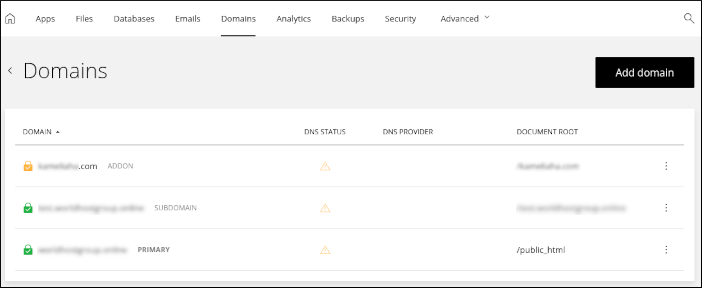
- The Domains tab is where you manage your domains. You can add subdomains, addon domains, and aliases. You can also configure domain settings, such as the document root directory, DNS settings, and more:
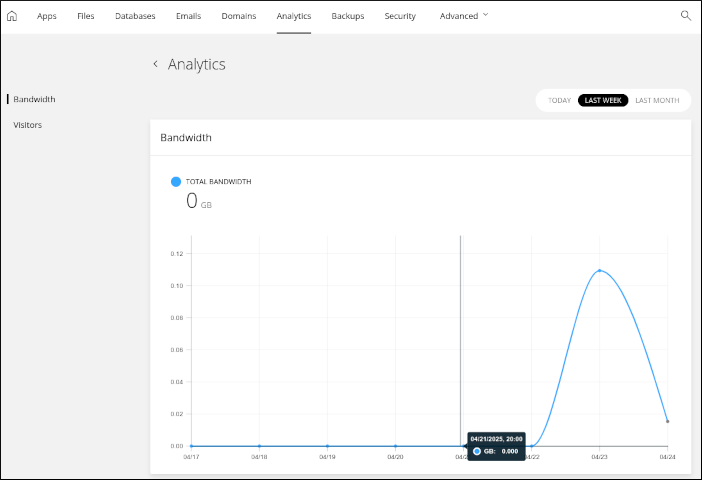
- The Analytics tab is where you can view bandwidth usage and visitor stats for your website. You can view statistics for today, last week, or last month:
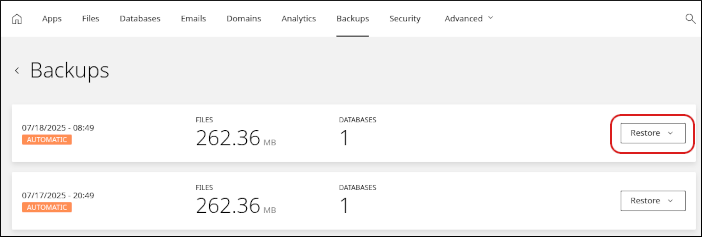
- The Backups tab is where you manage automatic backups and restores. To restore from a backup, click Restore and then click what you want to restore. You can selectively restore some or all of the following items:
- Email.
- Website files.
- A custom collection of items, including email, website files, and any databases you may have.
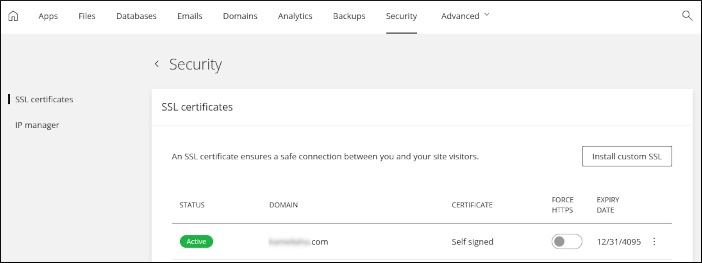
- The Security tab is where you manage SSL certificates for your site, and allow or block specific IP addresses:
- The Advanced tab contains several additional tools:
- Redirects: You can add permanent (301) or temporary (302) redirects to forward visitors to another domain.
- Optimization: You can enable Opcode caching for your site.
- FTP: You can add, modify, and delete FTP accounts.
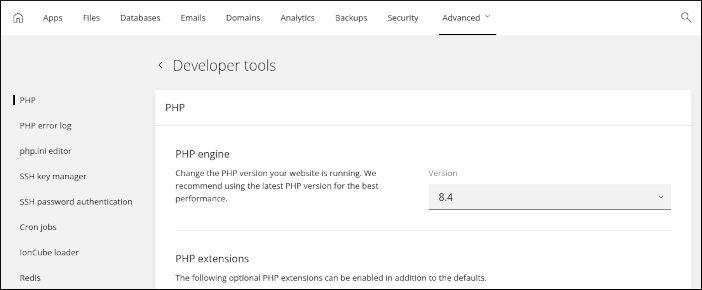
- Developer tools: You can access several advanced settings here, including PHP settings and cron jobs. You can also view and configure SSH connection details for your account.