

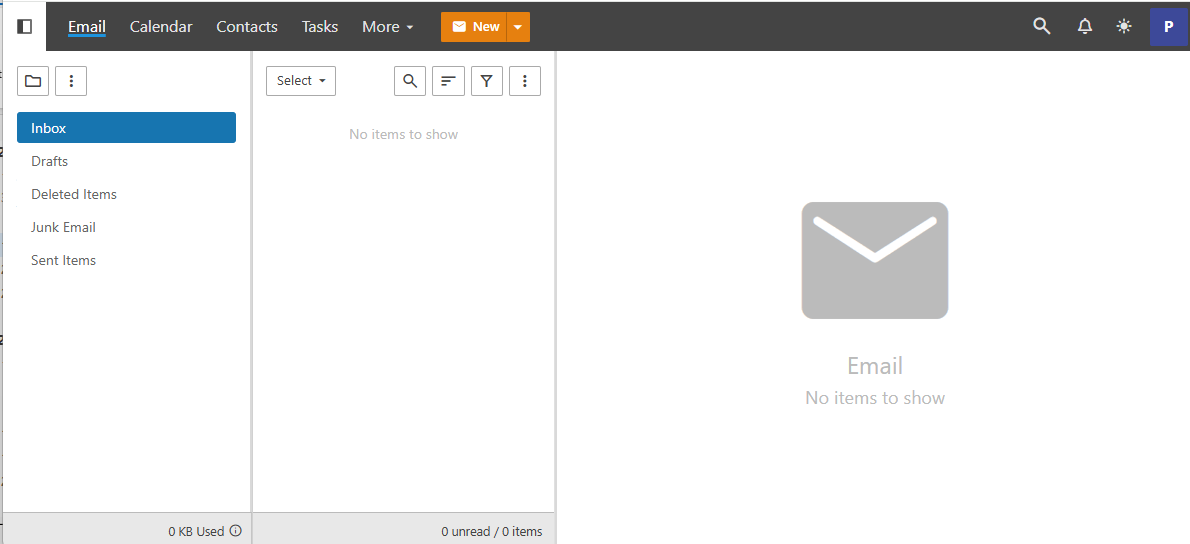
- Log in to your Professional Mail account
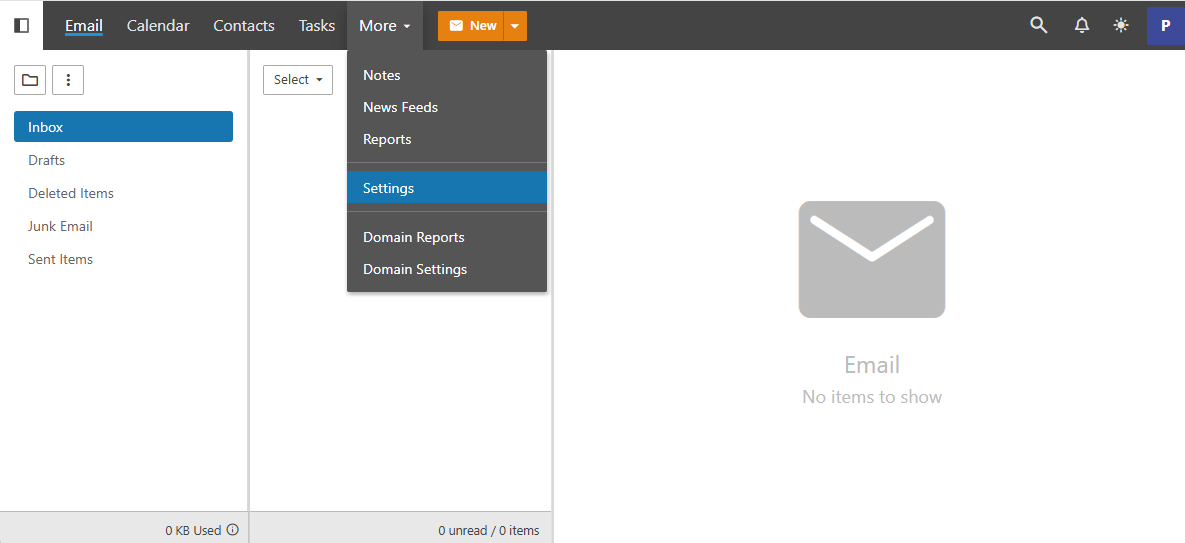
 Head to the ‘settings’ section via the top menu bar, under ‘More’
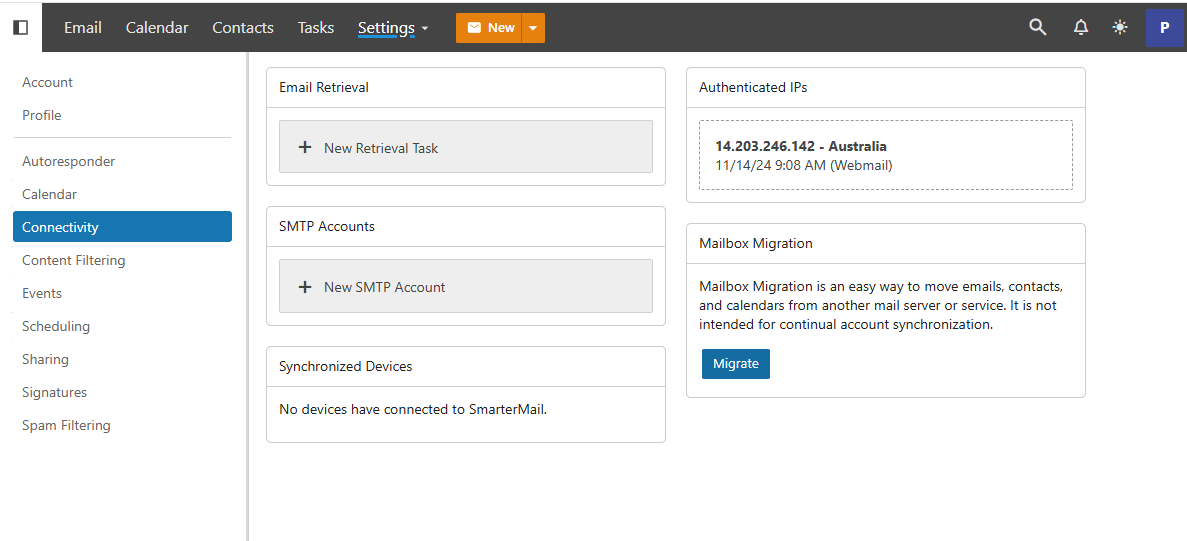
 Go to the ‘Connectivity’ section in settings and find the ‘migrate’ button on the right under ‘Mailbox Migration’
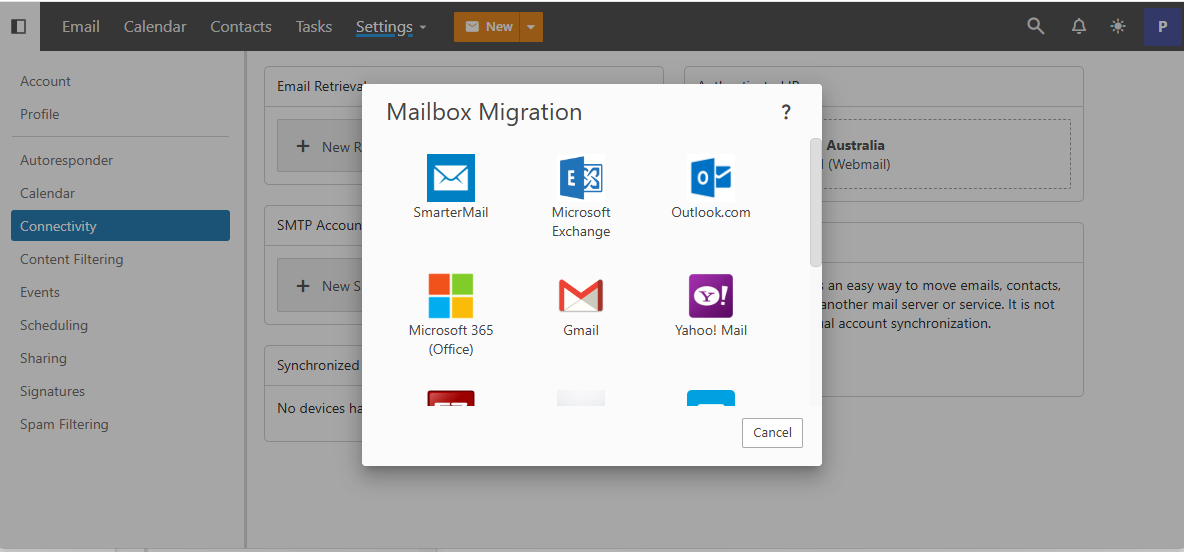
 Select the type of mail box you wish to transfer from
 Enter in the settings as given by your previous email service provider
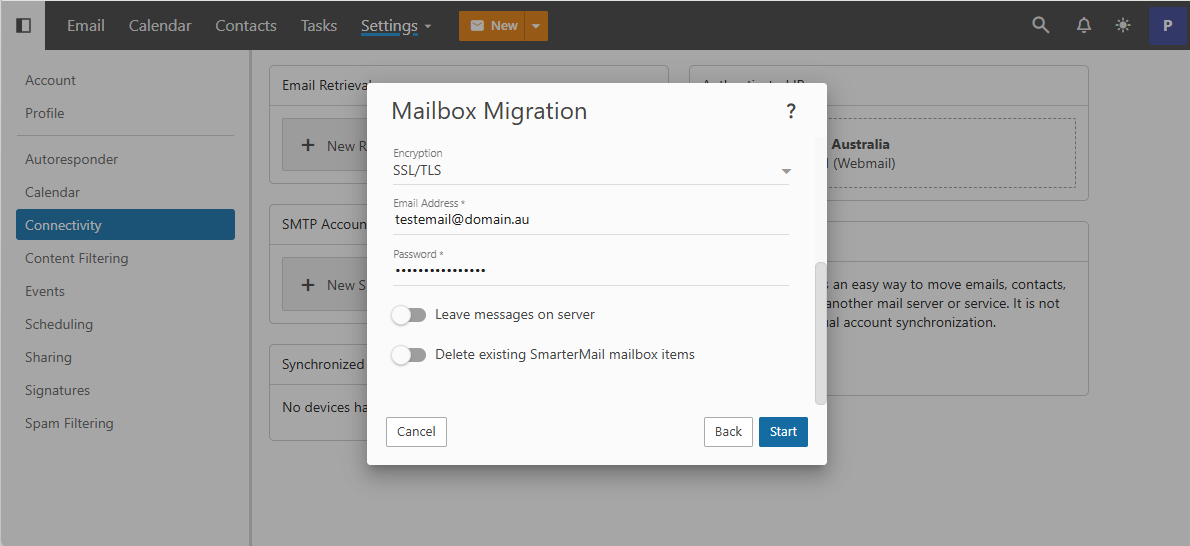 Once you press the ‘Start’ button and provided your settings are correct, the migration will start. You can track its progress as the data is imported. How long this process will take will depend on how any emails you have!
Professional & Business Mail
Using the Mail Migration Tool
When you sign up for Professional Email with Webcentral, you get the option to use the in-built migration tool. Please find below the steps to get started: