

WordPress Toolkit - How to use the Dashboard
Our WordPress Hosting plans have The WordPress Toolkit plugin that is simple console enabling you to easily install, update, backup and manage your WordPress. The WordPress Toolkit in cPanel is designed so that you manage your WordPress installation, however, you will still need to login to your WordPress site to create content and publish updated pages/post. For support on the basic Usage of Wordpress, please see their official article below. https://wordpress.org/support/category/basic-usage/The Dashboard
The WordPress Toolkit is a simple interface to let you manage your WordPress site from cPanel. Here we will list and explain what some of the buttons do.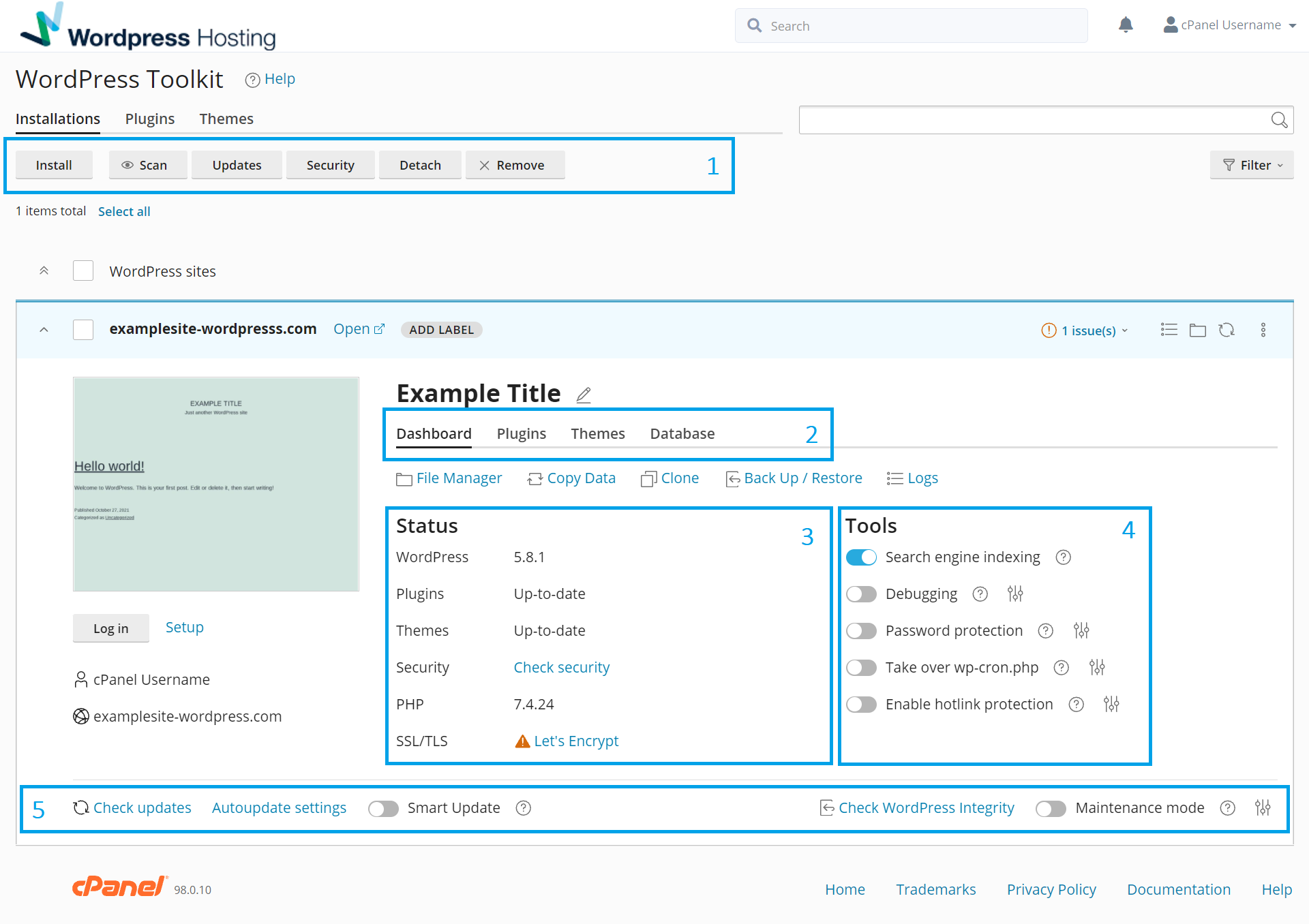
1. Dashboard Toolbar
Installations : These are the domains/sites installed on the WordPress Toolkit.Plugins : This is where you manage WordPress Plugins.
Themes : This is where you manage WordPress Themes. Install : This is where you can install a new WordPress Website.
Scan : Scan the File System for WordPress Installations.
Updates : Check updates for all or selected WordPress Websites.
Security : Check Security of all or selected WordPress Websites.
Detach : Detach the selected WordPress Website from the Toolkit.
Remove : Delete the selected Wordpress Website from the Toolkit.
2. Site Management
Example Title : Select Edit to edit your WordPress Sites Title. Dashboard : Website Management Area and Status/Tools for the selected WordPress Site.Plugins : Where you can manage the Plugins for the selected WordPress Site.
Themes : Where you can manage the Themes for the selected WordPress Site.
Database : The Database information of the Selected selected WordPress Site. File Manager : Access to the cPanel File Manager.
Copy Data : Copy data from another WordPress installation.
Clone : Clone the current WordPress site to another WordPress Site URL.
Back Up/Restore : Create a Backup (Compressed tar.gz) and restore Point for your WordPress Site.
Logs : Logs of all changes made to the WordPress site. Log in : This will Log you into your WordPress Site from the Toolkit.
Setup : This is where you can update your WordPress Login credentials and Admin Email address.
3. Status
WordPress : 5.8.1 : Give the current WordPress version.Plugins : Up-to-date : Gives the current status of Plugins versions.
Themes : Up-to-date : Gives the current status of the Themes versions.
Security : Check security : The Option to Check WordPress Security.
PHP : 7.4.24 : Gives the current PHP Version the site is using.
SSL/TLS : Let’s Encrypt : Gives the current SSL version the site is using.