

- Purchase a cPanel, OX Mail or MS365 subscription service
- Create an email account and have your password on hand
- Have your Zone Records set up correctly, contact us if you need help ensuring these are up to date
- Ensure you have your incoming, outgoing, username and password details ready to go. If you need these details, please find them here
Open Outlook (New) and select add account.
- Select IMAP if you have a cPanel, OX Mail or Cloud email account to add.
- For MS365, select Exchange and simply enter your email address, password and if needed, MultiFactor Authentication Code.
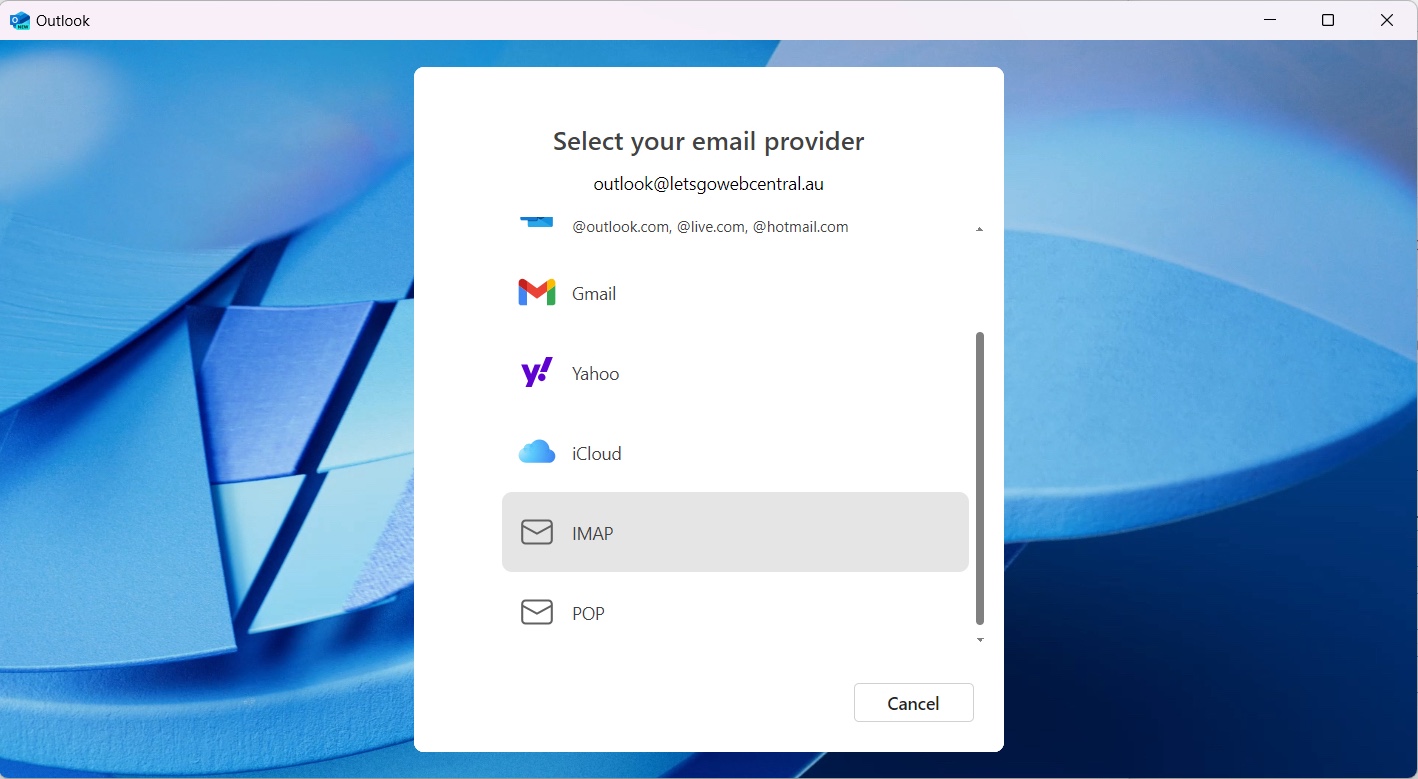 Step 2
Enter in your email address and click Continue
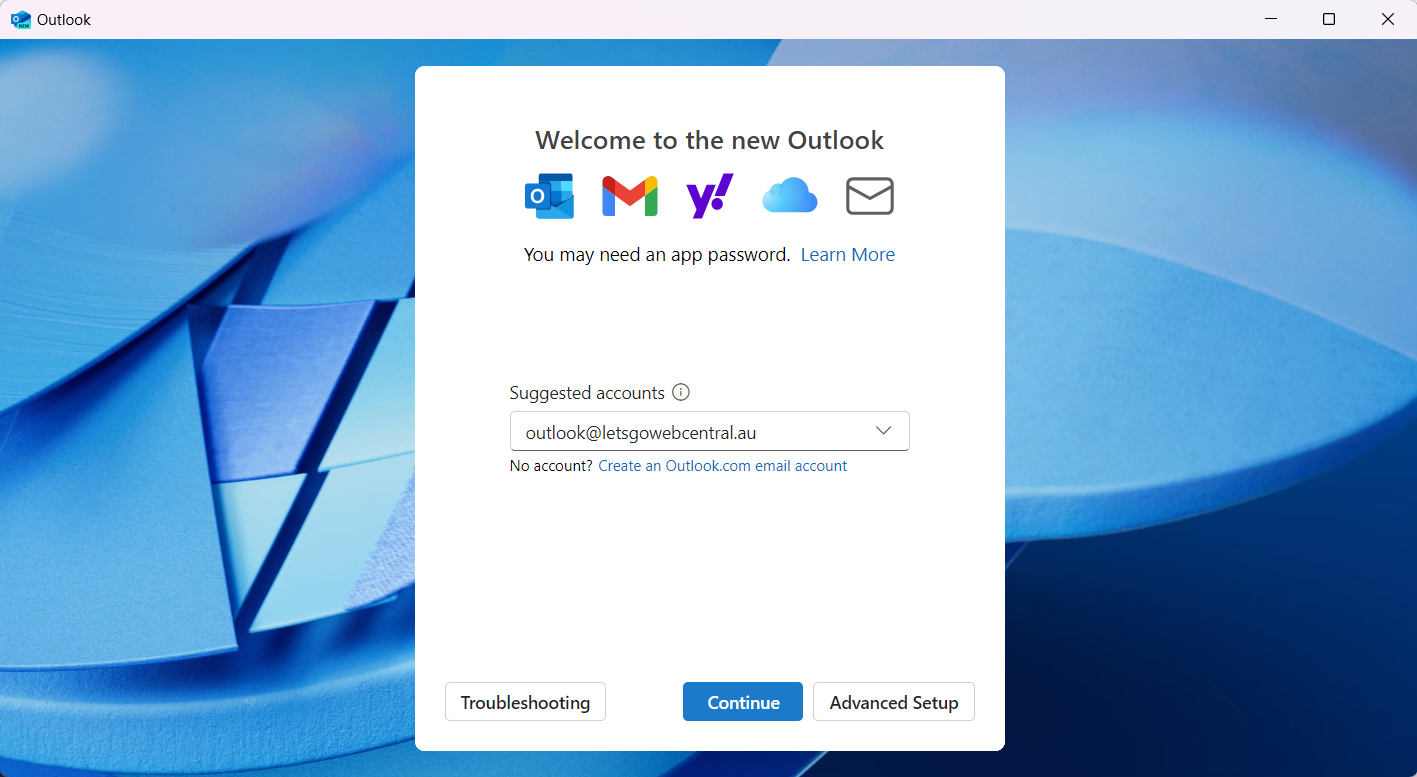 Step 3
If prompted, enter in your server settings. and click Continue
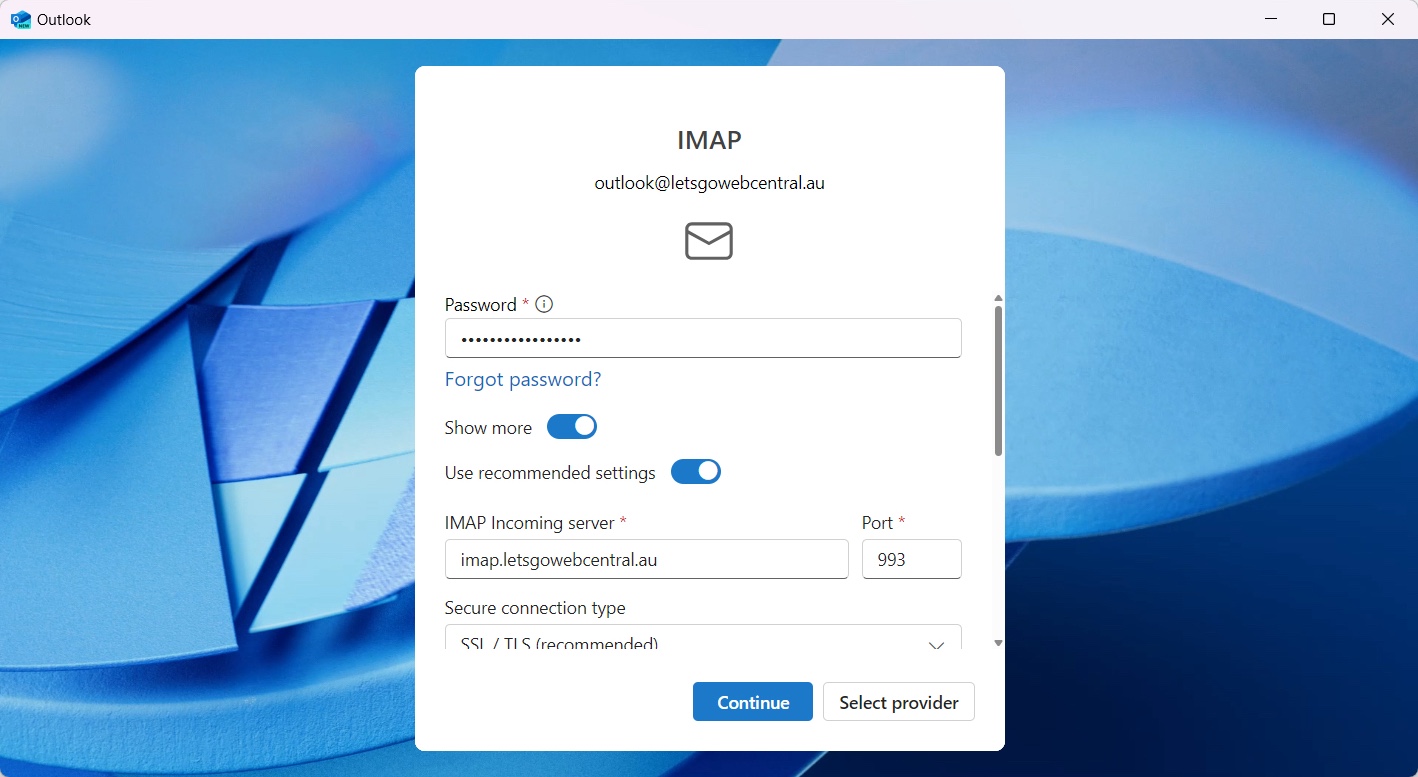 During this step, Outlook may load for sometime while it connects with the mail server.
Step 4
During this step, Outlook may load for sometime while it connects with the mail server.
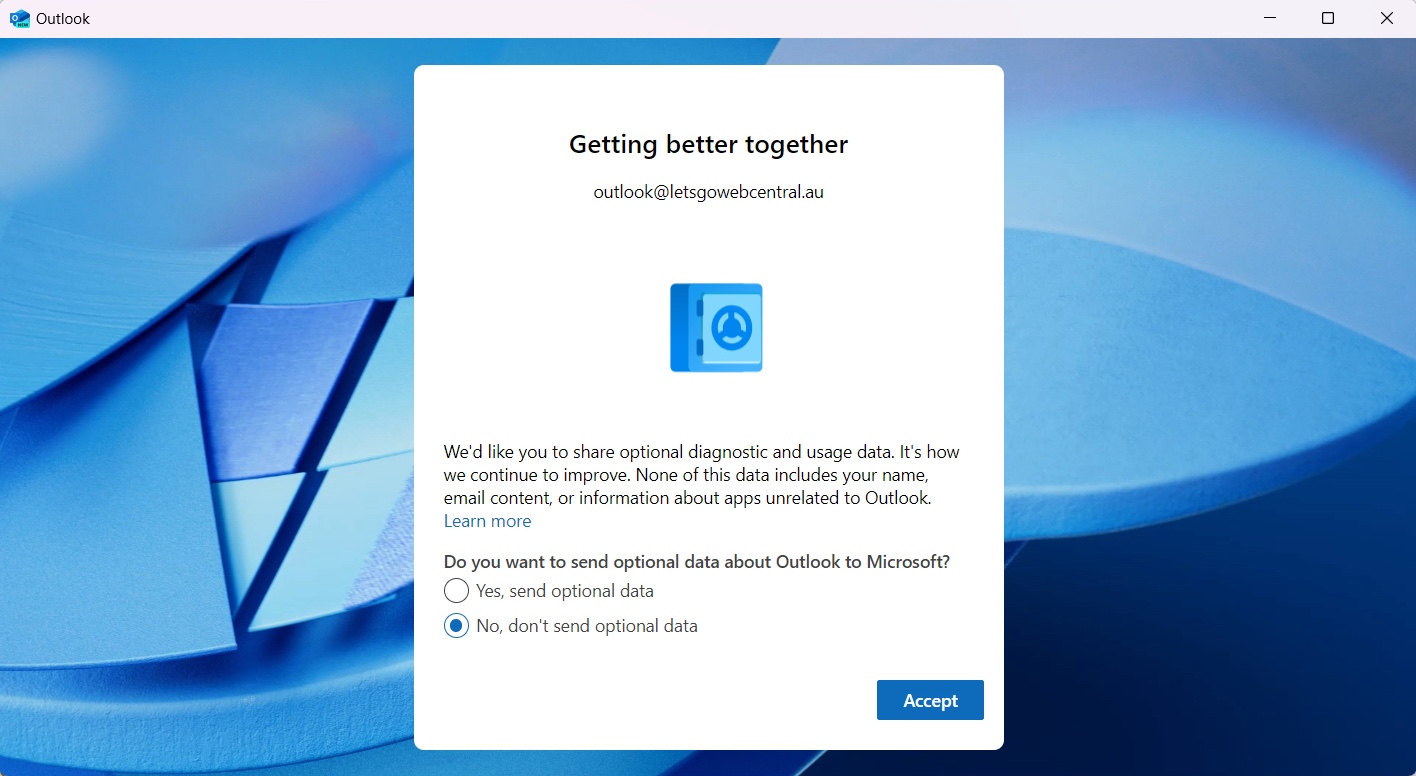
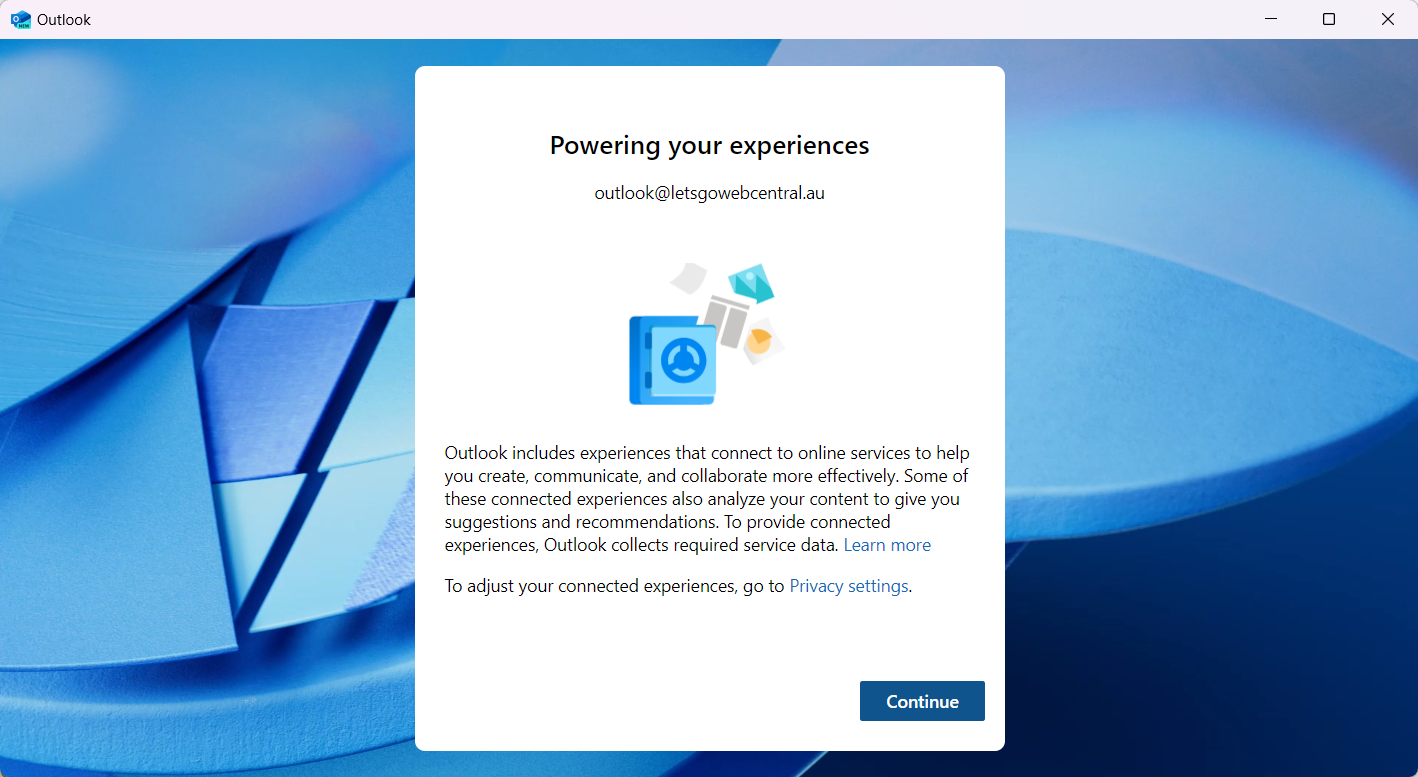
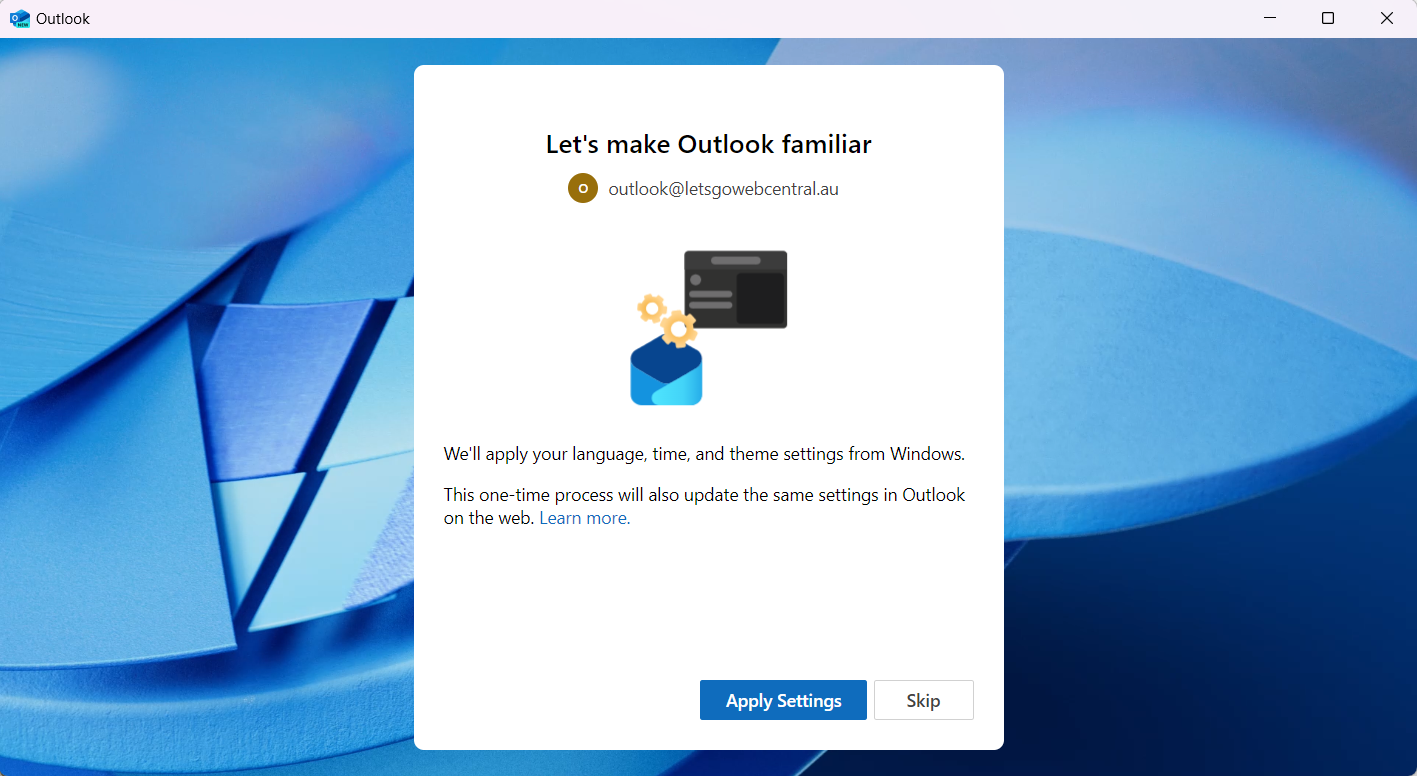
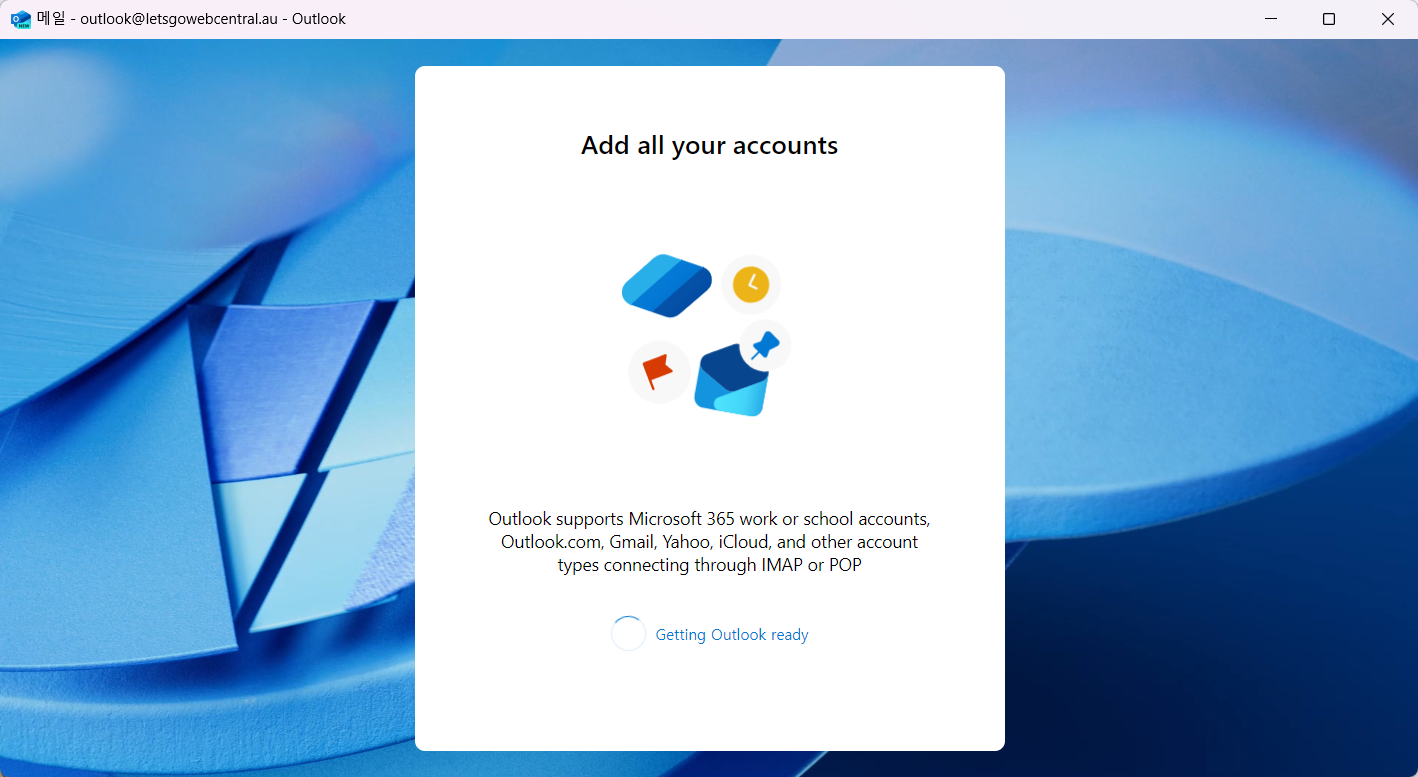
Step 4Follow and read the prompts and if applicable, agree. You can choose to customise language and privacy settings for Outlook (New) during these steps.
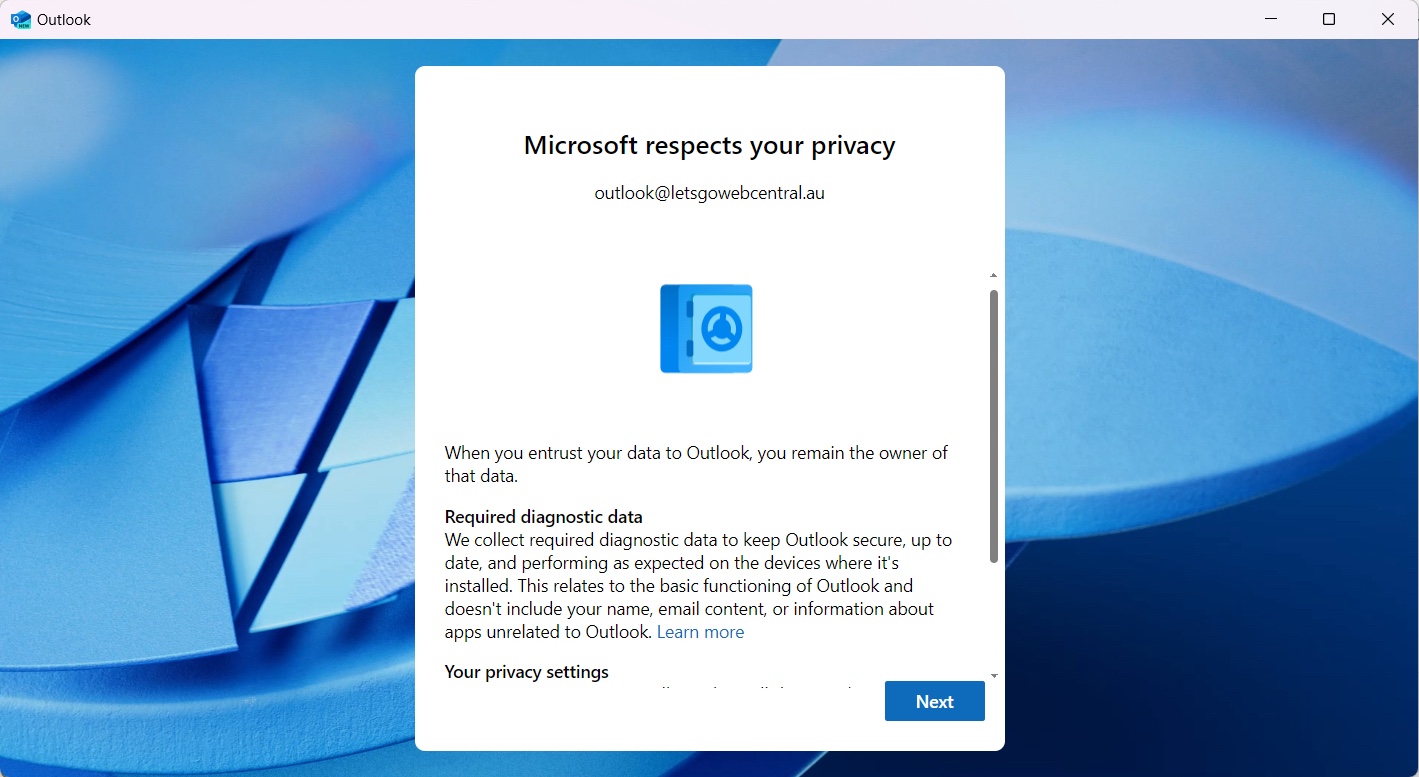
 Step 5
Once you get a confirmation the account is added, check that your emails are populating. Depending on the size of your inbox, this may take some time to sync with the server.