> ## Documentation Index
> Fetch the complete documentation index at: https://support.webcentral.au/llms.txt
> Use this file to discover all available pages before exploring further.
# Configuring SSH access in the Hosting Panel
> Learn how to set up SSH access for your account from one convenient interface in the Webcentral Hosting Panel. This article describes how to set up key-based and password-based authentication for SSH.
Some newer hosting accounts use an administration interface directly within the Webcentral Hosting Panel. Unlike cPanel, there is no separate login — you just log in to your Webcentral account at [https://theconsole.webcentral.au](https://theconsole.webcentral.au) and control your web site, email, and WordPress from one unified interface.
This article provides an overview on how to use this administration interface to configure SSH access to your account. It applies to the following account types:
* Mini Web Hosting
* Starter Web Hosting
* Plus Web Hosting
* Pro Web Hosting
* Max Web Hosting
* Hosting for WordPress
You can configure key-based authentication, password-based authentication, or both. This article shows you how to set up both methods.
## Configuring SSH key authentication
You can enable SSH key access for your account. However, before you follow the procedure below, make sure you generate a key pair (public key and private key) first.
To enable key-based SSH access to your account, follow these steps:
1. Log in to your account as described in [Managing your website in the Hosting Panel](/websites-hosting/hosting-panel/managing-your-website-in-the-hosting-panel).
2. When the control panel appears, in the left sidebar, click **Websites**:

3. On the **Manage websites** page, click the website you want to manage.
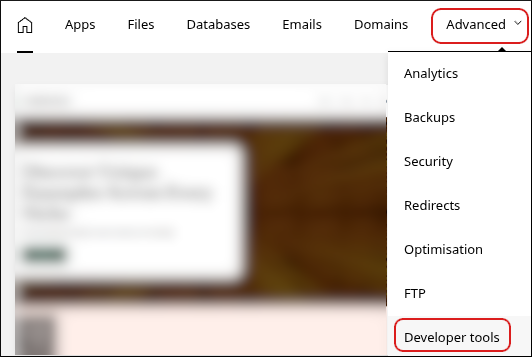
4. A list of tabs appears at the top of the page. Click the **Advanced** tab, and then click **Developer tools**:
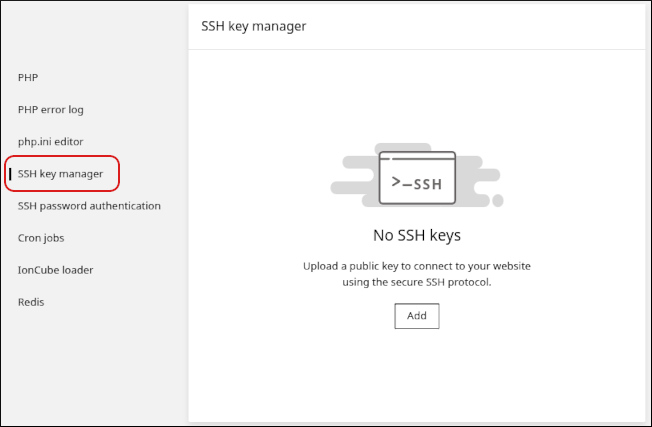
5. The **Developer tools** page appears. In the left sidebar, click **SSH key manager**:
6. Click **Add**.
7. In the **Name** text box, type a descriptive name for the key.
8. In the **Public key** text box, paste the text of the public key. Alternatively, you can upload the public key file directly by clicking **Upload file**.
The public key filename usually ends with a *.pub* extension. Make sure you upload your *public* key, and **not** your *private* key!
9. Click **Upload**. The key and the SSH command to access your account appear:
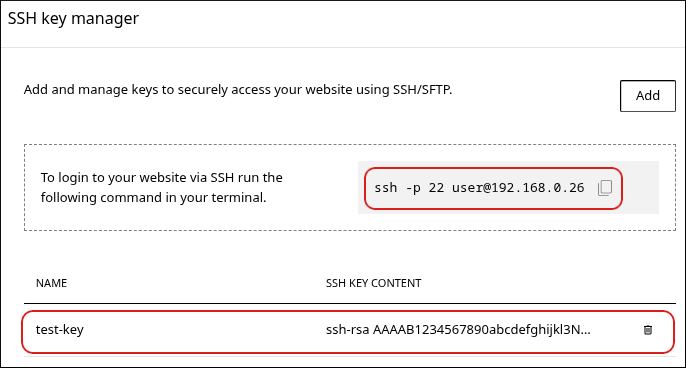
* You can add multiple keys for your account. To do this, click **Add**, and then repeat steps 7 to 9.
* To delete a key, click the trash can icon, and then click **Delete** to confirm.
## Configuring SSH password authentication
To enable SSH access to your account using a password, follow these steps:
1. Log in to your account as described in [Managing your website in the Hosting Panel](/websites-hosting/hosting-panel/managing-your-website-in-the-hosting-panel).
2. When the control panel appears, in the left sidebar, click **Websites**:

3. On the **Manage websites** page, click the website you want to manage.
4. A list of tabs appears at the top of the page. Click the **Advanced** tab, and then click **Developer tools**:

5. The **Developer tools** page appears. In the left sidebar, click **SSH password authentication**:
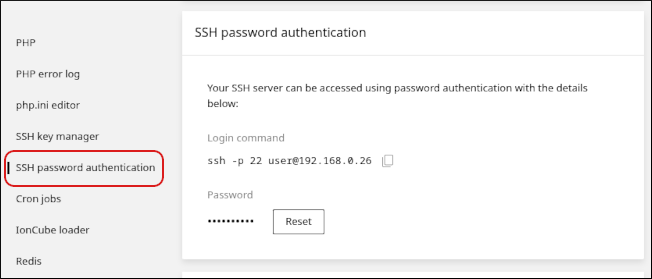
6. To reset the password, click **Reset**.
7. In the **New password** text box, type the password you want to use. Alternatively, click the key icon to automatically generate a strong, random password.
8. Click **Save**. The new password takes effect immediately.
9. Use the command under **Login command** to access your account using SSH.
## Related articles
* [Managing your website in the Hosting Panel](/websites-hosting/hosting-panel/managing-your-website-in-the-hosting-panel)
* [Managing your website files in the Hosting Panel](/websites-hosting/hosting-panel/managing-your-website-files-in-the-hosting-panel)
* [Managing your MySQL databases in the Hosting Panel](/websites-hosting/hosting-panel/managing-your-mysql-databases-in-the-hosting-panel)
* [Managing your domains in the Hosting Panel](/websites-hosting/hosting-panel/managing-your-domains-in-the-hosting-panel)
* [Managing FTP accounts in the Hosting Panel](/websites-hosting/hosting-panel/managing-ftp-accounts-in-the-hosting-panel)
* [Managing your WordPress site in the Hosting Panel](/websites-hosting/hosting-panel/managing-your-wordpress-site-in-the-hosting-panel)