> ## Documentation Index
> Fetch the complete documentation index at: https://support.webcentral.au/llms.txt
> Use this file to discover all available pages before exploring further.
# Webcentral Managed WordPress Quick Start Guide
> Get up and running quickly with Managed Hosting for WordPress powered by Webcentral!
**Welcome to Managed Hosting for WordPress powered by Webcentral!**
You're just a few minutes away from taking your WordPress experience to the max!
**Step 1: Create your first site**
Creating a WordPress site takes just 60 seconds. To get started, follow these steps:
1. Log in to the Webcentral Panel at [https://theconsole.webcentral.au/](https://theconsole.webcentral.au/)
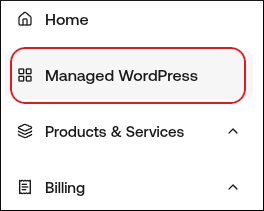
2. In the left sidebar, click **Managed WordPress**:
3. On the **My Websites** page, click **Add Website**:

4. On the **Add a Website** page, in the **Site name/label** text box, type your WordPress site's name:
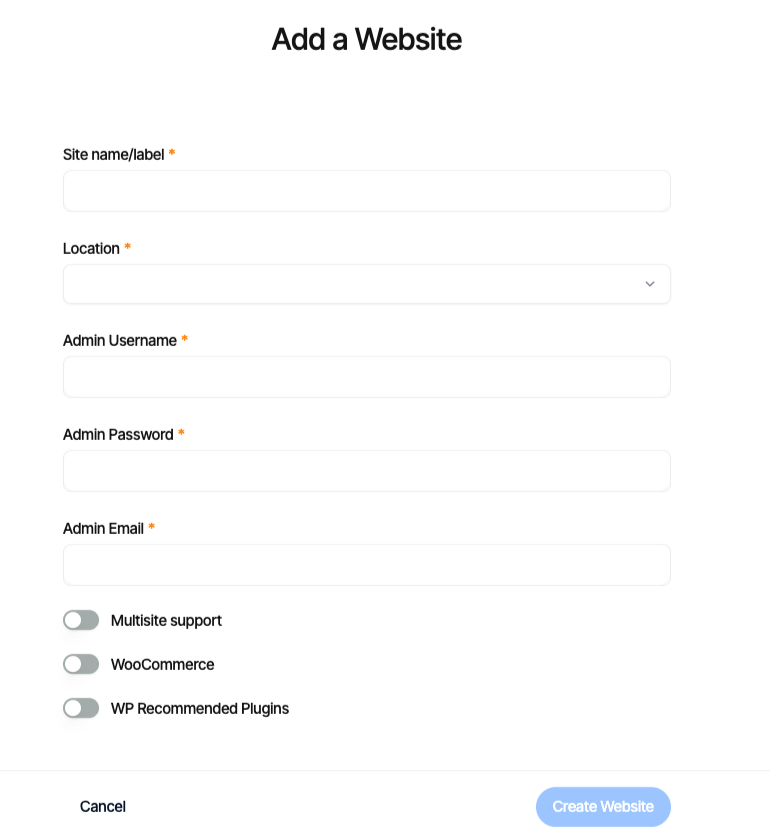
5. In the **Location** list box, select the location for your WordPress site.
**Tip!**: This selection doesn't impact your visitors, because they will be using Cloudflare Enterprise. Instead, it should be a location geographically close to you, because your work in the WordPress Dashboard is not cached.
6. In the **Admin Username** text box, type the admin username you want to use.
**Important**: Use a unique name instead of admin.
7. In the Admin Password text box, type a complex password for the admin user.
**Important**: Never reuse old passwords.
8. In the **Admin Email** text box, type your admin email address to receive important WordPress emails.
9. Enable any additional options for your installation, and then click **Create Website.**
**Step 2: Build or migrate your WordPress site**
Now that your site is created, you can access it immediately on your site URL (eg: [https://abc123.onrocket.site](https://abc123.onrocket.site)).
You can also log in to the WordPress admin dashboard directly. To do this, follow these steps:
1. Log in to the Webcentral Panel at [https://theconsole.webcentral.au/](https://theconsole.webcentral.au/)
2. In the left sidebar, click **Managed WordPress**.
3. On the **My Websites** page, locate the site, and then click **Manage**:

4. At the top right of the page, click **WP Admin:**

**Tip**: If you would like us to migrate your WordPress site from its old host for free, please open a support ticket at [https://theconsole.webcentral.au/](https://theconsole.webcentral.au/) Please provide the following details in the ticket:
* WordPress URL
* WordPress admin username
* WordPress admin password
Once your ticket is received, our staff will migrate your WordPress site to your site URL so you can preview it on the platform.
**Step 3: Go live!**
If you're building a new site or are ready to update your DNS on an existing site, follow these steps:
1. Log in to the Webcentral Panel at [https://theconsole.webcentral.au/](https://theconsole.webcentral.au/)
2. In the left sidebar, click **Managed WordPress**.
3. On the **My Websites** page, locate the site, and then click **Manage**:

4. In the **Ready to go live?** section, click **Get Started**:

5. In the **Change Domain Name** section, type the domain you want to use with WordPress:
* If you want to use the base domain name, type example.com where example.com represents your apex domain.
* If you want to use the www subdomain, type [www.example.com](http://www.example.com) where example.com represents your apex domain.
**Tip**: You can optionally create the CNAME records listed for your domain to help expedite SSL certificate issuance.
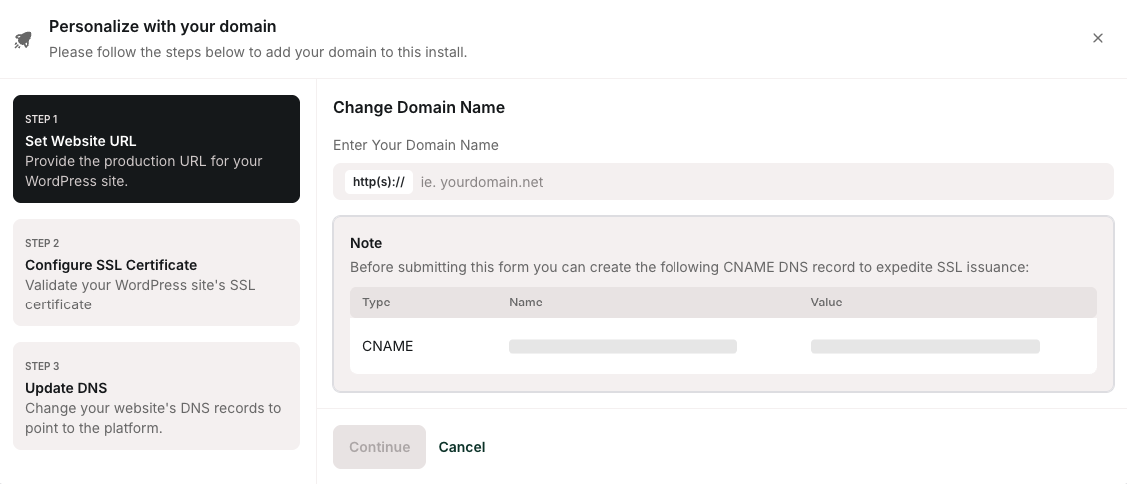
6. Click **Continue**.
7. In the **Configure SSL** section, copy the values for the two **TXT** records.
8. Log in to your domain's registrar or DNS provider, and create **TXT** records that contain the values you obtained in the previous step.
9. Click **Continue**.
10. In the **Update DNS** section, copy the values for the **A** and **CNAME** records.
**Note**: You only need the CNAME value if you are configuring the www subdomain (for example, [www.example.com](http://www.example.com)) in addition to your primary (apex) domain (for example, example.com).
11. Log in to your domain's registrar or DNS provider, and create **A** and **CNAME** records that contain the values you obtained in the previous step.
**Note**: If your DNS provider does not support **CNAME** records for @ records, you can use one of the following IP addresses as **A** records instead:
* 104.19.154.92
* 104.19.155.92
Remember that DNS can take up to 24 hours to propagate fully, but once it does you'll be able to take advantage of all the WordPress specific options in the Webcentral Dashboard such as our single click WP-Admin login.
12. Click **Close**.
**That's it!**
You've successfully created your first site on the Managed WordPress platform. If you have any issues or require assistance, please do not hesitate to open a support ticket at [https://theconsole.webcentral.au/](https://theconsole.webcentral.au/). We'll be glad to help you!