> ## Documentation Index
> Fetch the complete documentation index at: https://support.webcentral.au/llms.txt
> Use this file to discover all available pages before exploring further.
# Viewing Cloudflare bandwidth and Edge Analytics in the webcentral.au Dashboard
> Learn how to view Cloudflare bandwidth and Edge Analytics in the Webcentral Dashboard.
To view Cloudflare bandwidth and Edge Analytics in the Webcentral Dashboard, follow these steps:
1. Log in to the Webcentral Panel at [https://theconsole.webcentral.au/](https://theconsole.webcentral.au/)
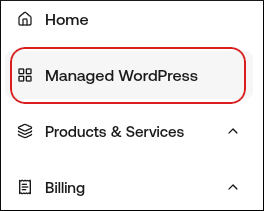
2. In the left sidebar, click **Managed WordPress**:
3. On the **My Websites** page, locate the site, and then click **Manage**

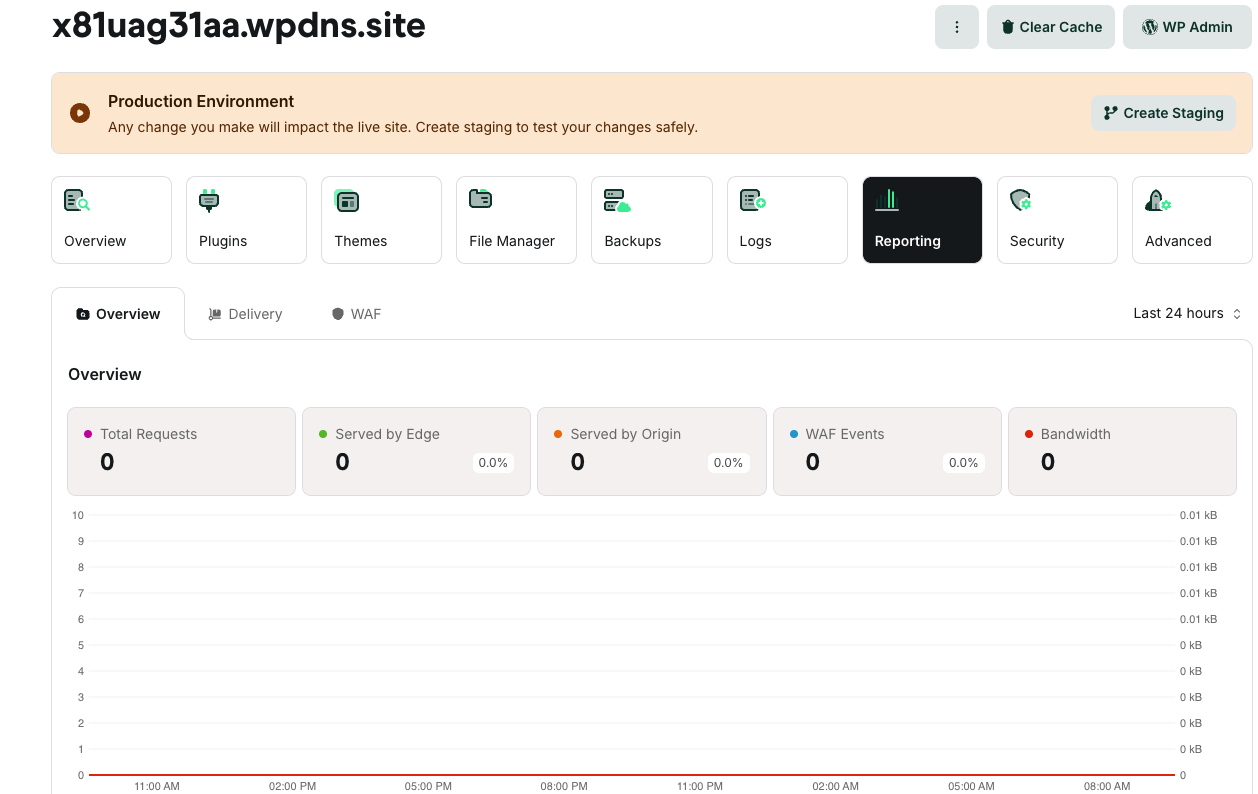
4. On the Webcentral dashboard, click the Reporting icon:
5. On the Overview tab, at the top right, in the Last 24 hours list box, select the amount of time covered in the bandwidth chart:
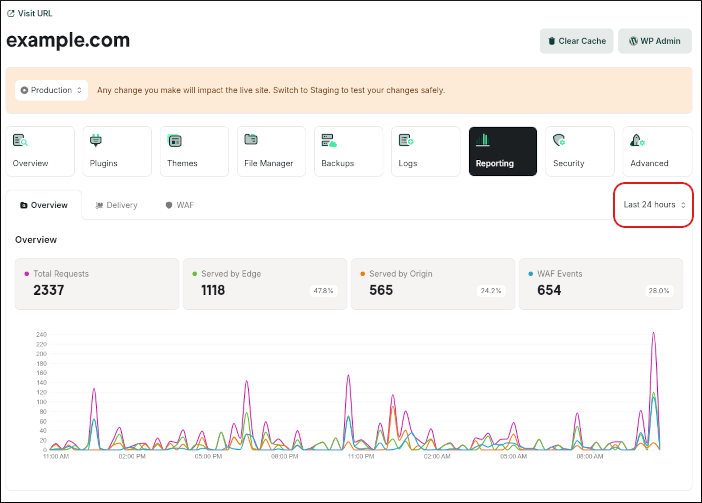
6. To view bandwidth use for a specific day, hover over that date on the chart itself to see the exact amount used.
7. Keep scrolling down to view analytics from Cloudflare's Edge network to gain a greater understanding of the traffic going to your site from Cloudflare's perspective.
* For more information about these statistics, go to What is the difference between visitors on the Webcentral Dashboard and pageviews on Google Analytics?.
* For more information about Cloudflare Edge Analytics, go to [https://rocket.net/blog/cloudflare-edge-analytics-for-wordpress/](https://rocket.net/blog/cloudflare-edge-analytics-for-wordpress/).