> ## Documentation Index
> Fetch the complete documentation index at: https://support.webcentral.au/llms.txt
> Use this file to discover all available pages before exploring further.
# Using WP-CLI in the Webcentral Dashboard
> Learn how to access and use the WordPress command-line tool WP-CLI in the Webcentral Dashboard.
With our unique WordPress command-line interface terminal, using WP-CLI has never been easier! No longer do you need to be a Linux pro to make use of the powerful WP-CLI tool set.
Before you use WP-CLI, please read the release announcement at the Rocket.net blog for an overview and some basic information about how to use it.
**Accessing WP-CLI**
To access WP-CLI from the Webcentral Dashboard, follow these steps:
1. Log in to the Webcentral Panel at [https://theconsole.webcentral.au/](https://theconsole.webcentral.au/)
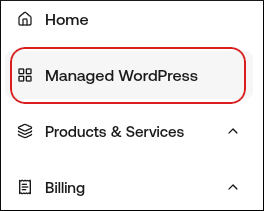
2. In the left sidebar, click **Managed WordPress**:
3. On the **My Websites** page, locate the site, and then click **Manage**

4. On the Webcentral dashboard, click the Advanced icon:
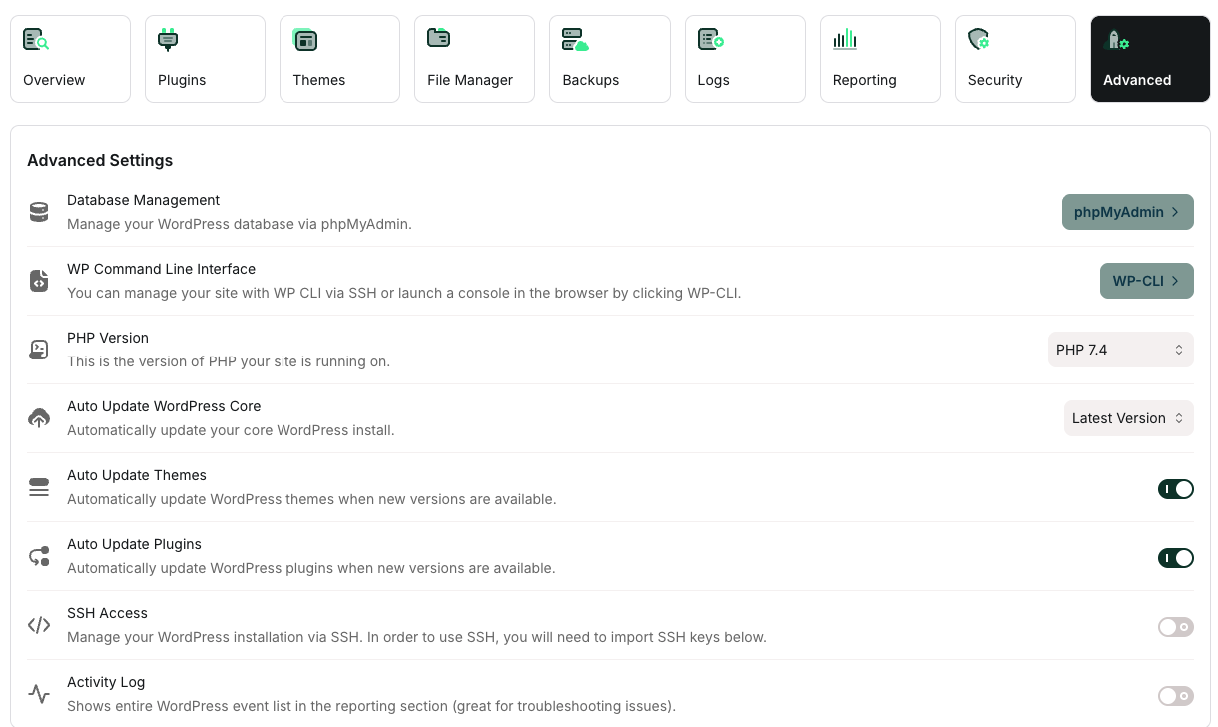
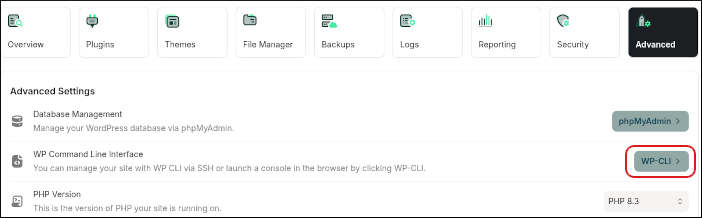
5. In the Advanced Settings section, in the WP Command Line Interface row, click WP-CLI:
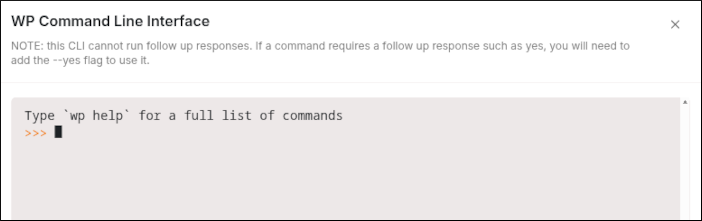
6. The WP-CLI terminal appears, ready for your commands:
**Using WP-CLI**
The WP-CLI Terminal is not the same as an SSH command prompt. The only command available is wp with another command called an "argument" after it. For example:
```text theme={null}
wp theme list
wp plugin list
wp user list
```
The wp command invokes WP-CLI, and \[item] list displays lists of each of those items.
One of the most powerful tools available in WP-CLI is the search-replace command, which allows you to search the database for any text and replace it.
For example, the following command changes references from an old domain name (example.net) to a new domain name (example.com):
```text theme={null}
wp search-replace 'https://example.net' 'https://example.com'
```
You should not use this command to change a site's domain name. The example above refers to an arbitrary URL in the database.
In some cases, you may need to use the options --all-tables and --precise to instruct WP-CLI to search the entire database. You may also want to add the --dry-run option at the end so you can test the command without making any actual replacements in the database.