> ## Documentation Index
> Fetch the complete documentation index at: https://support.webcentral.au/llms.txt
> Use this file to discover all available pages before exploring further.
# Setting up your domain's DNS records for Titan Mail
> Learn how to set up the necessary DNS records and get your Titan Mail plan up and running quickly. This article covers how to configure the MX and SPF records for your domain.
This article describes how to set up the following DNS records and get your Titan Mail plan up and running:
* **MX (Mail Exchanger) record** : The MX records specify the mail servers that your domain uses. Without a functioning MX record, your domain cannot send or receive email.
* **SPF (Sender Policy Framework) record** : This is a DNS TXT record that helps authenticate outgoing email messages and ensure reliable delivery.
For additional authentication for your outgoing messages, you can configure DKIM (DomainKeys Identified Mail) for your domain. For information about how to do this, please see [Setting up DKIM (DomainKeys Identified Mail) for Titan Mail accounts](/emails/titan-mail/setting-up-dkim-domainkeys-identified-mail-for-titan-mail-accounts).
## Scenario #1: Your domain is registered through Webcentral and you use it for web hosting
In this scenario, you registered your domain through Webcentral (or transferred it to Webcentral). Additionally, you have a hosting plan associated with the domain.
To configure your domain for email hosting, follow these steps:
1. Log in to the cPanel account associated with the domain.
2. In the **DOMAINS** section of the cPanel home screen, click **Zone Editor**:
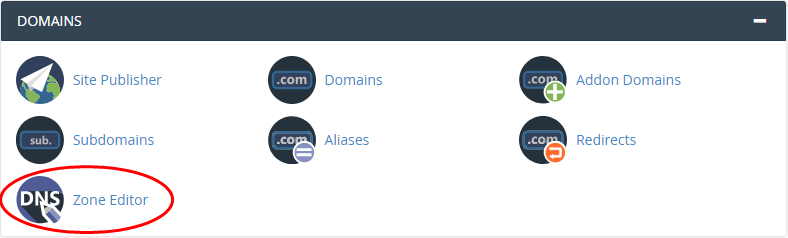
3. Locate the domain, and then click **Manage**:
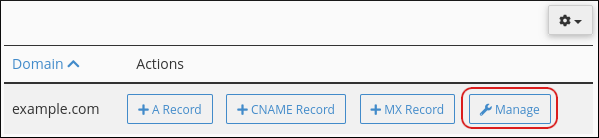
4. On the **Zone Records** page, locate any existing MX records, and then click **Delete** for each record.
You should copy the values for the existing MX records and save them in a safe location, in case you ever want to revert the domain's email back to the default settings.
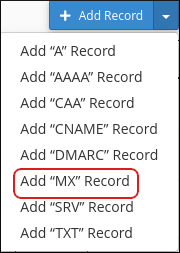
5. On the **Zone Records** page, click **Add Record**, and then click **Add "MX" Record**:
6. In the **Valid zone name** text box, type your domain name.
7. In the **Priority** text box, type `10`.
8. In the **Destination** text box, type `mx1.titan.email`.
9. Click **Add Record**.
10. Click **Add Record**, and then click **Add "MX" Record**:

11. In the **Valid zone name** text box, type your domain name.
12. In the **Priority** text box, type `20`.
13. In the **Destination** text box, type `mx2.titan.email`.
14. Click **Add Record**.
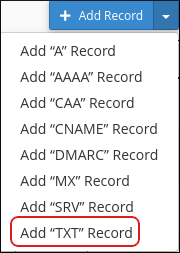
15. Click **Add Record**, and then click **Add "TXT" Record**:
16. In the **Valid zone name** text box, type your domain name.
17. In the **Record Text** text box, type `v=spf1 include:spf.titan.email ~all`
18. Click **Add Record**. Your domain's DNS is now configured for email hosting. To check the DNS status of your domain, see **Checking the DNS status of your domain** below.
## Scenario #2: You registered your domain with another registrar
In this scenario, you registered your domain with another registrar, and the domain's DNS settings are handled by the registrar.
To configure your domain for email hosting, follow these steps:
1. Log in to your domain registrar's customer portal or administration interface.
2. Add the following DNS records to your domain:
| Host Name | Record Type | Address | Priority |
| :-------- | :---------- | :----------------------------------- | :------- |
| @ | MX (Mail) | mx1.titan.email | 10 |
| @ | MX (Mail) | mx2.titan.email | 20 |
| @ | SPF (txt) | v=spf1 include:spf.titan.email \~all | N/A |
If you do not know how to add or modify DNS records for your domain, check your registrar's documentation.
3. Your domain's DNS is now configured for email hosting. To check the DNS status of your domain, see **Checking the DNS status of your domain** below.
For additional authentication for your outgoing messages, you can configure DKIM (DomainKeys Identified Mail) for your domain. For information about how to do this, please see [Setting up DKIM (DomainKeys Identified Mail) for Titan Mail accounts](/emails/titan-mail/setting-up-dkim-domainkeys-identified-mail-for-titan-mail-accounts).
## Checking the DNS status of your domain
After you have added the MX and SPF records to your domain settings, you can check the DNS status of your domain. To do this, follow these steps:
1. Log in to the Hosting Panel at [https://theconsole.webcentral.au/](https://theconsole.webcentral.au/).
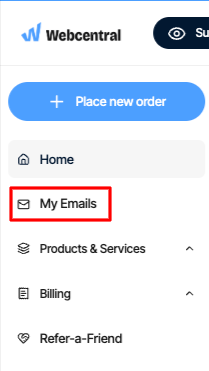
2. In the left sidebar, click **My Email**
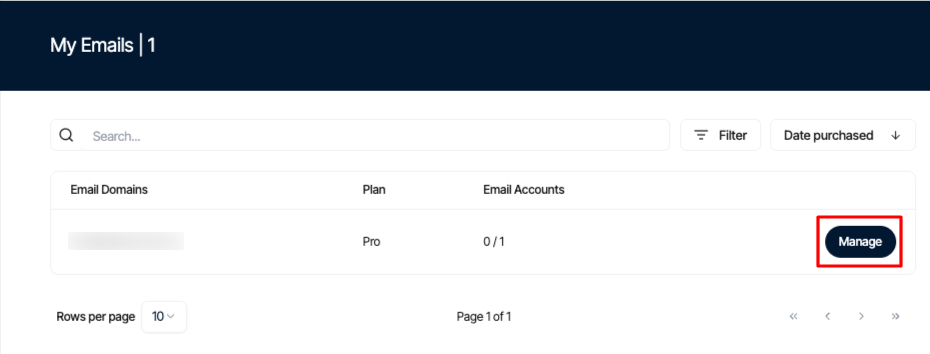
3. On the **My Emails** page, locate your email account, and then click **Manage**:
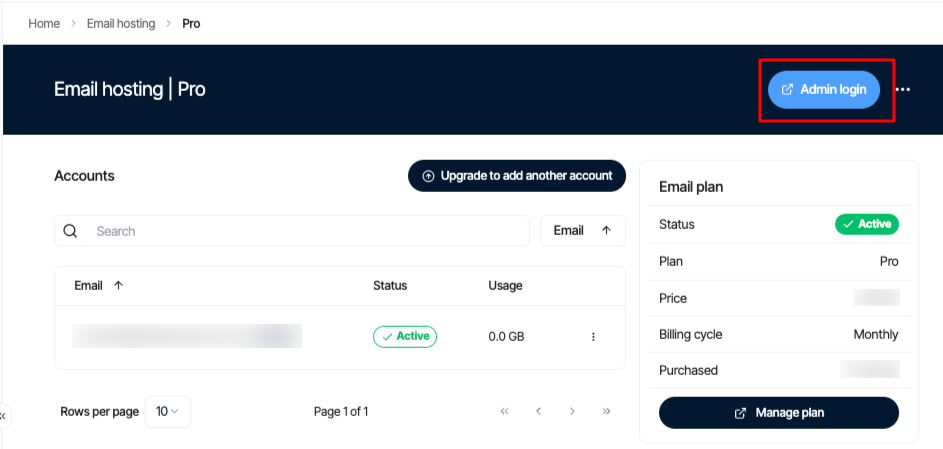
4. Click on **Admin Login**
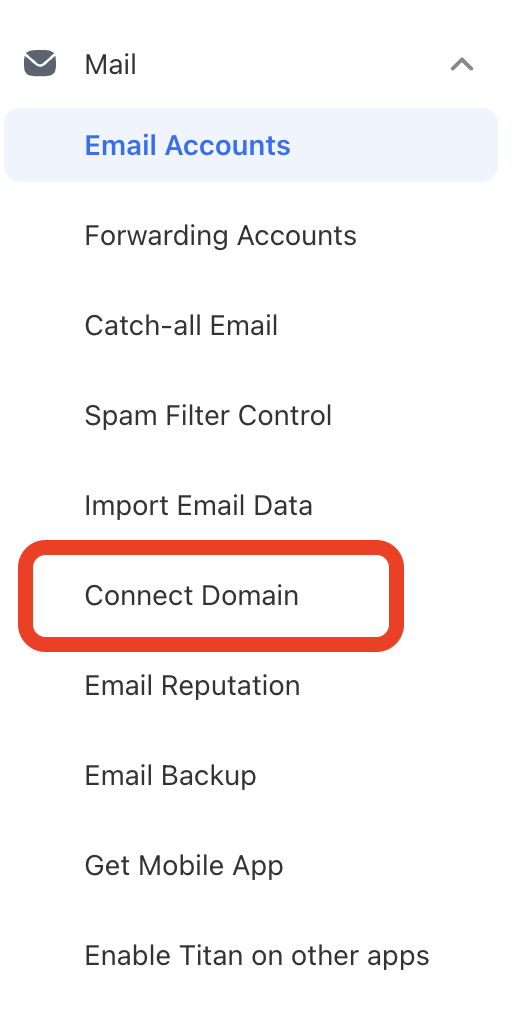
5. Click the **Connect Domain**:
6. For the MX and TXT records, you should see **VERIFIED**:

It can take up to 24 hours for DNS changes to fully propagate across the internet (though the process is usually much faster). If you see **UNVERIFIED**, check that you provided the correct DNS settings above, wait awhile, and then try again.
7. You are now ready to create and configure accounts for your email hosting plan. For information about how to do this, please see [Managing Titan Mail accounts](/emails/titan-mail/managing-titan-mail-accounts).
## More information
For more information, please visit [https://support.titan.email/hc/en-us/sections/360005783514-Setup-Titan-for-your-domain](https://support.titan.email/hc/en-us/sections/360005783514-Setup-Titan-for-your-domain).