> ## Documentation Index
> Fetch the complete documentation index at: https://support.webcentral.au/llms.txt
> Use this file to discover all available pages before exploring further.
# Managing your email in Titan Mail webmail
> Learn how to manage your email messages using the webmail interface provided in Titan Mail accounts.
This article describes how to manage your email messages using the webmail interface provided in Titan Mail accounts.
## Managing your email messages
To manage email messages using webmail, follow these steps:
1. Log in to your webmail account at [https://webmail.webcentral.au/](https://webmail.webcentral.au/)
2. Your inbox appears. Click on a message:
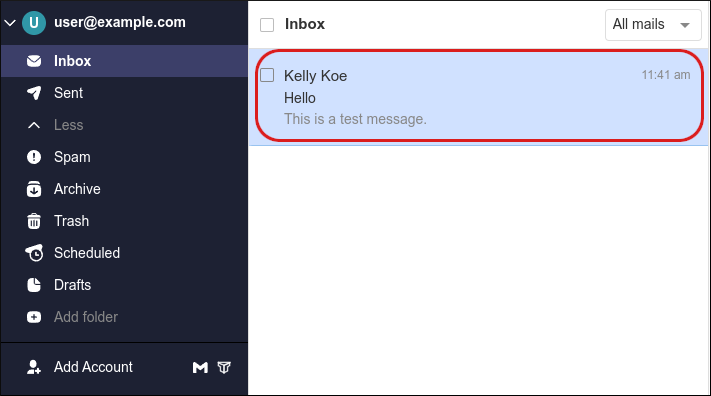
The message appears in the viewing pane:
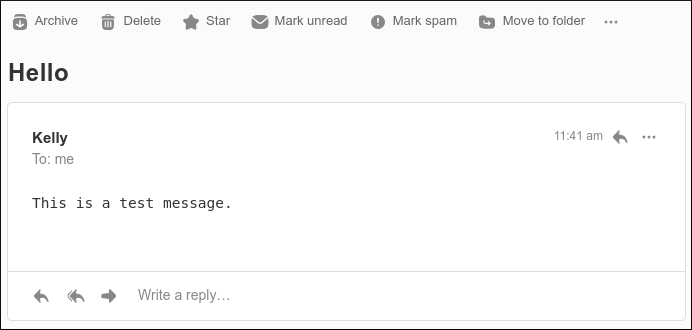
3. There are several options available in the viewing pane:
* **Archive**: Click this option to move the message to the Archive folder.
* **Delete**: Click this option to move the message to the Trash folder.
* **Star**: Click this option to mark an important message.
You can search for starred messages in your inbox by typing **is:starred** in the **Search** box.
* **Mark unread / Mark read**: Click this option to mark the message as unread (or if it is currently marked unread, to mark it as read).
* **Mark spam**: Click this option to mark the message as spam and move it to the Spam folder.
* **Move to folder**: Click this option to move the message to a specific folder.
Folders help organize your inbox. For example, you could have a "Personal" folder and a "Work" folder. To create new subfolders, click **Inbox** in the left sidebar, and then click **Create a subfolder**.
* **Print conversation**: Click this option to generate a printed hard copy of the message.
### Configuring the conversation view
You can configure how replies to messages appear in your inbox:
* By default, message replies are grouped together as a continuous single conversation. The oldest email message in the thread is at the top, and the most recent message is at the bottom.
* However, you can switch to a non-threaded view, where each new reply appears as a separate message.
To configure the conversation view, follow these steps:
1. Log in to your webmail account at [https://webmail.webcentral.au/](https://webmail.webcentral.au/)
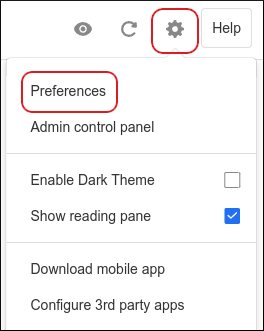
2. Click the **Settings** (gear) icon, and then click **Preferences**:
3. In the left sidebar, click **General**:
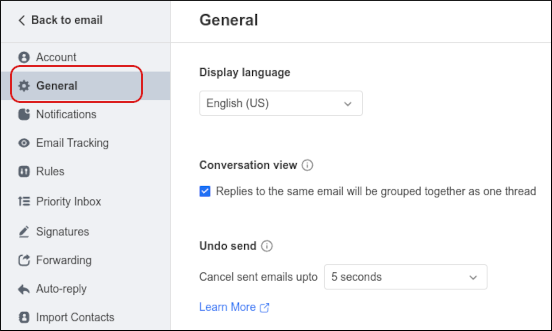
4. Under **Conversation View**, select the view you want:
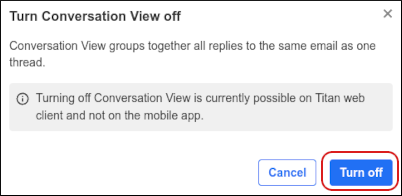
* To view message replies as separate messages, clear the **Replies to the same email will be grouped together as one thread** check box, and then click **Turn off**:
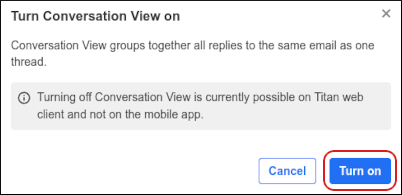
* To view message replies grouped together as one thread, select the **Replies to the same email will be grouped together as one thread** check box, and then click **Turn on**:
For more information about this feature, please see [this article](https://support.titan.email/hc/en-us/articles/16718985114393-View-replies-to-an-email-as-one-thread-or-as-individual-emails).
## More information
For more information about how to manage your email messages in webmail, please visit [https://support.titan.email/hc/en-us/articles/360038799693-Email-actions-manage-your-email](https://support.titan.email/hc/en-us/articles/360038799693-Email-actions-manage-your-email).
## Related articles
* [Importing contacts into Titan Mail accounts](/emails/titan-mail/importing-contacts-into-titan-mail-accounts)
* [Changing your password for Titan Mail accounts](/emails/titan-mail/changing-your-password-for-titan-mail-accounts)
* [Setting up your domain's DNS records for Titan Mail](/emails/titan-mail/setting-up-your-domains-dns-records-for-titan-mail)
* [Setting up Titan Mail on Android devices](/emails/titan-mail/setting-up-titan-mail-on-android-devices)
* [Setting up Titan Mail on Apple iOS devices](/emails/titan-mail/setting-up-titan-mail-on-apple-ios-devices)