> ## Documentation Index
> Fetch the complete documentation index at: https://support.webcentral.au/llms.txt
> Use this file to discover all available pages before exploring further.
# How to add your OX Email account to the iPhone and iPad Mail app
***Important:***\_ OX Email needs to be added to your device as IMAP or POP. It is not compatible with Exchange.\_
*If you have been migrated from Microsoft Email Essentials to OX Email, **you will need to migrate your calendars and contacts manually**.* [*Please check out Microsoft's guides on exporting and importing contacts and calendars.*](https://support.microsoft.com/en-us/office/import-and-export-outlook-email-contacts-and-calendar-92577192-3881-4502-b79d-c3bbada6c8ef)
You can add your OX Email account to the Mail app on your iPhone and iPad.
Our recommended settings are:
* IMAP
* server: mail.wcg-mail.com
* port: 993 (SSL encryption)
* SMTP
* server: mail.wcg-mail.com
* port 587 - encryption TLS
## Quickly add your account
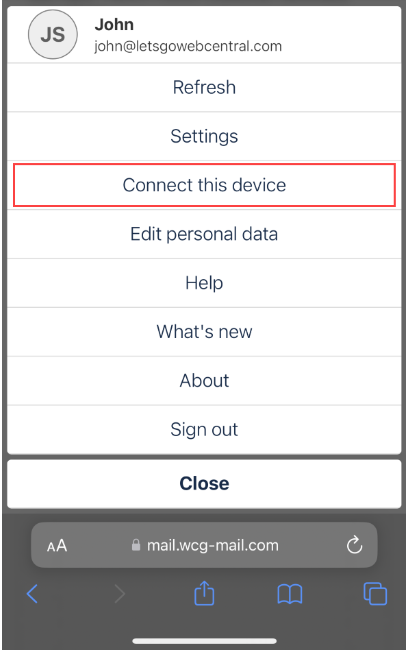
You can easily add your email account to Apple Mail using the **Connect this device** feature in OX Email online. Follow the below steps to find out how:
1. [Log in to your email account online](https://mail.wcg-mail.com/appsuite/)
2. Tap on your **Profile picture**  3. Tap **Connect this device**
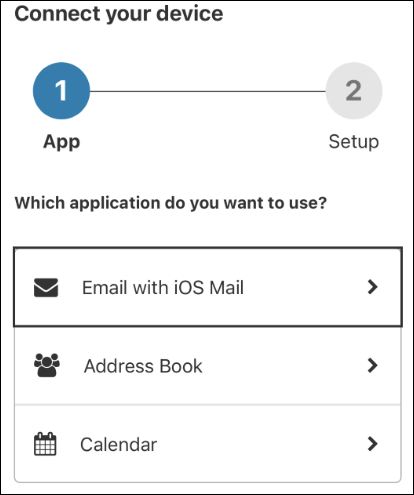
4. Tap **Email with iOS Mail**
5. Tap **Download configuration**

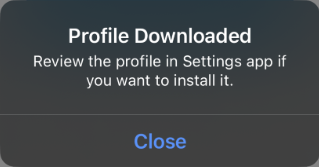
6. The email **Profile** will be downloaded, click **Close**
7. Go to your phone's home page and tap **Settings**
3. Tap **Connect this device**

4. Tap **Email with iOS Mail**

5. Tap **Download configuration**

6. The email **Profile** will be downloaded, click **Close**

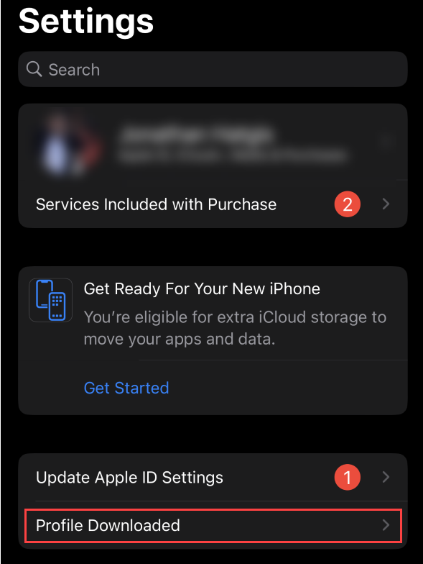
7. Go to your phone's home page and tap **Settings**  8. Tap **Profile Downloaded**
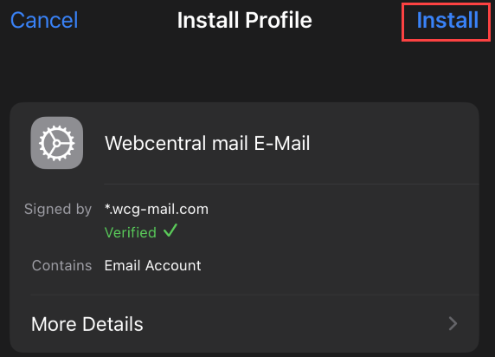
9. Click **Install**
10. You may need to enter your devices passcode/password
This is the passcode/password you use to access your device (not the email account)
11. Click **Install**
12. Under **Incoming Mail**, enter your email addresses password and click **Next**
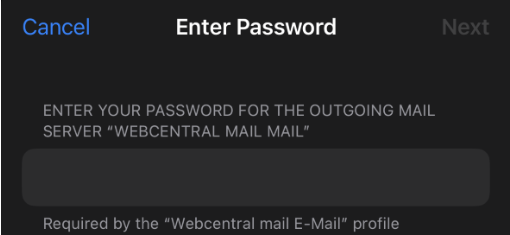
13. Under **Outgoing Mail**, enter your email addresses password and click **Next** (the same as above)
14. Tap **Done**
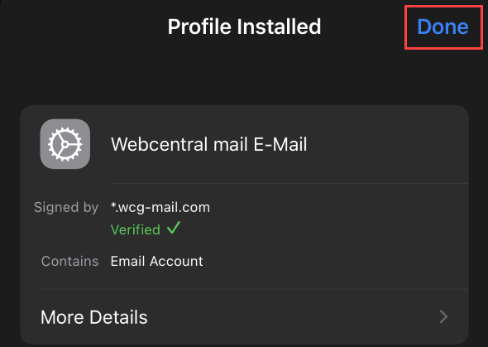
15. Your email account has now been added to **Apple Mail**, open the app to start using your email
## How to manually add your email to the Mail app
To manually add your email account to Apple Mail, using our server settings, follow the below steps:
1. Tap **Settings**
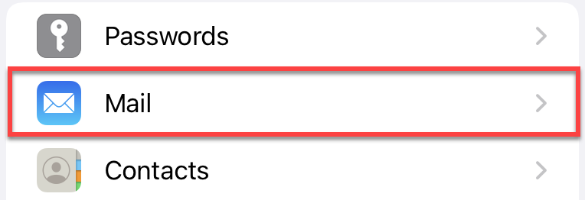
2. Scroll down and tap **Mail**
3. Tap **Accounts**
If you are using an older iPhone or iPad, tap **Passwords & Accounts**
4. Tap **Add Account**
5. Tap **Other**

6. Tap **Add Mail Account**
7. Type in your name, email address, and password
The **Description** will update automatically after you input the above - you can change it or leave it as is.
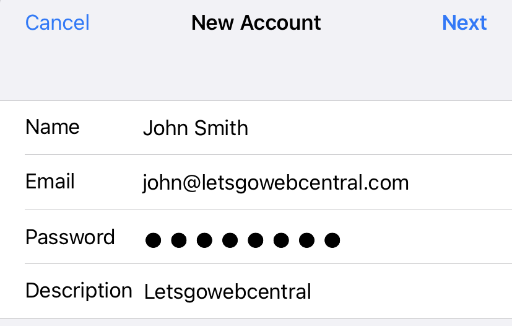
8. Tap **Next**
9. Select **IMAP** or **POP**
We recommend IMAP as it will sync all your devices, using this email account, together - making sure you're up to date no matter the device you choose to access your email on.
10. Under **INCOMING MAIL SERVER**, input the below settings
Host Name: mail.wcg-mail.com\
Username: your full email address (e.g. [john@letsgowebcentral.au](mailto:john@letsgowebcentral.au))\
Password: your email password
11. Under **OUTGOING MAIL SERVER**, input the below settings
Host Name: mail.wcg-mail.com\
Username: your full email address (e.g. [john@letsgowebcentral.au](mailto:john@letsgowebcentral.au))\
Password: your email password
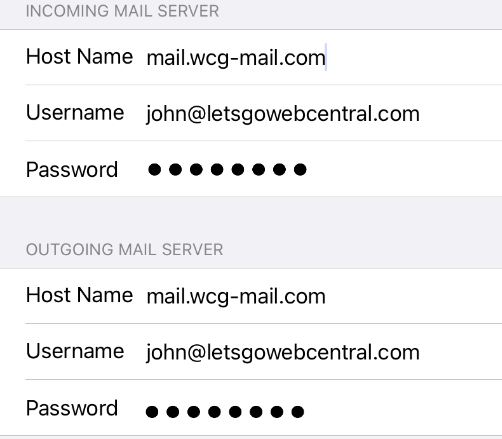
12. Tap **Next**
13. Tap **Save**
You can now access your email through the Mail app on your Apple device.
8. Tap **Profile Downloaded**

9. Click **Install**

10. You may need to enter your devices passcode/password
This is the passcode/password you use to access your device (not the email account)
11. Click **Install**
12. Under **Incoming Mail**, enter your email addresses password and click **Next**
13. Under **Outgoing Mail**, enter your email addresses password and click **Next** (the same as above)

14. Tap **Done**

15. Your email account has now been added to **Apple Mail**, open the app to start using your email
## How to manually add your email to the Mail app
To manually add your email account to Apple Mail, using our server settings, follow the below steps:
1. Tap **Settings**
2. Scroll down and tap **Mail**

3. Tap **Accounts**
If you are using an older iPhone or iPad, tap **Passwords & Accounts**
4. Tap **Add Account**
5. Tap **Other**

6. Tap **Add Mail Account**
7. Type in your name, email address, and password
The **Description** will update automatically after you input the above - you can change it or leave it as is.

8. Tap **Next**
9. Select **IMAP** or **POP**
We recommend IMAP as it will sync all your devices, using this email account, together - making sure you're up to date no matter the device you choose to access your email on.
10. Under **INCOMING MAIL SERVER**, input the below settings
Host Name: mail.wcg-mail.com\
Username: your full email address (e.g. [john@letsgowebcentral.au](mailto:john@letsgowebcentral.au))\
Password: your email password
11. Under **OUTGOING MAIL SERVER**, input the below settings
Host Name: mail.wcg-mail.com\
Username: your full email address (e.g. [john@letsgowebcentral.au](mailto:john@letsgowebcentral.au))\
Password: your email password

12. Tap **Next**
13. Tap **Save**
You can now access your email through the Mail app on your Apple device.