> ## Documentation Index
> Fetch the complete documentation index at: https://support.webcentral.au/llms.txt
> Use this file to discover all available pages before exploring further.
# How to add your OX Email account to Gmail on Android
***Important:***\_ OX Email needs to be added to your device as IMAP or POP. It is not compatible with Exchange.\_
*If you have been migrated from Microsoft Email Essentials to OX Email, **you will need to migrate your calendars and contacts manually**.* [*Please check out Microsoft's guides on exporting and importing contacts and calendars.*](https://support.microsoft.com/en-us/office/import-and-export-outlook-email-contacts-and-calendar-92577192-3881-4502-b79d-c3bbada6c8ef)
You can add your OX Email account to Gmail on an Android device.
Our recommended settings are:
* IMAP
* server: mail.wcg-mail.com
* port: 993 (SSL encryption)
* SMTP
* server: mail.wcg-mail.com
* port 587 - encryption TLS
## Add your email to Gmail
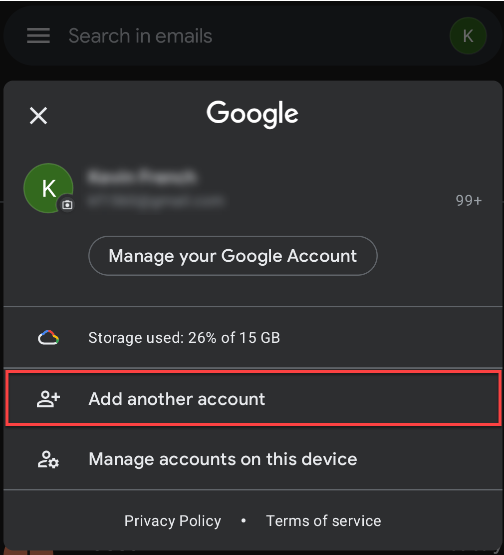
1. Tap the Gmail app  2. Tap your profile

3. Tap **Add another account**
If you are using Gmail on this device for the first time, open the app and click + **Add an email address**
4. Tap **Other**
5. Type in your email address and click **Next**
6. Tap **Personal (IMAP)** or **Personal (POP)**
We recommend IMAP as it will sync all your devices, using this email account, together - making sure you're up to date no matter the device you choose to access your email on.
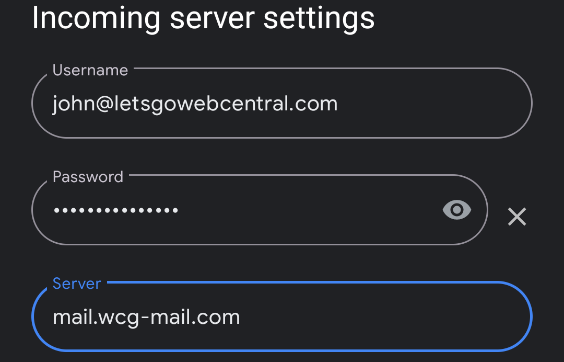
7. Under **Server**, change the incoming server to **mail.wcg-mail.com** and click **Next**
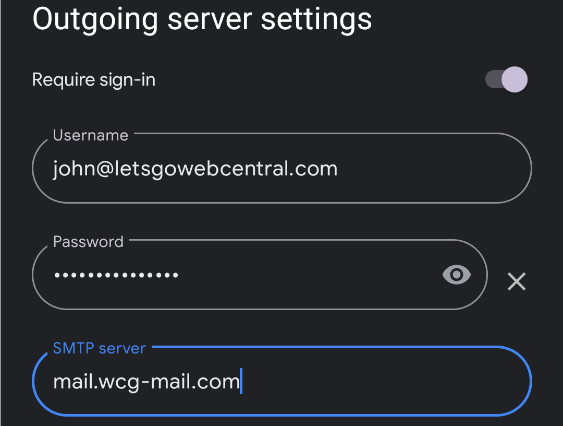
8. Under **Server**, change the SMTP server to **mail.wcg-mail.com** and click **Next**
9. Select the **Account options** that you want and click **Next**
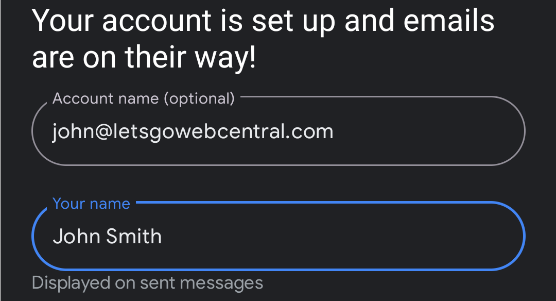
10. You can update the **Account name (Optional)** and **Your name** and click **Next**
**Your name** is the name that is displayed on sent emails
You can now access your email account through Gmail on your Android device.
## How to switch between email accounts in Gmail
1. Tap the Gmail app
2. Tap your profile

3. Tap **Add another account**
If you are using Gmail on this device for the first time, open the app and click + **Add an email address**

4. Tap **Other**
5. Type in your email address and click **Next**
6. Tap **Personal (IMAP)** or **Personal (POP)**
We recommend IMAP as it will sync all your devices, using this email account, together - making sure you're up to date no matter the device you choose to access your email on.
7. Under **Server**, change the incoming server to **mail.wcg-mail.com** and click **Next**

8. Under **Server**, change the SMTP server to **mail.wcg-mail.com** and click **Next**

9. Select the **Account options** that you want and click **Next**
10. You can update the **Account name (Optional)** and **Your name** and click **Next**
**Your name** is the name that is displayed on sent emails

You can now access your email account through Gmail on your Android device.
## How to switch between email accounts in Gmail
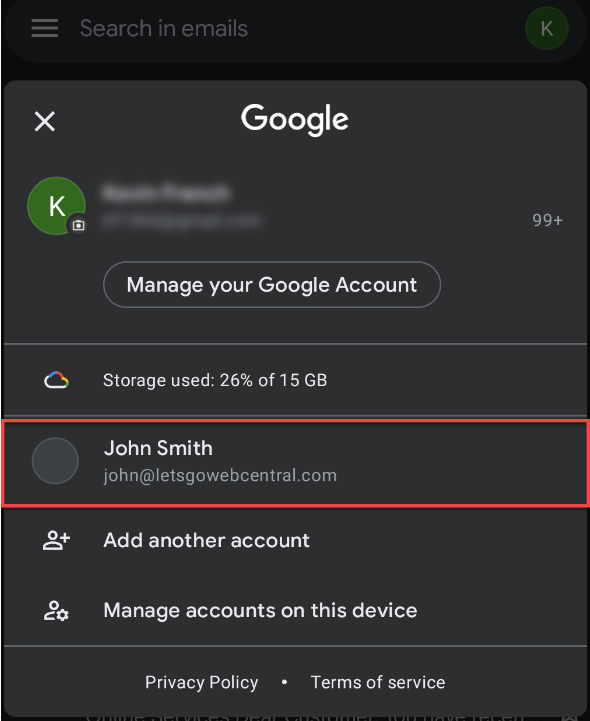
1. Tap the Gmail app  2. Tap your profile

3. Tap on the account you want to view
2. Tap your profile

3. Tap on the account you want to view
