> ## Documentation Index
> Fetch the complete documentation index at: https://support.webcentral.au/llms.txt
> Use this file to discover all available pages before exploring further.
# Outlook Setup on iOS or iPadOS
Before you can configure email software to send and receive emails from our servers, you must
* Purchase a cPanel, OX Mail or MS365 subscription service
* Create an email account and have your password on hand
* Have your Zone Records set up correctly, contact us if you need help ensuring these are up to date
* Ensure you have your incoming, outgoing settings ready to go. If you need these details, please [find them here](/emails/device-setup/email-software-settings)
**Note:** As a courtesy to our customers, we provide general online guides on how to configure various email software. Our staff, are not able to provide support on how to use third-party software. For assistance in how to use software not sold or developed by us, please contact the software manufacturer or visit their relevant online support pages.
**Step 1**
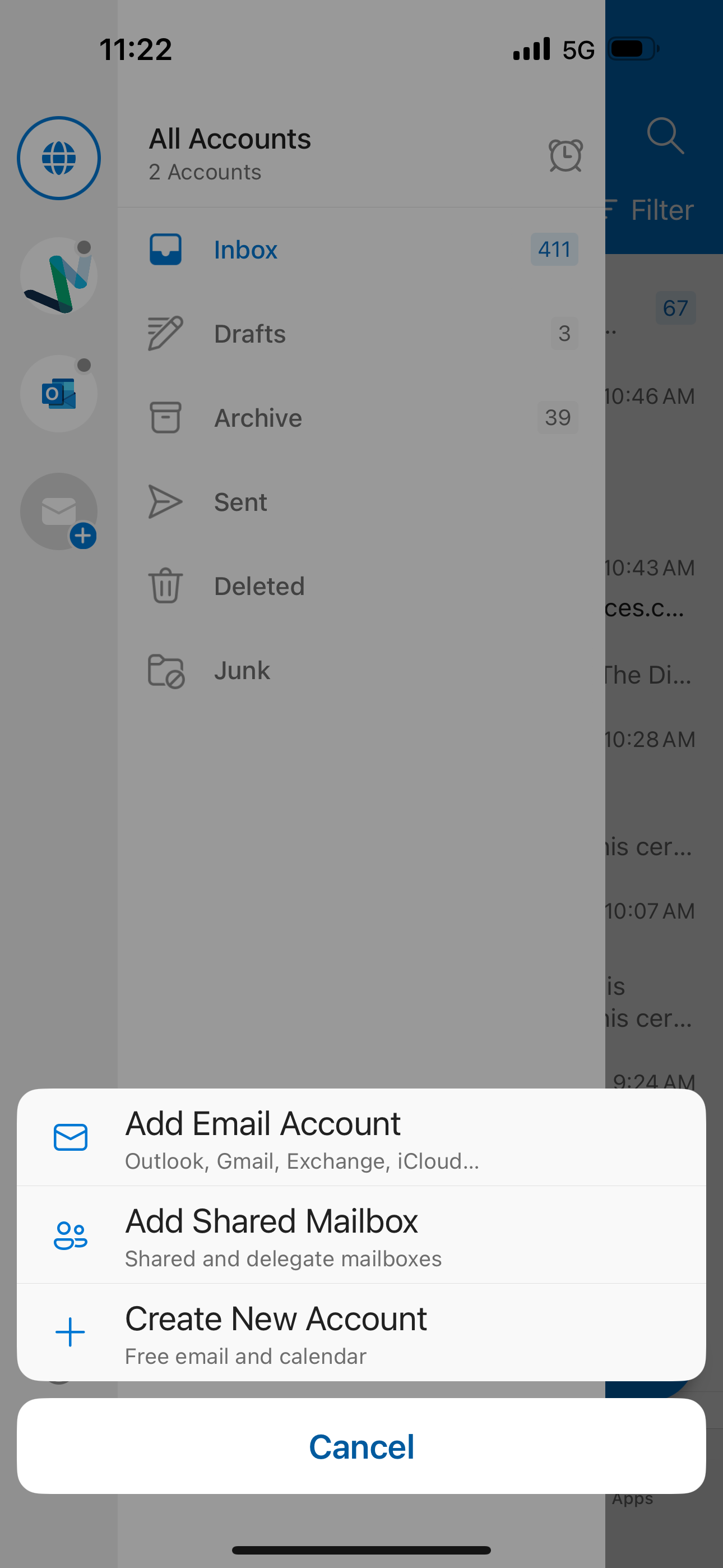
Head to the Outlook app and swipe over to find the menu, click the plus icon, then click on the Add Email Account button
**Step 2**
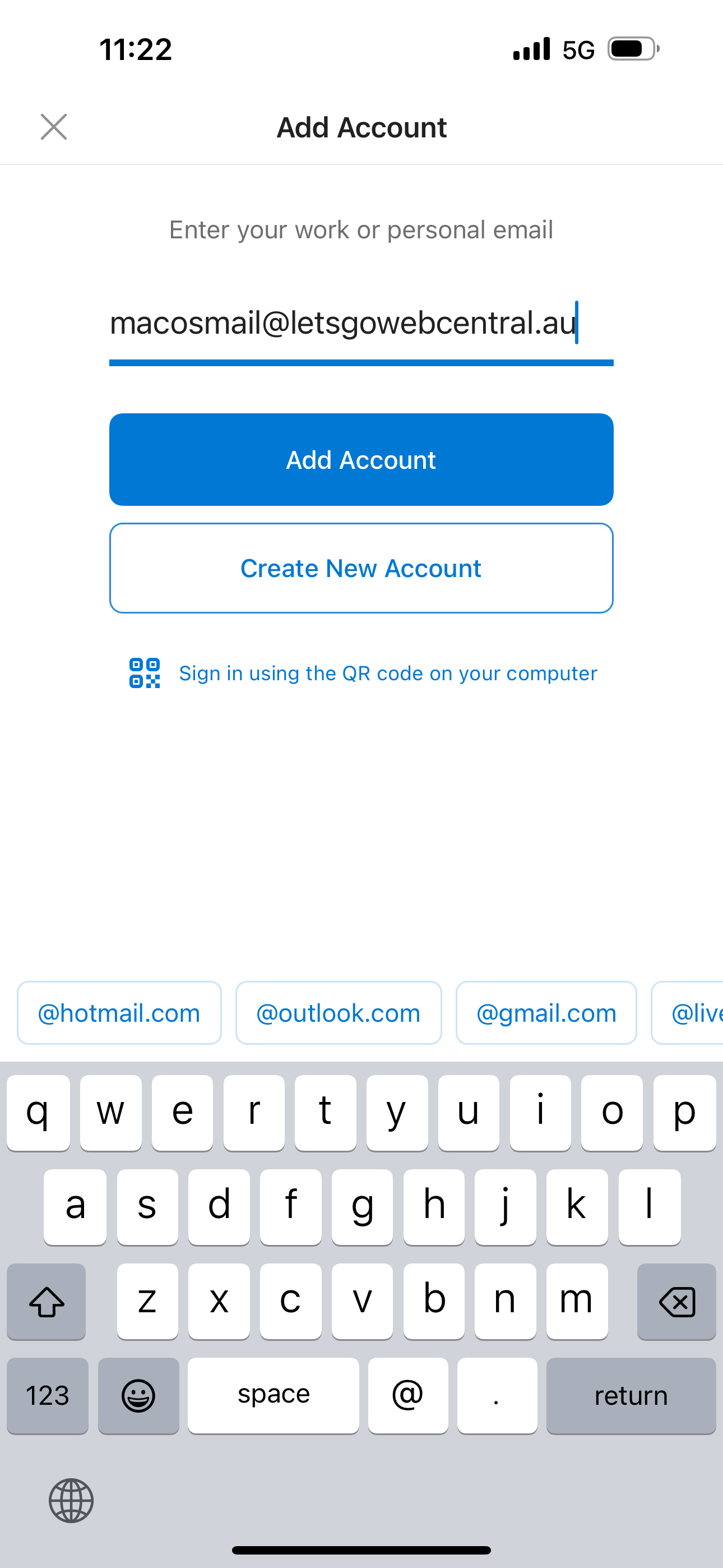
Enter in your email address and tap Add Account
**Step 3**
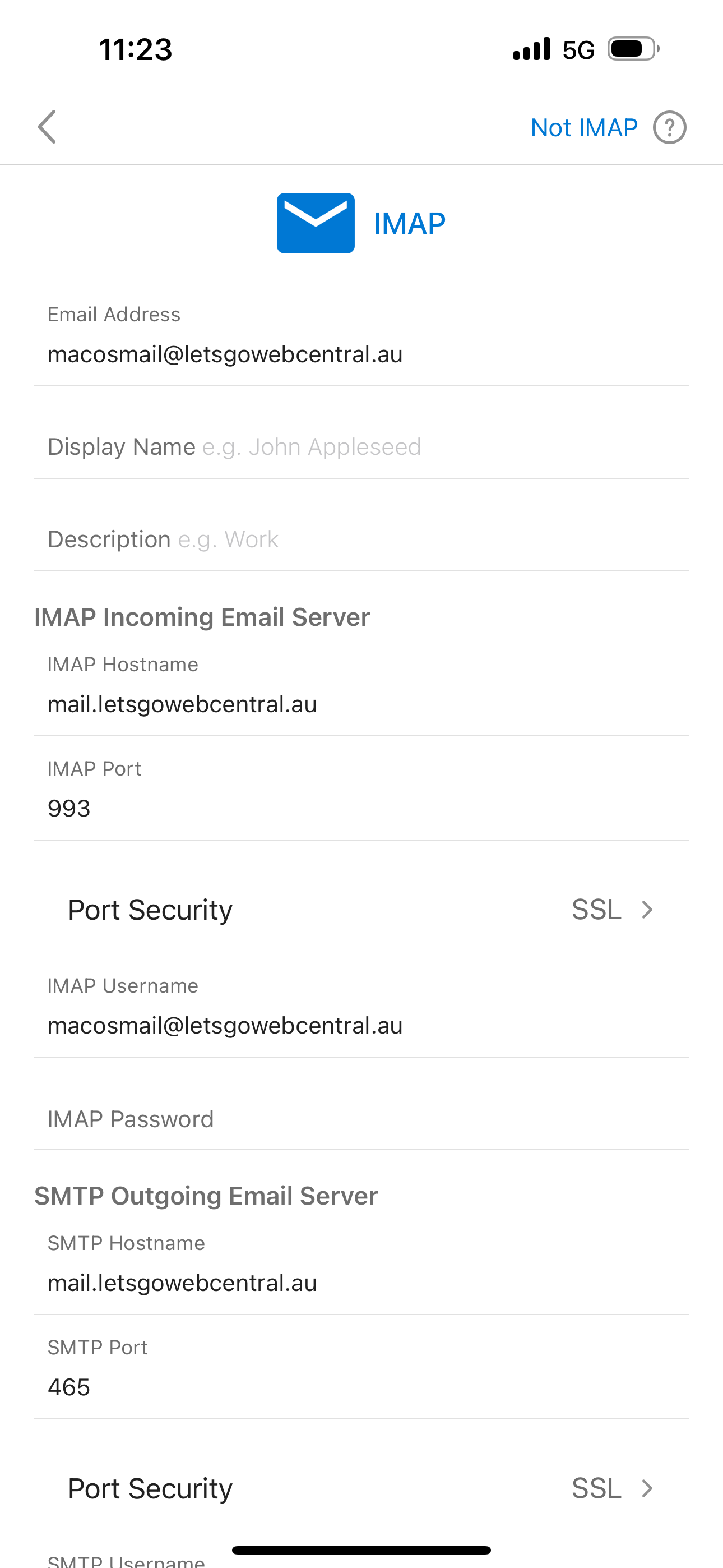
Enter in the email settings specific for your email service
**Step 4**
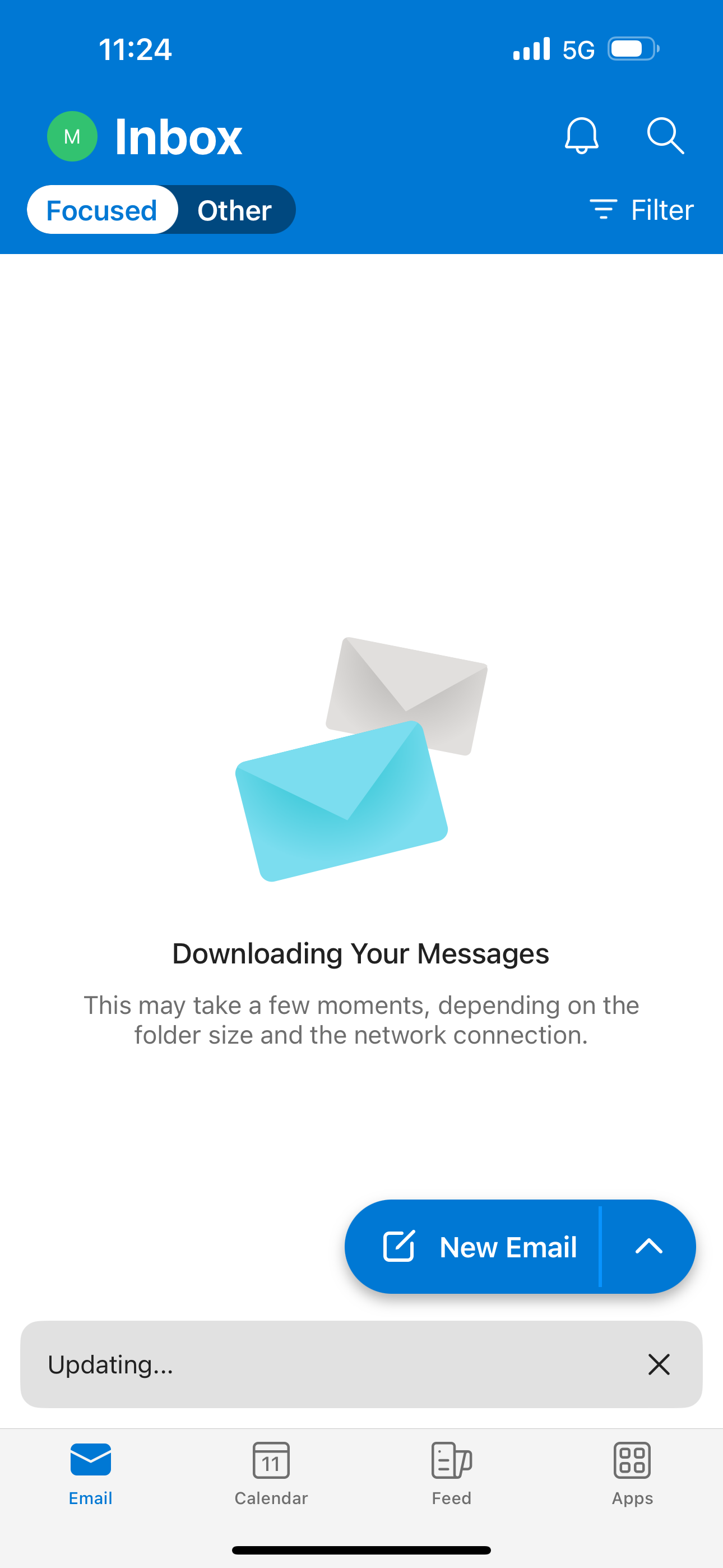
Once the app has finished verifying your email account, it will start to download and sync your emails