> ## Documentation Index
> Fetch the complete documentation index at: https://support.webcentral.au/llms.txt
> Use this file to discover all available pages before exploring further.
# Viewing your Support PIN
> Learn how to view your Support PIN in the Webcentral Hosting Panel.
This article describes how to view the Support PIN for your account. The Support PIN is a code that Webcentral uses to help verify account ownership.
We may use the Support PIN in phone calls, online chats, tickets, or any time we need to confirm your identity.
To view or change the Support PIN for your account, follow these steps:
1. Log in to the Hosting Panel at [https://theconsole.webcentral.au](https://theconsole.webcentral.au).
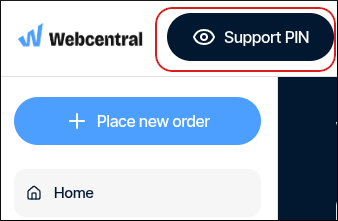
2. At the top of the page, click **Support PIN**:
If you are using a mobile device, tap the settings icon:

Then tap **Support PIN**.
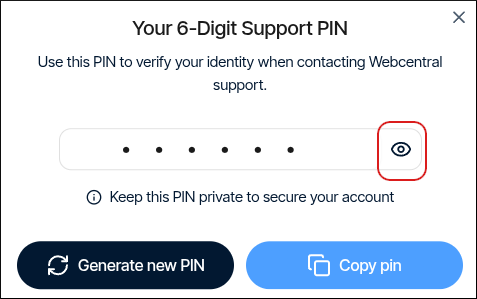
3. To view your support PIN, click the eye icon:
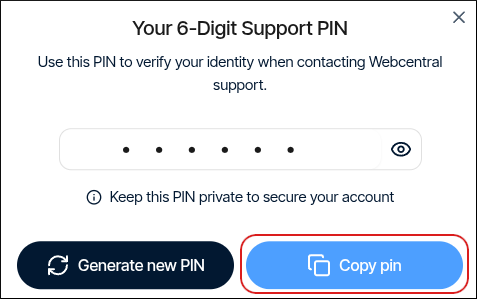
4. To copy your support PIN to the clipboard so you can quickly paste it into a chat with us, click **Copy pin**:
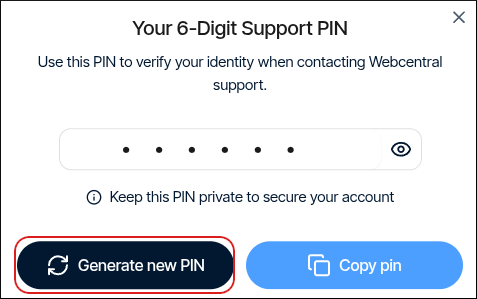
5. To generate a new support PIN, click **Generate new PIN**: