> ## Documentation Index
> Fetch the complete documentation index at: https://support.webcentral.au/llms.txt
> Use this file to discover all available pages before exploring further.
# Domain management in the Hosting Panel
> Learn how to use the Webcentral Hosting Panel to manage your domains.
This article describes how to use the Webcentral Hosting Panel to do domain management tasks, such as changing the domain's name servers and setting the registrar lock.
The information in this article only applies to domains purchased directly from Webcentral. If you purchased a domain from a third-party registrar, check their documentation instead for information about how to manage your domain.
## Viewing domain information
To view basic information about your domain, such as payment and registration dates, follow these steps:
1. Log in to the Hosting Panel at [https://theconsole.webcentral.au](https://theconsole.webcentral.au).
2. In the left sidebar, under **Products & Services**, click **Domains**:
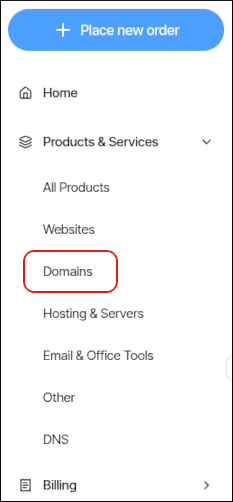
3. On the **Domains** page, click the domain you want to configure.
You can filter the list of domains to only display active, canceled, or all domains. To do this, click the **Active**, **Cancelled**, or **All** tab.
4. Information about your domain appears.
## Viewing and changing the name servers for a domain
To change the name servers for a domain, or to just see the current name servers set for a domain, follow these steps:
1. Log in to the Hosting Panel at [https://theconsole.webcentral.au](https://theconsole.webcentral.au).
2. In the left sidebar, under **Products & Services**, click **Domains**:

3. On the **Domains** page, click the domain you want to configure.
You can filter the list of domains to only display active, canceled, or all domains. To do this, click the **Active**, **Cancelled**, or **All** tab.
4. Click **Update Nameservers**:

5. In the **Update Nameservers** dialog box, type the nameservers you want to use. You must specify at least two (a primary and a secondary) nameservers:
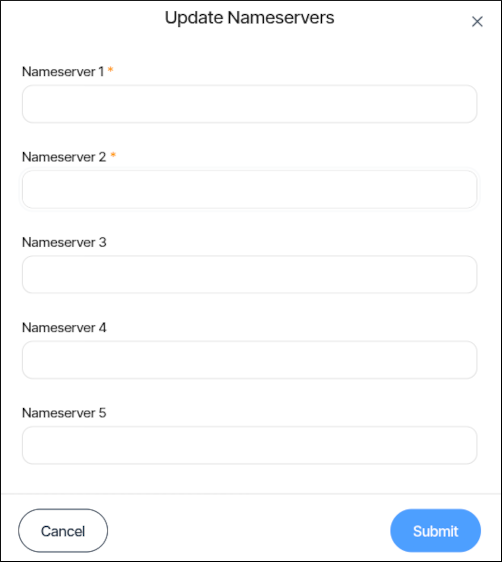
6. Click **Submit**.
DNS changes can take up to 24 hours to fully propagate. For information about how to access your web site before DNS propagation is complete, please see [this article](https://support.webcentral.au/docs/accessing-your-web-site-before-dns-propagation-is-complete).
## Setting the registrar lock for a domain
For security reasons, you should keep your domain locked to prevent unauthorized transfers. To do this, follow these steps:
1. Log in to the Hosting Panel at [https://theconsole.webcentral.au](https://theconsole.webcentral.au).
2. In the left sidebar, under **Products & Services**, click **Domains**:

3. On the **Domains** page, click the domain you want to configure.
You can filter the list of domains to only display active, canceled, or all domains. To do this, click the **Active**, **Cancelled**, or **All** tab.
4. Click **Lock/Unlock**:

5. In the **Lock/Unlock** dialog box, the lock options for the domain appear:
* To lock the domain, make sure the **Locked** check box is selected:
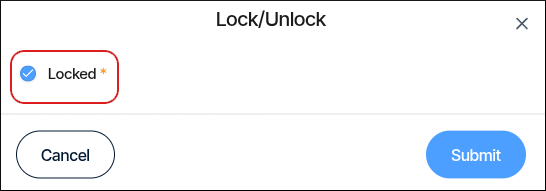
* To unlock the domain, make sure the **Locked** check box is *not* selected:
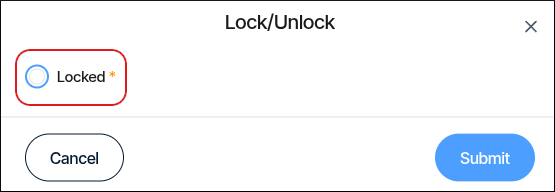
6. Click **Submit**.
## Changing registrant contact information
To change the registrant contact information for a domain, follow these steps:
1. Log in to the Hosting Panel at [https://theconsole.webcentral.au](https://theconsole.webcentral.au).
2. In the left sidebar, under **Products & Services**, click **Domains**:

3. On the **Domains** page, click the domain you want to configure.
You can filter the list of domains to only display active, canceled, or all domains. To do this, click the **Active**, **Cancelled**, or **All** tab.
4. Click **Update Registrant**:

5. In the **Update Registrant** dialog box, update the domain registrant contact information:
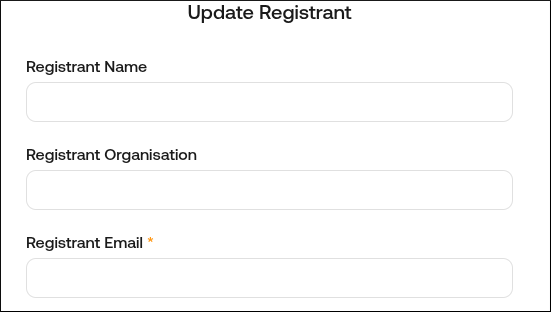
6. Click **Submit**.
## Obtaining an EPP code
If you want to transfer your domain to another registrar, you must obtain an EPP (Extensible Provisioning Protocol) code first. The EPP code is an additional security measure that helps prevent unauthorized domain transfers.
Domain registrars may also refer to the EPP code as the *EPP key*, an *AuthInfo code*, a *transfer secret*, or something similar.
To obtain an EPP code, follow these steps:
1. Log in to the Hosting Panel at [https://theconsole.webcentral.au](https://theconsole.webcentral.au).
2. In the left sidebar, under **Products & Services**, click **Domains**:

3. On the **Domains** page, click the domain you want to configure.
You can filter the list of domains to only display active, canceled, or all domains. To do this, click the **Active**, **Cancelled**, or **All** tab.
4. Click **Get EPP Code (Non-UK Domains)**:

5. The Hosting Panel notifies you that the EPP code has been generated.
The EPP code is sent to the registrant e-mail address for the domain.